
Sea export, from booking to stuffed container.
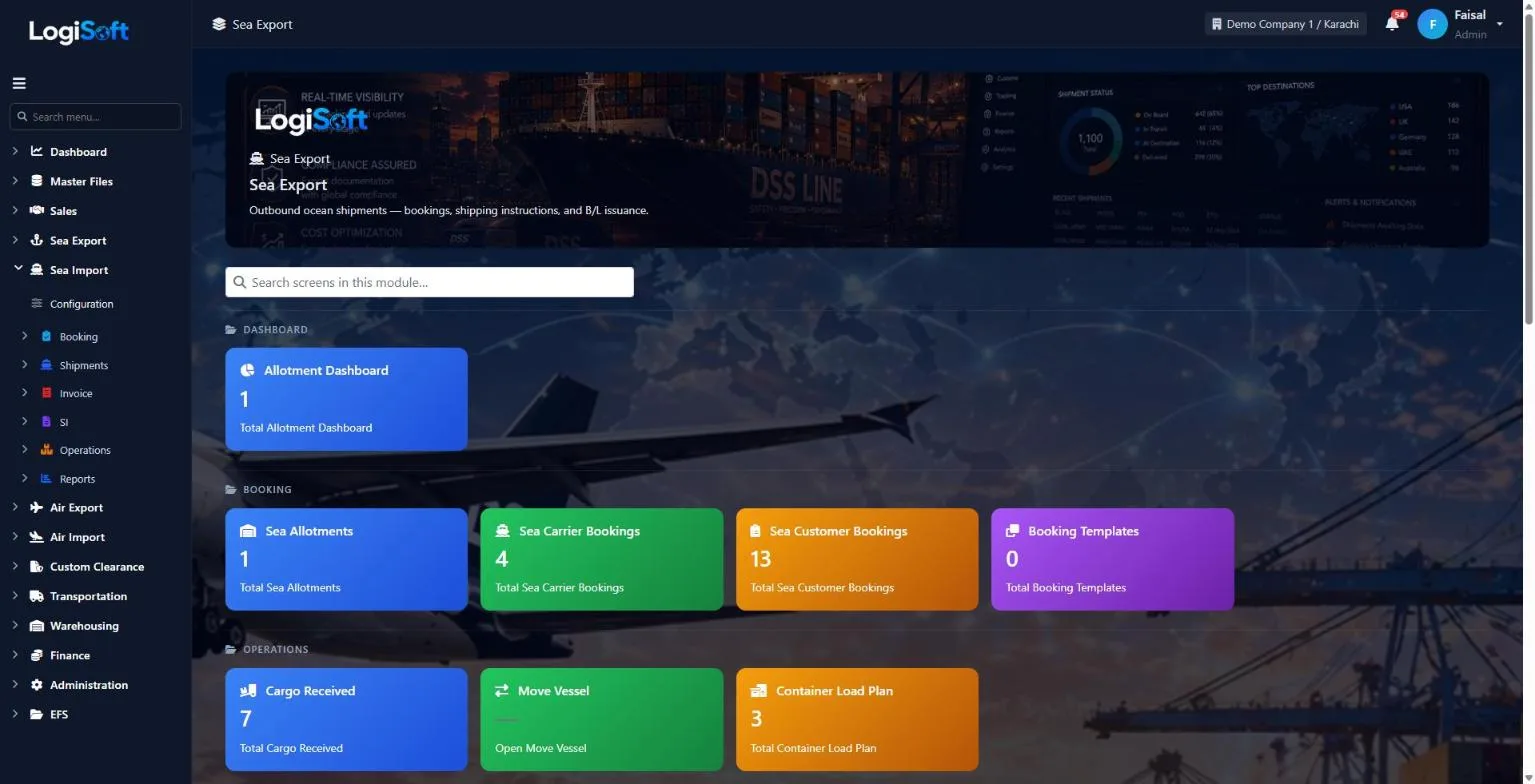
Book the space, receive the cargo at the CFS, move bookings when the vessel changes and plan your LCL containers on one board. We are building this module now; the screens below already work.
- steps working today
- 4
- steps working today
- to move a whole vessel
- 1 click
- to move a whole vessel
- House B/L, Master B/L, FCR
- Next
- House B/L, Master B/L, FCR
How it works
4 steps, one system.
Press ? on any step to read the same help your team sees inside LogiSoft.
- 01
Book with the carrier and the customer
?LogiSoft help
Sea Customer Bookings
Records the booking your customer makes with you for a sea export shipment. This is the upstream record that drives Shipping Instructions, BL issuance, and invoicing later.
A Customer Booking captures the demand — your customer wants to ship cargo and asks you to arrange it. This booking is the source-of-truth record for that shipment until the BL is issued.
Two bookings to keep separate:
- Customer Booking (this screen) = your customer → you. Sell rate captured here.
- Carrier Booking = you → shipping line. Cost rate captured there.
How it links:
- Optionally pull from a pre-purchased [Sea Allotment](/SeaAllotments/Index) — this auto-suggests when you click the magic-wand button
- The system can require an Allotment link or a Carrier Booking link via Module Settings →
Sea.RequireAllotmentLink/Sea.RequireCarrierBookingLink(off by default — see Configuration-driven enforcement)
CBM auto-fill: when you pick a container size on a line (20 / 40 / 40HC / 45), the CBM column fills with the size's standard capacity (33 / 67 / 76 / 86). Override per line if cargo doesn't fill the container. Header Total Volume is auto-summed from the lines.
Common tasks
- 1. Click **+ Add Customer Booking**
- 2. **Header tab**: pick Customer, Carrier, Origin/Destination ports, ETD, ETA, Cut-offs
- 3. **Sea Details tab**: vessel, voyage, BL type (MBL/HBL/Sea Waybill/Express), FCL or LCL
- 4. **Containers tab**: click **+ Add Line** per equipment combination (Size × Type × Qty + CBM)
- 5. **Charges tab**: capture sell rates (and optionally cost rates) for invoicing later
- 6. Save
- 7. **Status / Milestones tab** (after save): mark Confirmed → Cargo Received → Loaded → Sailed → … as the shipment progresses
- 8. Use **Print** action on the list to generate a Booking Confirmation PDF
The same help appears on this screen inside LogiSoft.
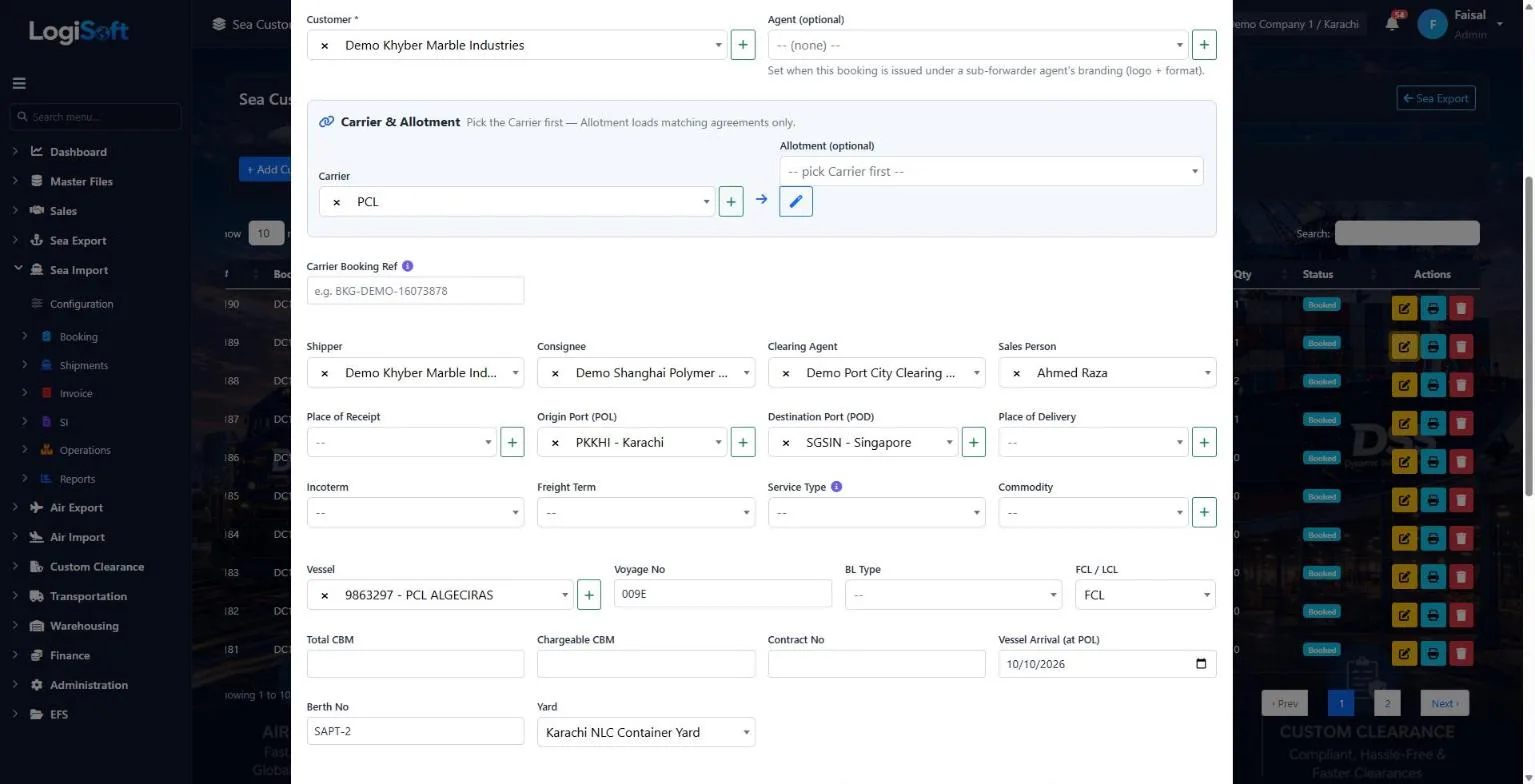
Create the carrier booking, then the customer bookings that sell the space, with the loading program on the same form.
- Customer, shipper, consignee, clearing agent and salesperson
- Carrier, allotment, vessel, voyage, ports and FCL / LCL
- Loading program: vessel arrival at POL, berth and yard
- 02
Receive the cargo at the CFS
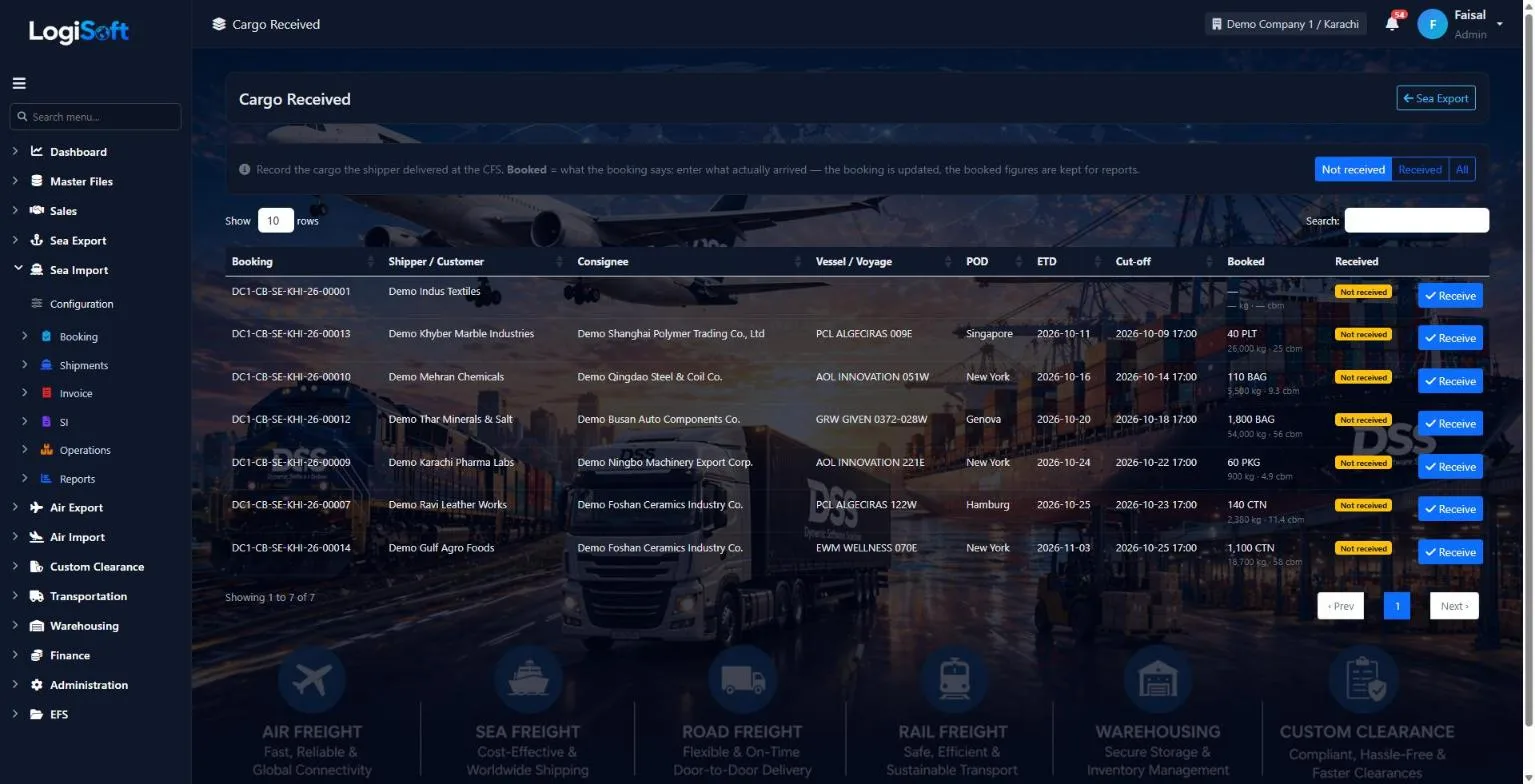
Record what the shipper actually delivered. The booking is updated, and the booked figures are kept for your reports.
- Booked against received packages, weight and CBM
- Not received, received or all bookings, with cut-off times
- One click to receive a booking
- 03
Move bookings to another vessel
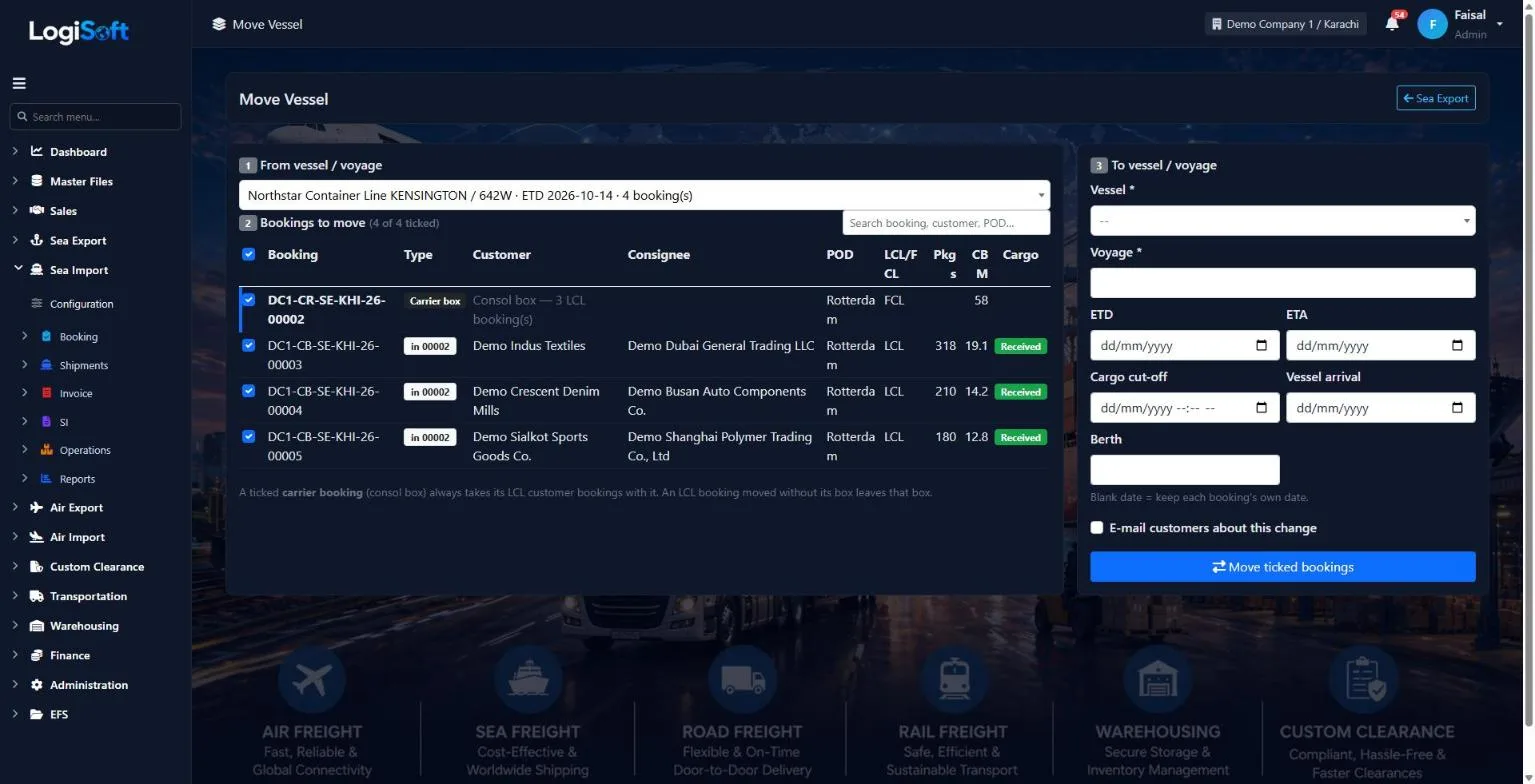
When a vessel or voyage changes, pick the old voyage, tick the bookings and move them to the new one together.
- A consol box always takes its LCL customer bookings with it
- New vessel, voyage, ETD, ETA, cargo cut-off and berth
- Option to e-mail customers about the change
- 04
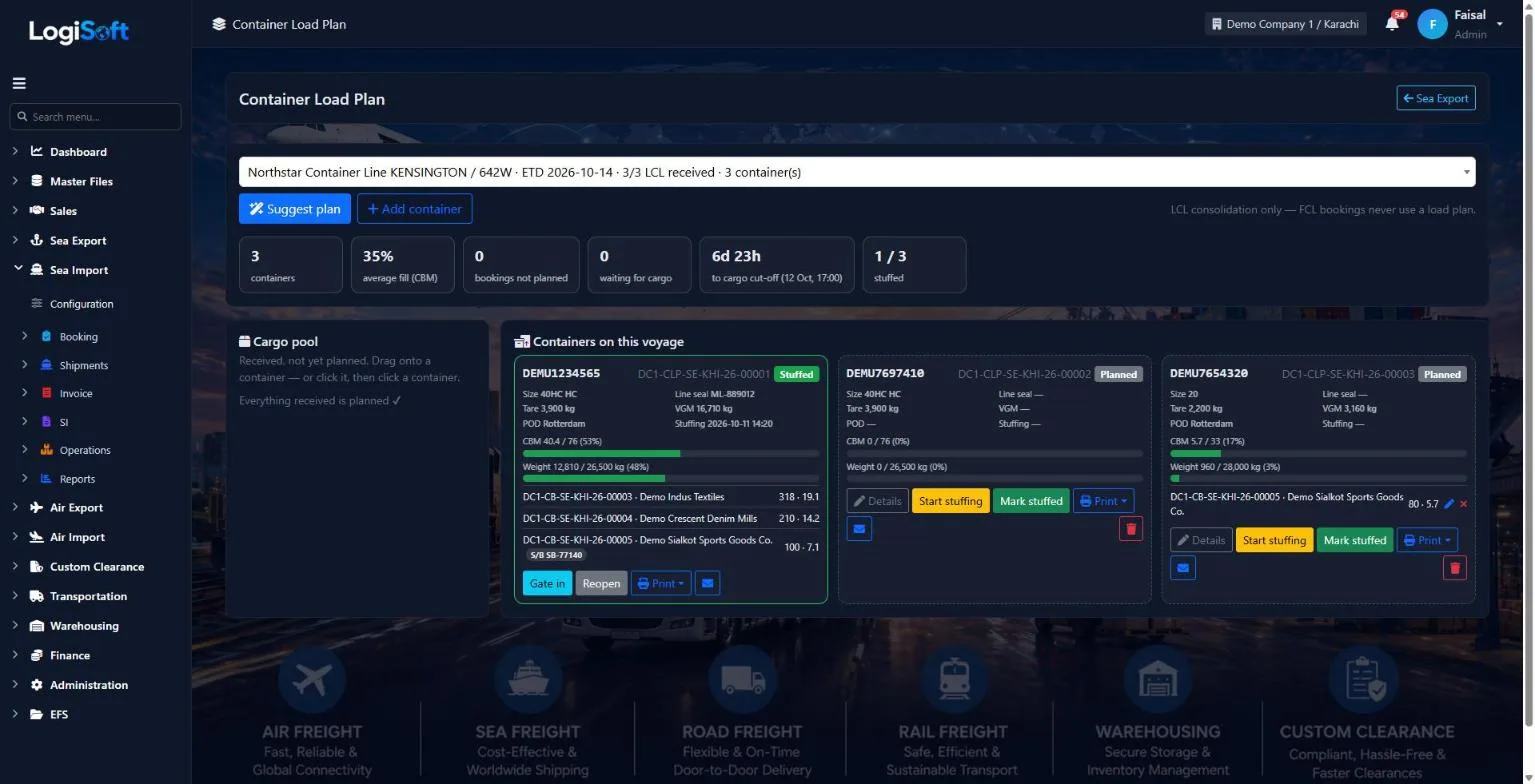
Plan your LCL containers
Received cargo waits in the pool. Drag it onto a container, or let LogiSoft suggest the plan, and watch the fill by CBM and weight.
- Suggest plan, or drag and drop each booking
- CBM and weight fill bars, and time left to cargo cut-off
- Planned, stuffing, stuffed and gated in, with line seal, tare and VGM
- Print or e-mail the load plan
Every screen
14 screens in Sea Export.
The complete list of screens in this module, described in LogiSoft's own help. Press ? for the full explanation.
Dashboard
-
Sea Export Dashboard
?LogiSoft help
Sea Export
Handle outbound sea cargo: bookings, allotments, container loading, SI to carrier.
The Sea Export module covers the full outbound sea-cargo lifecycle.
- Allotments — pre-purchased space from carriers; pool of TEUs.
- Customer Booking — confirms space for a specific shipper.
- Carrier Booking — your booking against the shipping line.
- Shipping Instructions — sent to the carrier after CY cutoff.
Common tasks
- Negotiate allotments with carriers monthly
- Open Customer Booking when a shipper confirms a load
- Match it to a Carrier Booking (or auto-suggest from allotments)
- Send SI to the carrier once cargo is in CY
- Mark milestones (Loaded, Sailed, Discharged)
The same help appears on this screen inside LogiSoft.
Handle outbound sea cargo: bookings, allotments, container loading, SI to carrier.
-
Allotment Dashboard
?LogiSoft help
Allotment Dashboard
Live capacity utilization across all carriers, lanes, periods, and modes. Two views: equipment-first (default) and period-first.
Allotment Dashboard is the cockpit view of every allotment in the system. Shows at a glance:
- How much capacity is allocated, used, available
- Utilization % with color coding (🟢 <60% / 🟡 60–85% / 🔴 >85%)
- Days remaining in the period
- MQC penalty exposure (if MQC tracking is enabled on that allotment)
Two opposite kinds of risk visible on one screen:
- Operational risk (🔴 red): allotment nearly exhausted, no space for new customers
- Commercial risk (⚠ warn-low): allotment underused, MQC penalty looming if not consumed
Filter by Mode (Sea/Air/Road), Carrier, Date range. Click any row to drill into the per-equipment capacity breakdown.
Common tasks
- 1. Open the dashboard — filters at the top
- 2. Skim the table for 🔴 (act now) or ⚠ (commercial risk)
- 3. Click a row to see equipment-level breakdown
- 4. Click "Open Allotment" to edit if needed
The same help appears on this screen inside LogiSoft.
Live capacity utilization across all carriers, lanes, periods, and modes. Two views: equipment-first (default) and period-first.
Booking
-
Sea Allotments
?LogiSoft help
Sea Allotments
Allotments are pre-purchased space and locked rates from a shipping line for a period of time. Customer bookings draw from this stock.
An Allotment is the commercial commitment between you and a shipping line: e.g. "Maersk gives me 100 TEU on the AE7 service Karachi → Jebel Ali for the month of June at $1,450 per 40HC". You commit to the volume; in return you get guaranteed space + locked rates.
Industry terminology — same idea, different names:
- Sea: Service Contract, MQC (Minimum Quantity Commitment), BSA (Block Space Agreement)
- Air: Allotment, Hard/Soft Allotment
- Road: Lane Commitment
Key features in LogiSoft:
- Capacities tab — break the total into per-equipment lines (e.g. 100×40HC + 50×20DV)
- MQC (optional) — track penalty exposure if you don't meet the commitment
- Roll-over policy — bookings stay on the original allotment period when a vessel rolls (industry default)
- Equipment-first dashboard view — see at a glance: "Maersk Karachi→Jebel Ali, 40HC: 28/100 available"
Allotments are optional. Customer bookings can run "spot" without one — you just won't get rate/capacity benefits.
Common tasks
- 1. Click **+ Add Allotment**
- 2. **Header tab**: Carrier, Service Code, Origin/Destination ports, Period Start/End, Total Commitment, Currency, Contract Rate
- 3. **Capacities tab**: click **+ Add Line** for each Size × Type combination with quantity (and optional unit rate if it differs from header)
- 4. **MQC / Notes tab** (optional): turn on MQC tracking and set a penalty rate if your contract has one
- 5. Save
- 6. Open [Allotment Dashboard](/AllotmentsDashboard/Index) to see utilization across all carriers
- 7. When creating a Customer Booking later, the magic-wand button auto-suggests this allotment if the carrier+lane+period match
The same help appears on this screen inside LogiSoft.
Allotments are pre-purchased space and locked rates from a shipping line for a period of time. Customer bookings draw from this stock.
-
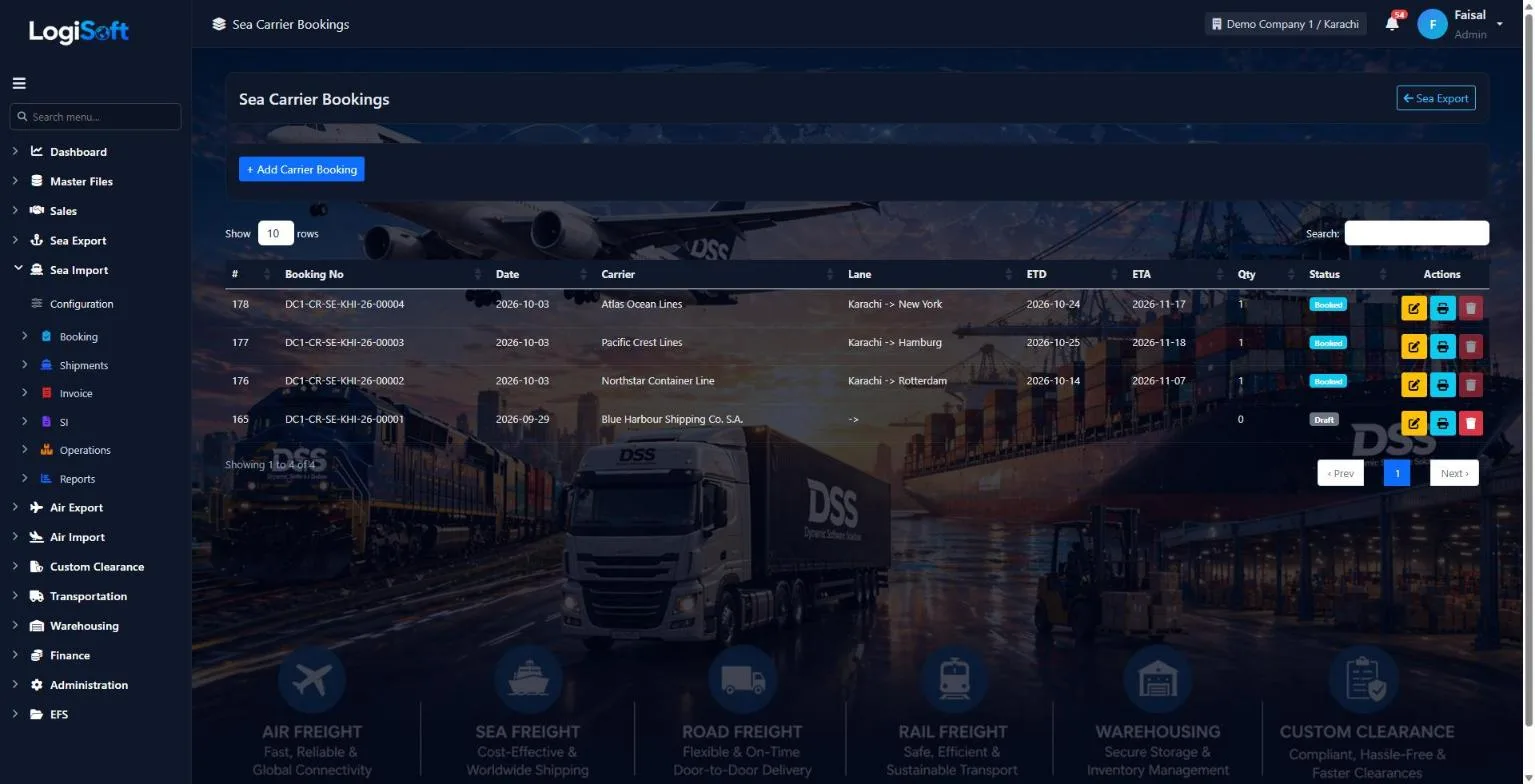
Sea Carrier Bookings
?LogiSoft help
Sea Carrier Bookings
Records the booking YOU place with the shipping line. The cost-side counterpart of Sea Customer Bookings.
A Carrier Booking is what you submit to the shipping line (e.g. Maersk, MSC) to reserve actual space. It carries the cost rate and the carrier's confirmation reference.
How it relates to Customer Bookings:
- One Carrier Booking can serve multiple Customer Bookings (consolidation)
- One Customer Booking can be split across multiple Carrier Bookings (rolling)
- Optionally pulls from a pre-purchased Sea Allotment for guaranteed space + locked rate
Status updates flow the same way as Customer Bookings — locked status field on header, all changes via the Tracking tab.
Common tasks
- 1. Click **+ Add Carrier Booking**
- 2. Pick Carrier and lane (origin/destination ports)
- 3. Enter vessel + voyage + cut-offs
- 4. Container lines (Size × Type × Qty + CBM)
- 5. Capture cost charges
- 6. Save and use Tracking tab as the carrier confirms / vessel sails
The same help appears on this screen inside LogiSoft.
Records the booking YOU place with the shipping line. The cost-side counterpart of Sea Customer Bookings.
-
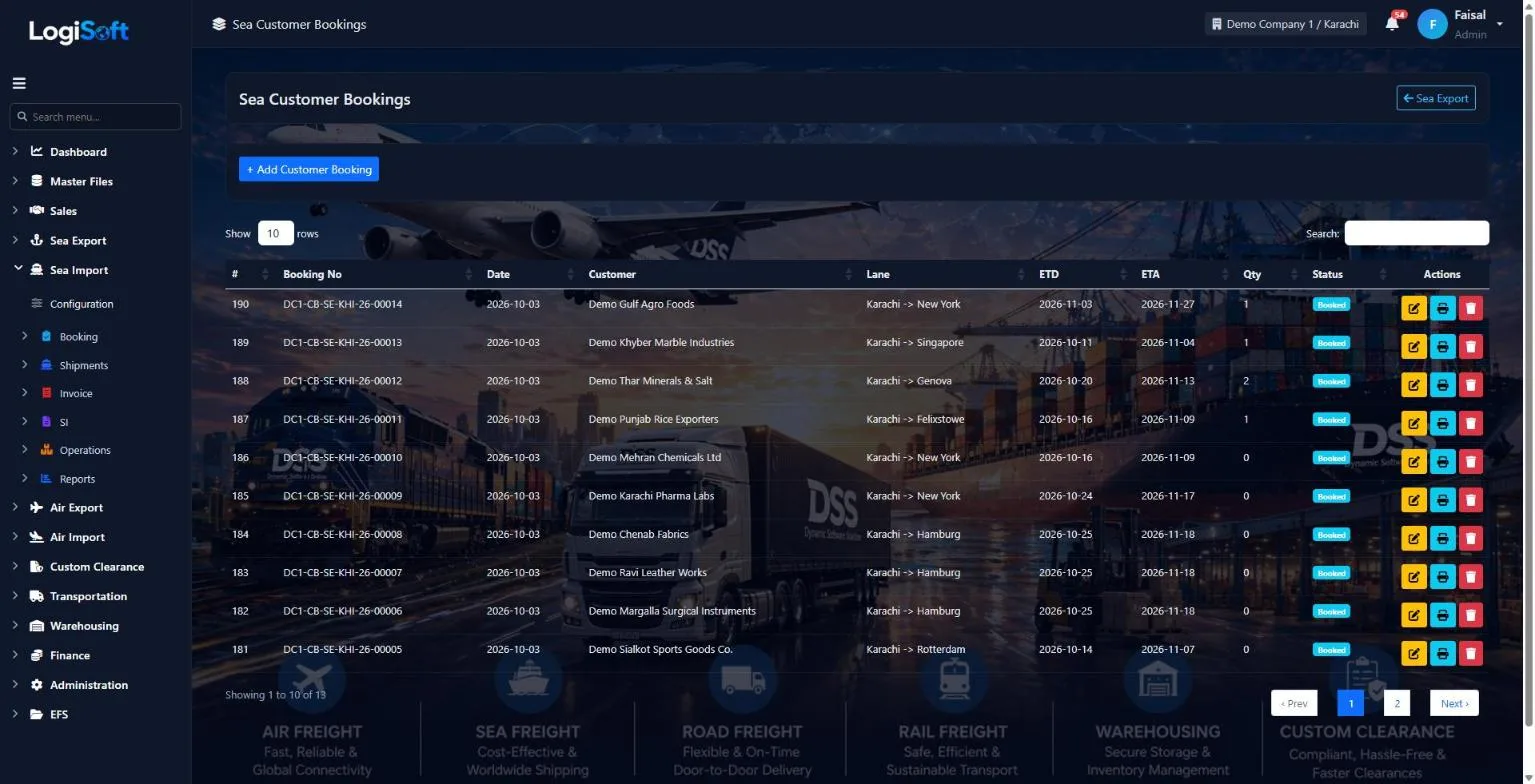
Sea Customer Bookings
?LogiSoft help
Sea Customer Bookings
Records the booking your customer makes with you for a sea export shipment. This is the upstream record that drives Shipping Instructions, BL issuance, and invoicing later.
A Customer Booking captures the demand — your customer wants to ship cargo and asks you to arrange it. This booking is the source-of-truth record for that shipment until the BL is issued.
Two bookings to keep separate:
- Customer Booking (this screen) = your customer → you. Sell rate captured here.
- Carrier Booking = you → shipping line. Cost rate captured there.
How it links:
- Optionally pull from a pre-purchased [Sea Allotment](/SeaAllotments/Index) — this auto-suggests when you click the magic-wand button
- The system can require an Allotment link or a Carrier Booking link via Module Settings →
Sea.RequireAllotmentLink/Sea.RequireCarrierBookingLink(off by default — see Configuration-driven enforcement)
CBM auto-fill: when you pick a container size on a line (20 / 40 / 40HC / 45), the CBM column fills with the size's standard capacity (33 / 67 / 76 / 86). Override per line if cargo doesn't fill the container. Header Total Volume is auto-summed from the lines.
Common tasks
- 1. Click **+ Add Customer Booking**
- 2. **Header tab**: pick Customer, Carrier, Origin/Destination ports, ETD, ETA, Cut-offs
- 3. **Sea Details tab**: vessel, voyage, BL type (MBL/HBL/Sea Waybill/Express), FCL or LCL
- 4. **Containers tab**: click **+ Add Line** per equipment combination (Size × Type × Qty + CBM)
- 5. **Charges tab**: capture sell rates (and optionally cost rates) for invoicing later
- 6. Save
- 7. **Status / Milestones tab** (after save): mark Confirmed → Cargo Received → Loaded → Sailed → … as the shipment progresses
- 8. Use **Print** action on the list to generate a Booking Confirmation PDF
The same help appears on this screen inside LogiSoft.
Records the booking your customer makes with you for a sea export shipment. This is the upstream record that drives Shipping Instructions, BL issuance, and invoicing later.
-
Booking Templates
?LogiSoft help
Booking Templates
Save a recurring shipper's booking as a reusable template. Cuts data entry for weekly / monthly repeat bookings.
Booking Templates save the standard fields of a booking (customer, route, equipment, charges, incoterm, freight term, commodity, description) so the next booking for the same recurring shipper takes 5 seconds instead of 5 minutes.
Cross-mode: one template per (Mode, BookingType, Name) — a Sea Customer Booking template is separate from an Air Customer Booking template even if for the same customer.
Common tasks
- 1. Click **+ Add Template**
- 2. Enter Name (e.g. "ABC Trading - Weekly KHI/JEA 2x40HC")
- 3. Pick Mode + BookingType + Customer + Carrier + Origin/Destination + Service Type + Incoterm + Freight Term + Commodity
- 4. Save
- 5. Later: when creating a new booking, click "New from Template" and pick this template — fields auto-populate
The same help appears on this screen inside LogiSoft.
Save a recurring shipper's booking as a reusable template. Cuts data entry for weekly / monthly repeat bookings.
Operations
-
Cargo Received
Part of the Sea Export module.
-
Move Vessel
Part of the Sea Export module.
-
Container Load Plan
Part of the Sea Export module.
Documents
-
Sea SI Inbound
?LogiSoft help
Sea SI — Inbound (from Customer)
Track which customers have submitted Shipping Instructions for their bookings, and which haven't. Critical when handling 500+ shipments per month.
SI Inbound tracking answers a single question: which of my customers still owe me a Shipping Instruction for this voyage?
Each row represents one Customer Booking. Status colors:
- 🟢 Received — customer sent the SI
- 🟡 Pending — within the cut-off window
- 🔴 Late — past the SI cut-off
Mark received: click the upload button, attach the customer's SI document (PDF/image), add notes, save. The document is stored linked to the booking. Bulk-select rows to send email reminders via the existing Email Templates engine.
Common tasks
- 1. Filter by vessel/voyage to focus on next sailing
- 2. Find the row with status "Pending" or "Late"
- 3. Click ⬆ upload icon → attach SI PDF → save
- 4. For pending ones: tick rows + click "Bulk Email Reminders"
The same help appears on this screen inside LogiSoft.
Track which customers have submitted Shipping Instructions for their bookings, and which haven't. Critical when handling 500+ shipments per month.
-
Sea SI Outbound
?LogiSoft help
Sea SI — Outbound (to Carrier)
Track which Shipping Instructions you've forwarded to the shipping line. Closes the loop after receiving SI from customer.
SI Outbound tracking is the second half of the SI workflow. After receiving SI from a customer, you forward it to the carrier (typically by email with PDF attachment, sometimes via EDI).
Status colors:
- 🟢 Sent — SI submitted to carrier
- ⚠ Awaiting Customer — can't send because customer hasn't given us the SI yet
- 🟡 Pending — have customer SI; not yet sent
- 🔴 Overdue — past carrier cut-off; risk of missed sailing
The bulk-send action consolidates multiple bookings on the same vessel/voyage into one PDF attachment to the carrier — much faster than per-booking emails.
Common tasks
- 1. Filter by vessel
- 2. Tick rows whose customer SI is received
- 3. Click "Send Selected to Carrier" → consolidates into one email + PDF
- 4. System stamps SentToCarrierOn timestamp
- 5. When carrier confirms, mark CarrierConfirmedOn (optional)
The same help appears on this screen inside LogiSoft.
Track which Shipping Instructions you've forwarded to the shipping line. Closes the loop after receiving SI from customer.
SI
-
Sea SI Request
?LogiSoft help
Sea SI Request
Email customers/agents asking them to send Shipping Instructions for Sea bookings.
Shows Sea bookings that are still missing a customer SI. Click Send Request on a row to email the configured recipient (Customer for Export; configurable Shipper/Consignee/OriginAgent for Import). The booking's SI Request Sent checkbox auto-ticks once the email goes out.
Common tasks
- Filter to one branch using the Branch filter.\n- Click Send Request on a booking row.\n- The recipient is determined by Direction: Customer for Export, configurable for Import (see ModuleSettings *Import.RequestSiTo*).
The same help appears on this screen inside LogiSoft.
Email customers/agents asking them to send Shipping Instructions for Sea bookings.
Tracking
-
Sea Tracking
?LogiSoft help
Sea Tracking
Update milestone status (Confirmed / Sailed / Arrived / Delivered etc.) for Sea bookings.
Lists Sea bookings of any direction (Import + Export). Each row has quick-action milestone buttons; clicking one logs that milestone with the current timestamp and updates the booking's status badge. Branch-scoped to your allowed branches.
Common tasks
- Pick a booking row.\n- Click the milestone button matching the event (Sailed, Arrived, etc.).\n- The booking's tracking timeline auto-records the click.
The same help appears on this screen inside LogiSoft.
Update milestone status (Confirmed / Sailed / Arrived / Delivered etc.) for Sea bookings.
Settings
-
Configuration
?LogiSoft help
Sea Export — Configuration
Module-specific settings for Sea Export.
Settings that apply across the entire Sea Export module. Each setting is grouped under a Category tab — pick the tab, change the value, click Save Settings.
Common tasks
- Browse the tabs to see what's configurable
- Change a setting and Save
The same help appears on this screen inside LogiSoft.
Module-specific settings for Sea Export.
What's included
Everything in the Sea Export module.
Bookings
- Carrier and customer bookings
- Consol boxes with LCL customer bookings
- Loading program fields
- Allotments and booking templates
Cargo
- Cargo received at the CFS
- Booked figures kept for reports
- Move vessel in bulk
- E-mail customers about changes
Load plan
- Suggested container plan
- Drag-and-drop planning
- Fill by CBM and weight
- Stuffing status, seals and VGM
- House B/L
- Master B/L
- FCR (Forwarder's Cargo Receipt)
- Sea export invoicing
Is Sea Export ready to use?
Not fully yet. Bookings, cargo received, move vessel and the container load plan work today. House B/L, Master B/L and FCR are being built next, followed by invoicing.
Does the load plan work for FCL?
No. The load plan is for LCL consolidation; FCL bookings never use one.
What happens to the booking when the cargo arrives different from what was booked?
You enter what actually arrived and the booking is updated. The originally booked figures are kept, so your reports can compare the two.
Works together with
See all features →Sea Import
Book space against your carrier contracts, sell it to customers, collect shipping instructions, open the Master and House B/Ls, track every milestone and invoice the job, all in one flow.
Explore Sea ImportWarehousing
Receive, store and deliver goods for your customers, with stock tracked by warehouse, owner, product, batch and location.
Explore WarehousingMaster Files
Every list your team picks from, kept in one place: parties, ports, cities, HS codes, currencies, container types and more, with imports so you do not start from scratch.
Explore Master FilesReady to retire your desktop freight tools?
See LogiSoft on your own workflow in a 30-minute screen share with the founder. No commitment.