
Win more freight business, in the same system.
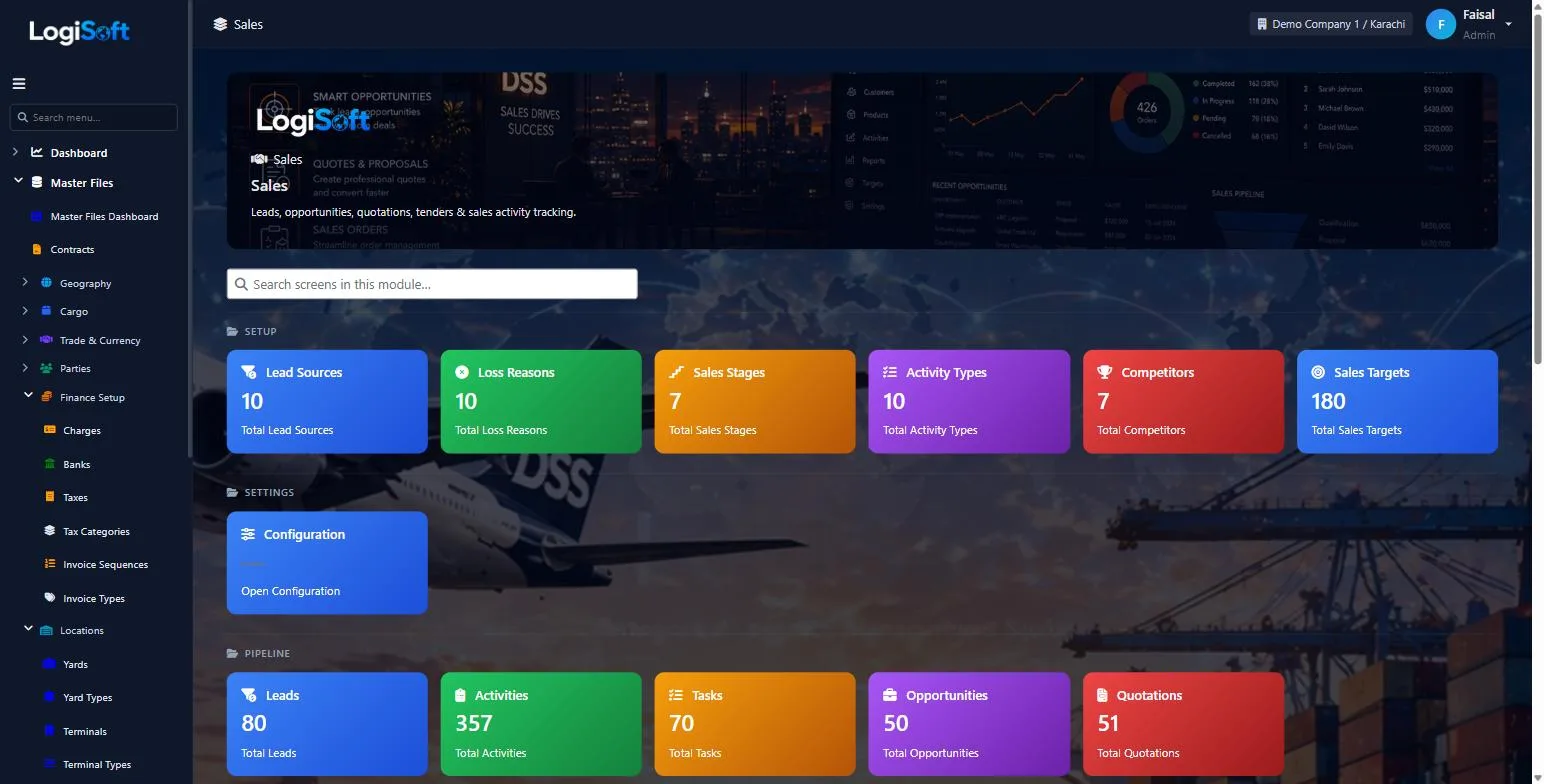
Your sales team works in the same system as operations and accounts: leads, opportunities, quotations and tenders, with a clear pipeline for every salesperson.
- pipeline stages
- 7
- pipeline stages
- sales reports
- 5
- sales reports
- mobile visits
- GPS
- mobile visits
How it works
4 steps, one system.
Press ? on any step to read the same help your team sees inside LogiSoft.
- 01
Follow every opportunity
?LogiSoft help
Opportunities
Pipeline deals — qualified opportunities you're working to win. Tracked by stage, value, probability, and close date.
An Opportunity is a deal in your pipeline. Each opportunity has:
- Customer (or Lead, if pre-conversion)
- Stage (Sales Stages master — drives the pipeline view)
- Estimated value, probability %, expected close date
- Services Junction — tick which services are in scope (sea / air / road / warehousing / customs / etc.)
- Win/Loss tracking on close
Reports: Pipeline by Stage (probability-weighted), Conversion Funnel, Win/Loss Analysis.
Common tasks
- 1. **+ Add Opportunity** → 3-tab form (Basic / Deal / Close)
- 2. Pick Customer, Stage, Value, Probability, Expected Close
- 3. Tick Services in scope
- 4. Save and update stage as deal progresses
The same help appears on this screen inside LogiSoft.
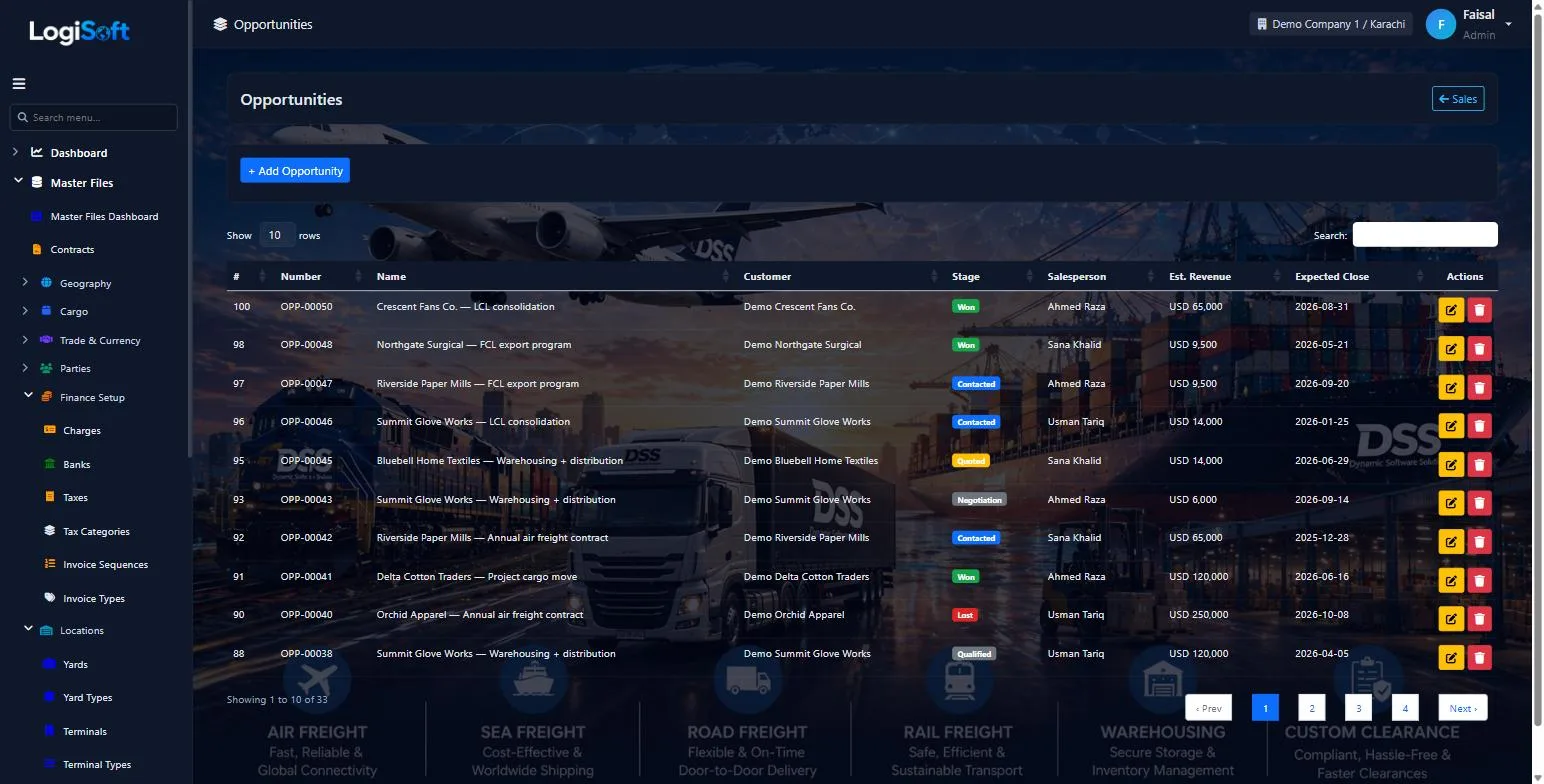
Each opportunity has a customer, a stage, a salesperson, an estimated value and an expected close date.
- Stages from lead and contacted to won or lost
- Loss reasons so you learn from lost deals
- Competitors recorded per deal
- 02
Send quotations and keep every version
?LogiSoft help
Quotations
Detailed price quotes to customers with line items, multi-currency, versioning.
A Quotation is a formal price offer to a customer. Multi-line: each line has commodity, qty, rate (in line currency), FX rate to header currency, min charge floor, tax. Header total auto-sums.
Versioning: when you need to revise a quote, the New Version action copies all lines into a new record (VersionNumber+1, ParentQuotationId set), marks the old version as "Superseded". The QuotationNumber stays the same — the version is what differs.
Common tasks
- 1. **+ Add Quotation** → header (customer, validity, currency)
- 2. Add lines: pick charge, qty × rate × FX → auto-computed amount
- 3. Save
- 4. To revise: click **New Version** → copies all lines, increments version, supersedes old
The same help appears on this screen inside LogiSoft.
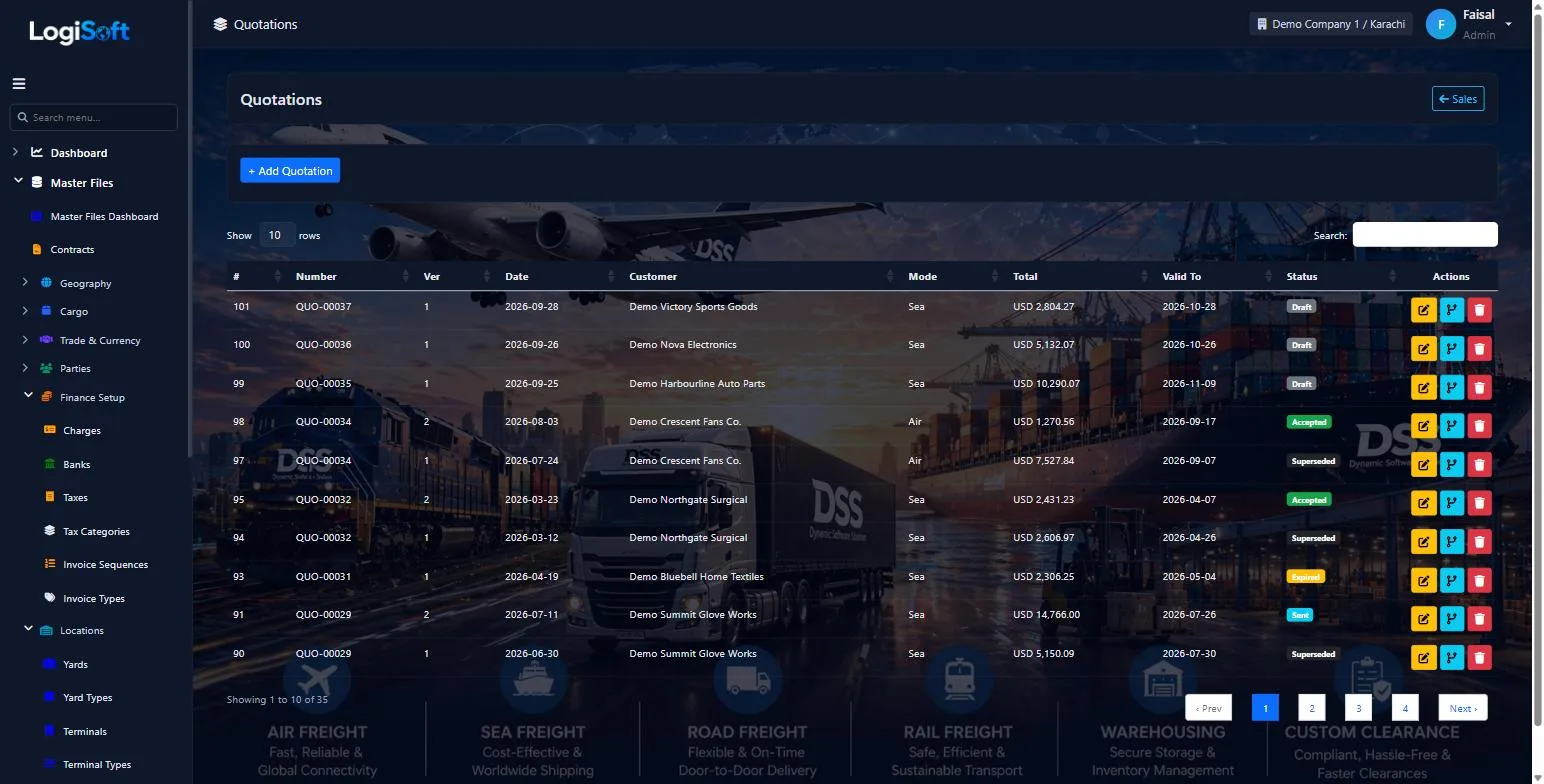
Revise a quotation and the earlier version is kept as superseded, so you always know what the customer was offered.
- Draft, sent, accepted, expired and superseded
- Sea and air quotations
- Validity date on every quote
- 03
Measure the pipeline
?LogiSoft help
Sales Reports
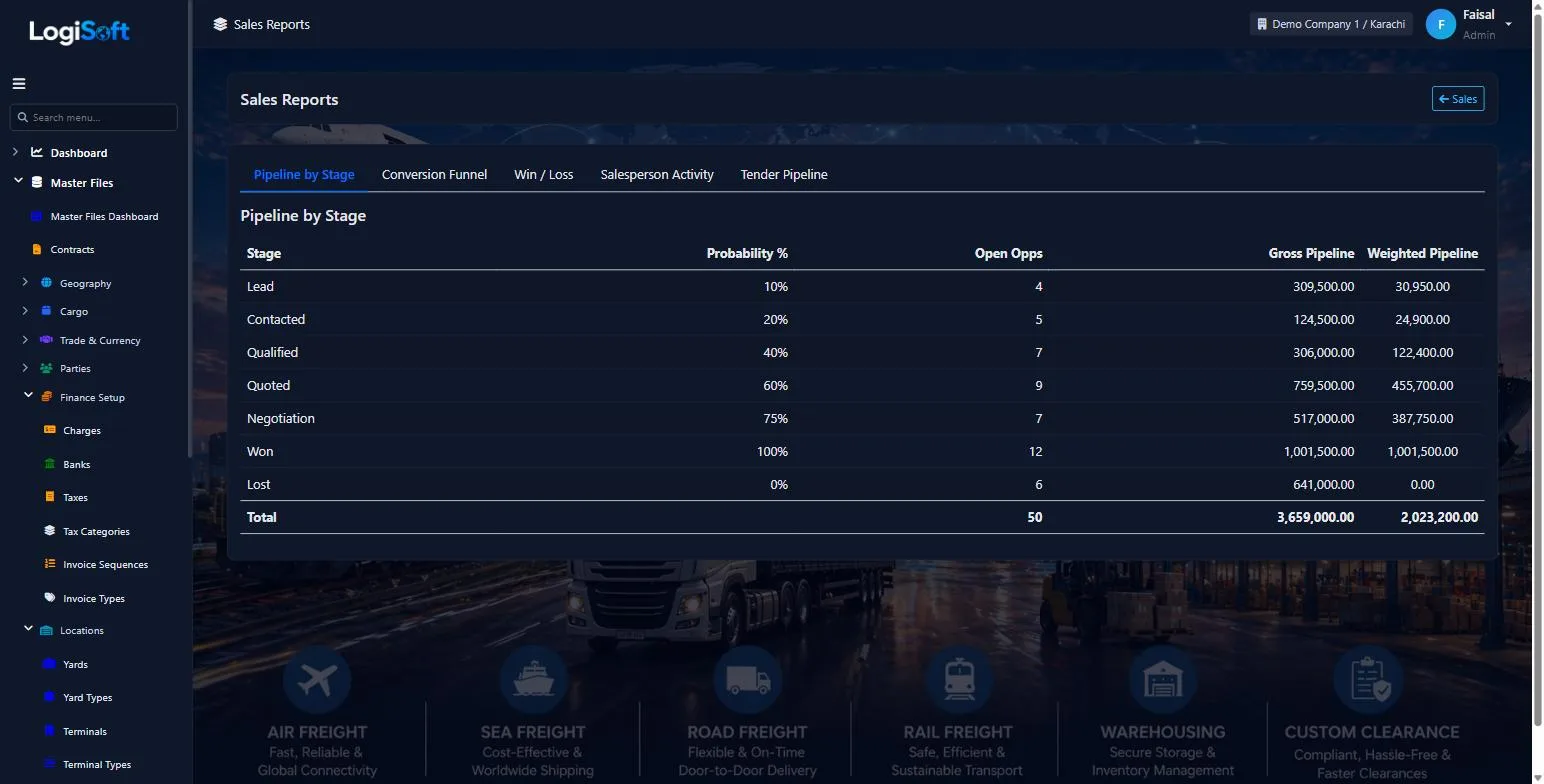
Tabbed dashboard with 5 reports: Pipeline by Stage, Conversion Funnel, Win/Loss, Salesperson Activity, Tender Pipeline.
Sales Reports is a single screen with 5 tabs:
- Pipeline by Stage — bar chart of opportunity value per stage, probability-weighted
- Conversion Funnel — Lead → Contacted → Qualified → Converted with conversion %
- Win/Loss Analysis — closed opportunities + reason
- Salesperson Activity — activities per rep over time
- Tender Pipeline — open tenders with days-to-deadline urgency
Each tab is filterable (date range, salesperson). Reports refresh on filter change.
Common tasks
- 1. Pick a tab
- 2. Adjust date range / salesperson filters
- 3. Read the chart / table
The same help appears on this screen inside LogiSoft.
See the gross and weighted value at every stage, conversion, win/loss and what each salesperson is doing.
- Pipeline by stage
- Conversion funnel
- Win / loss
- Salesperson activity
- Tender pipeline
- 04
Log visits from the field
?LogiSoft help
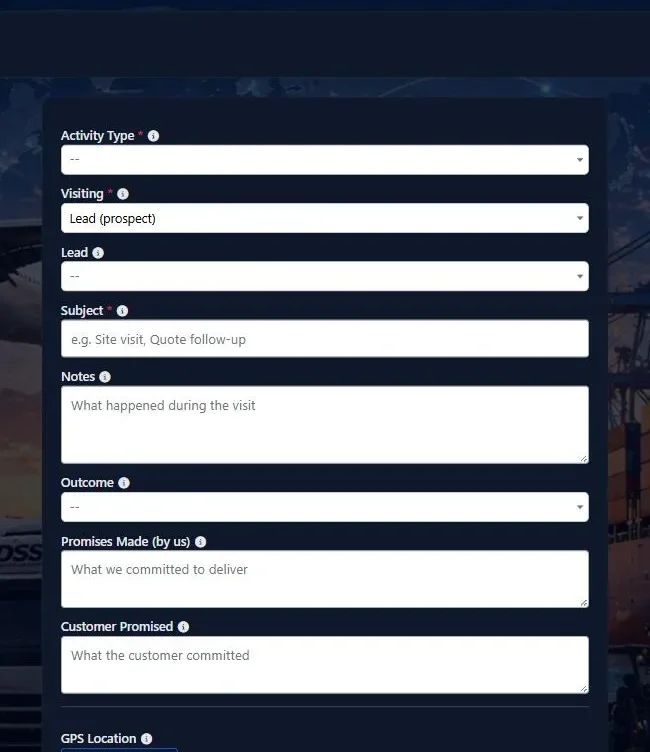
Mobile Visit
Mobile-optimized customer visit logging — large touch targets, GPS capture, quick follow-up scheduling.
Mobile Visit is a single-screen visit logger built for in-the-field use. Sales reps open it on their phone while at a customer's office:
- Pick the customer (or lead/opportunity)
- Tap "Capture GPS" → location auto-recorded
- Add visit notes, promises, agreed actions
- Optionally schedule a follow-up task in one click
Layout is single-column, large fonts (1.05rem), large padding on inputs/buttons. Works on any phone browser.
Common tasks
- 1. Open on phone after meeting customer
- 2. Pick customer/lead from dropdown
- 3. Type notes
- 4. Tap Capture GPS to record where you were
- 5. Tick "Schedule follow-up" if needed
- 6. Save
The same help appears on this screen inside LogiSoft.
Reps record each customer visit from their phone, with notes, outcome, promises on both sides and their GPS location.
Every screen
16 screens in Sales CRM.
The complete list of screens in this module, described in LogiSoft's own help. Press ? for the full explanation.
Dashboard
-
Sales Dashboard
?LogiSoft help
Sales
CRM pipeline: Leads → Opportunities → Quotations → Tenders → Contracts. Activities, tasks, sales reports.
The Sales module is the full CRM pipeline plus the rate-management layer.
- Leads — top of funnel; raw prospects.
- Opportunities — qualified leads with a $ value.
- Quotations — versioned quotes (Parent / Version pattern).
- Tenders — multi-lane RFQ responses.
- Contracts — signed rate agreements with surcharges.
- Activities + Tasks — calls, visits, follow-ups.
- Mobile Visit — field-friendly visit-log screen.
Common tasks
- Capture a Lead from any source
- Convert promising Leads to Opportunities
- Issue a Quotation; revise as a new Version if needed
- Win → create a Contract with locked rates
The same help appears on this screen inside LogiSoft.
CRM pipeline: Leads → Opportunities → Quotations → Tenders → Contracts. Activities, tasks, sales reports.
Setup
-
Lead Sources
?LogiSoft help
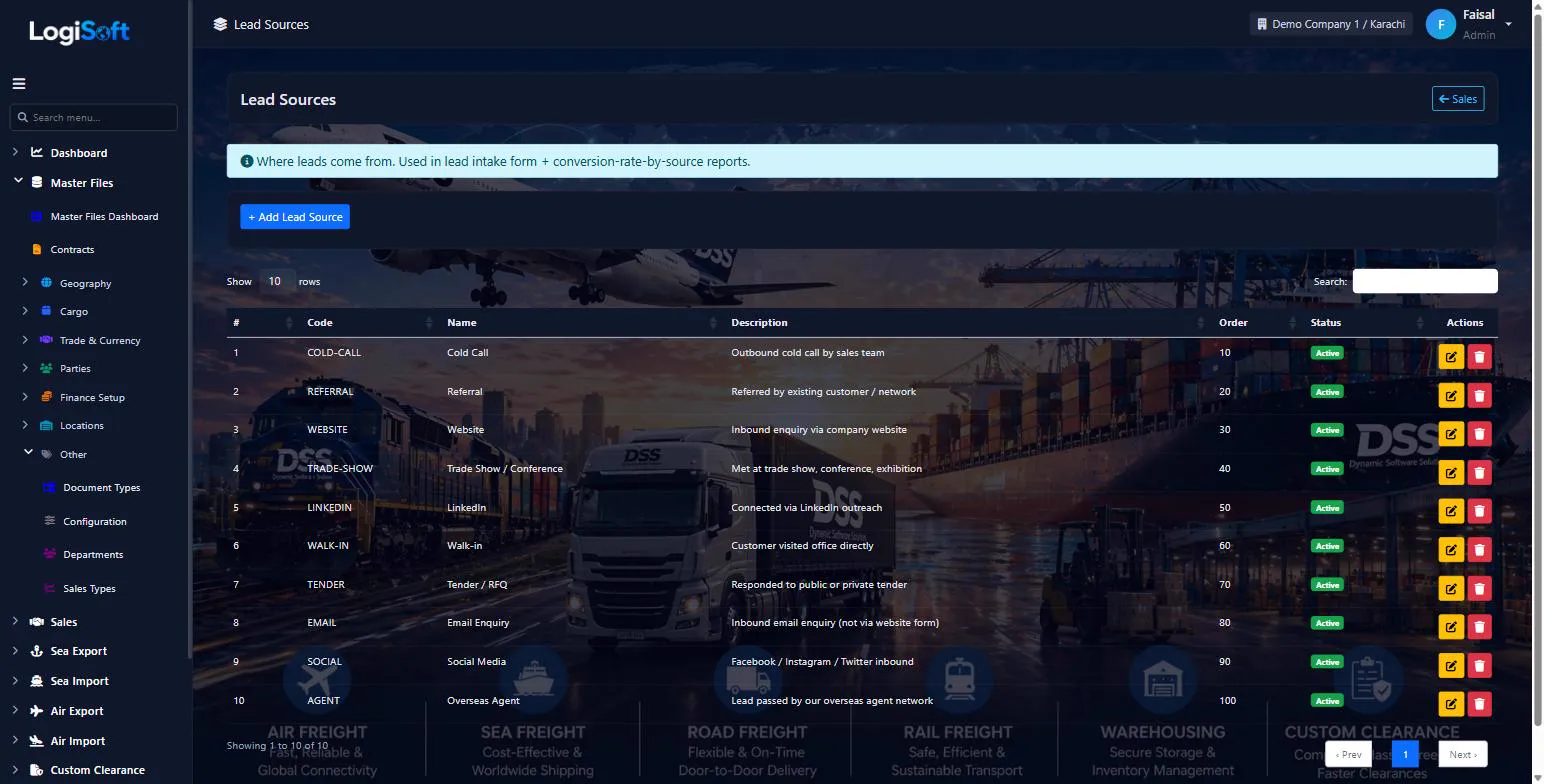
Lead Sources
Where leads come from (Cold Call / Referral / Website / Trade Show / etc.).
Lead Sources classify how a lead found you. Used in conversion funnel reports to see which sources convert best.
Common tasks
- 1. **+ Add Lead Source** → enter Name (e.g. "LinkedIn", "Trade Show — Karachi Logistics Expo")
The same help appears on this screen inside LogiSoft.
Where leads come from (Cold Call / Referral / Website / Trade Show / etc.).
-
Loss Reasons
?LogiSoft help
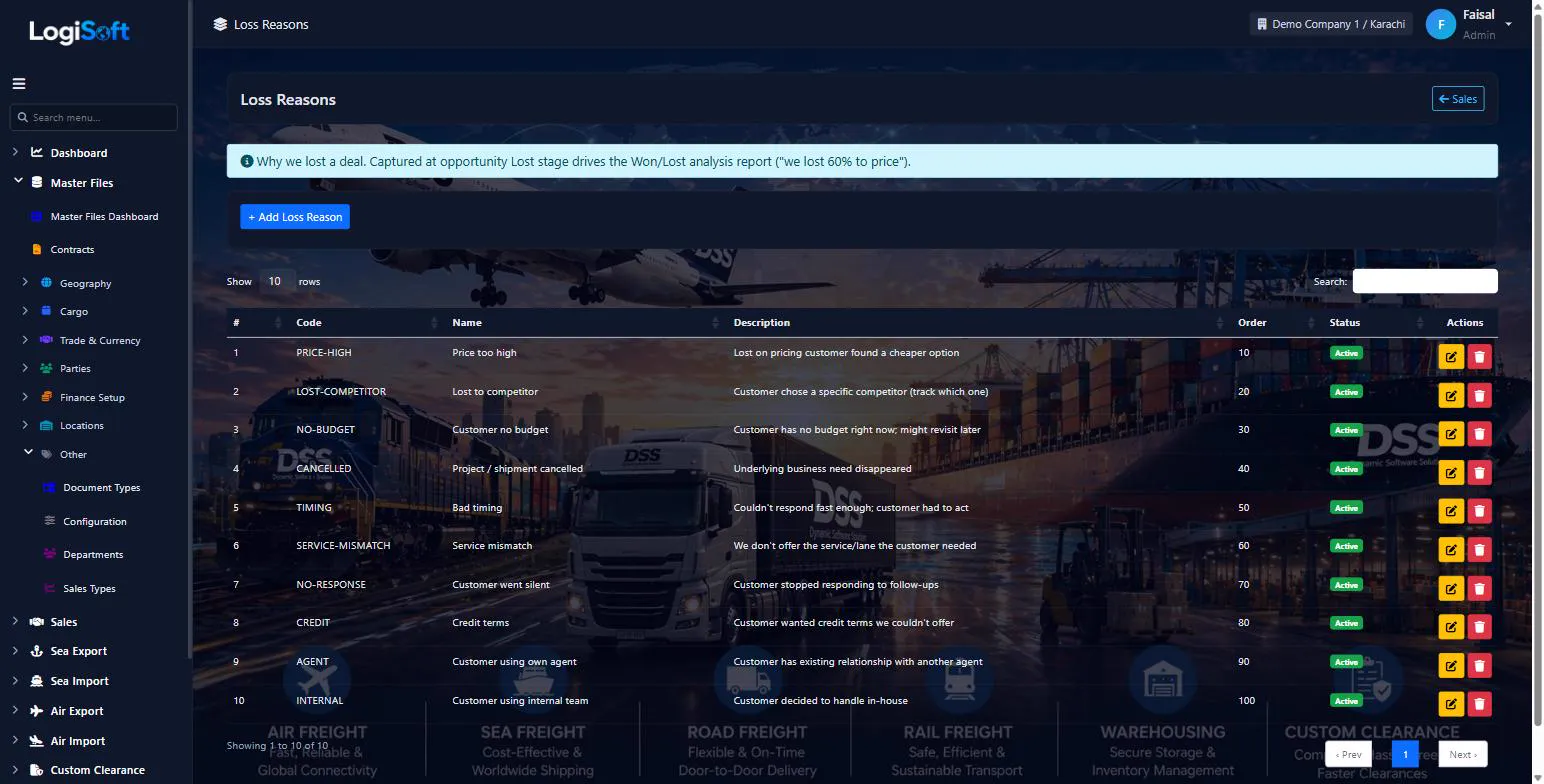
Loss Reasons
Why deals are lost (Price / Service / Competitor / No Decision / etc.). Categorize disqualified leads and lost opportunities.
Loss Reasons classify why a Lead was disqualified or an Opportunity was lost. Drives Win/Loss analysis report — shows where you're losing on price vs. service vs. timing.
Common tasks
- 1. **+ Add Loss Reason** → name + optional description
The same help appears on this screen inside LogiSoft.
Why deals are lost (Price / Service / Competitor / No Decision / etc.). Categorize disqualified leads and lost opportunities.
-
Sales Stages
?LogiSoft help
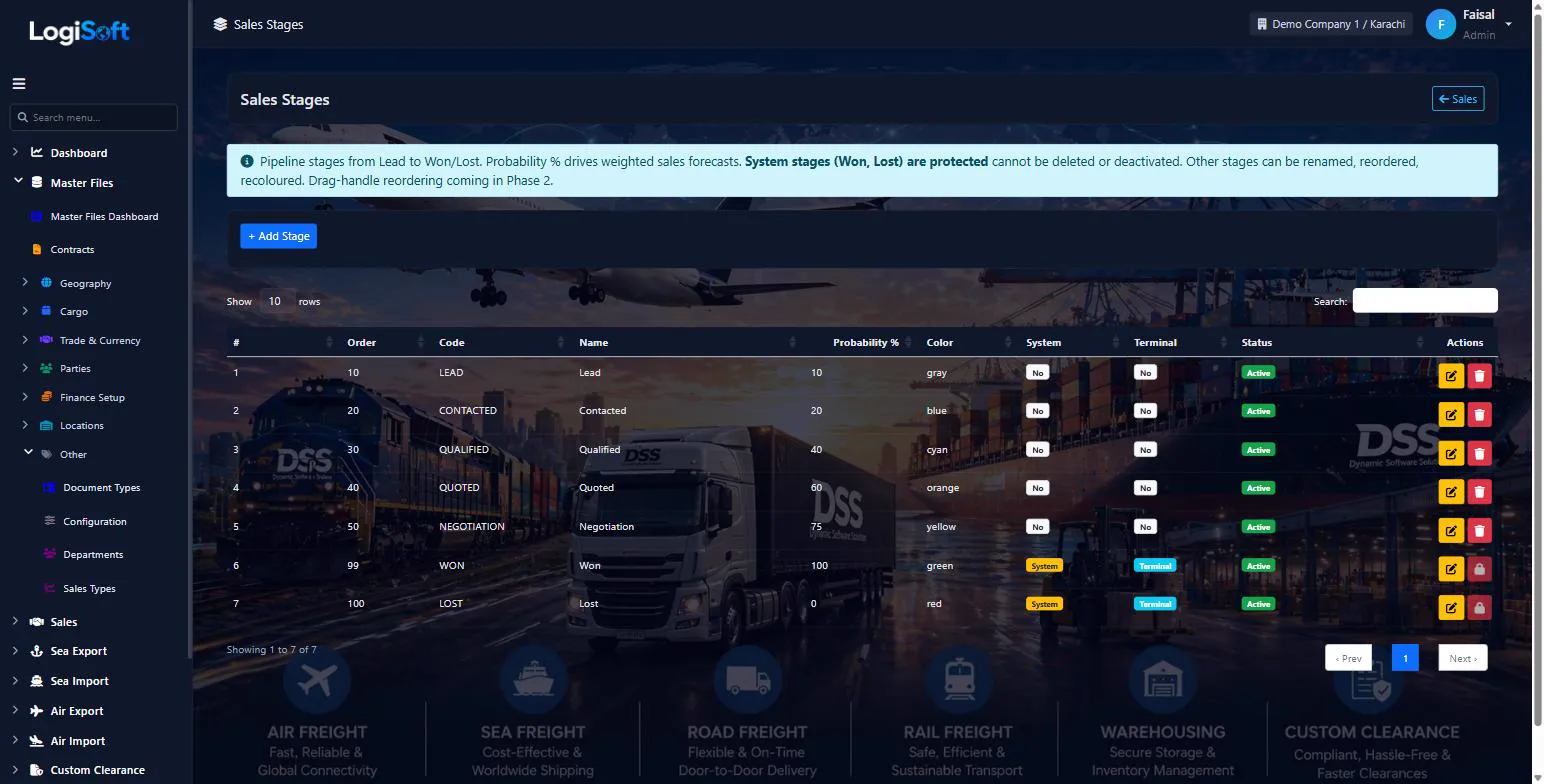
Sales Stages
Pipeline stages (e.g. Qualified / Proposal Sent / Negotiation / Closed-Won). Each has a Color that drives the pipeline visualization.
Sales Stages define the discrete steps an Opportunity moves through. Each stage has:
- Display Order
- Probability % (default for opportunities at this stage)
- Color (drives badge color in lists/dashboards — change without code)
Standard sequence: Prospecting → Qualified → Proposal Sent → Negotiation → Closed Won / Closed Lost.
Common tasks
- 1. **+ Add Stage** → Name, Display Order, Probability %, Color
- 2. Save
- 3. Re-order via drag-handle if available
The same help appears on this screen inside LogiSoft.
Pipeline stages (e.g. Qualified / Proposal Sent / Negotiation / Closed-Won). Each has a Color that drives the pipeline visualization.
-
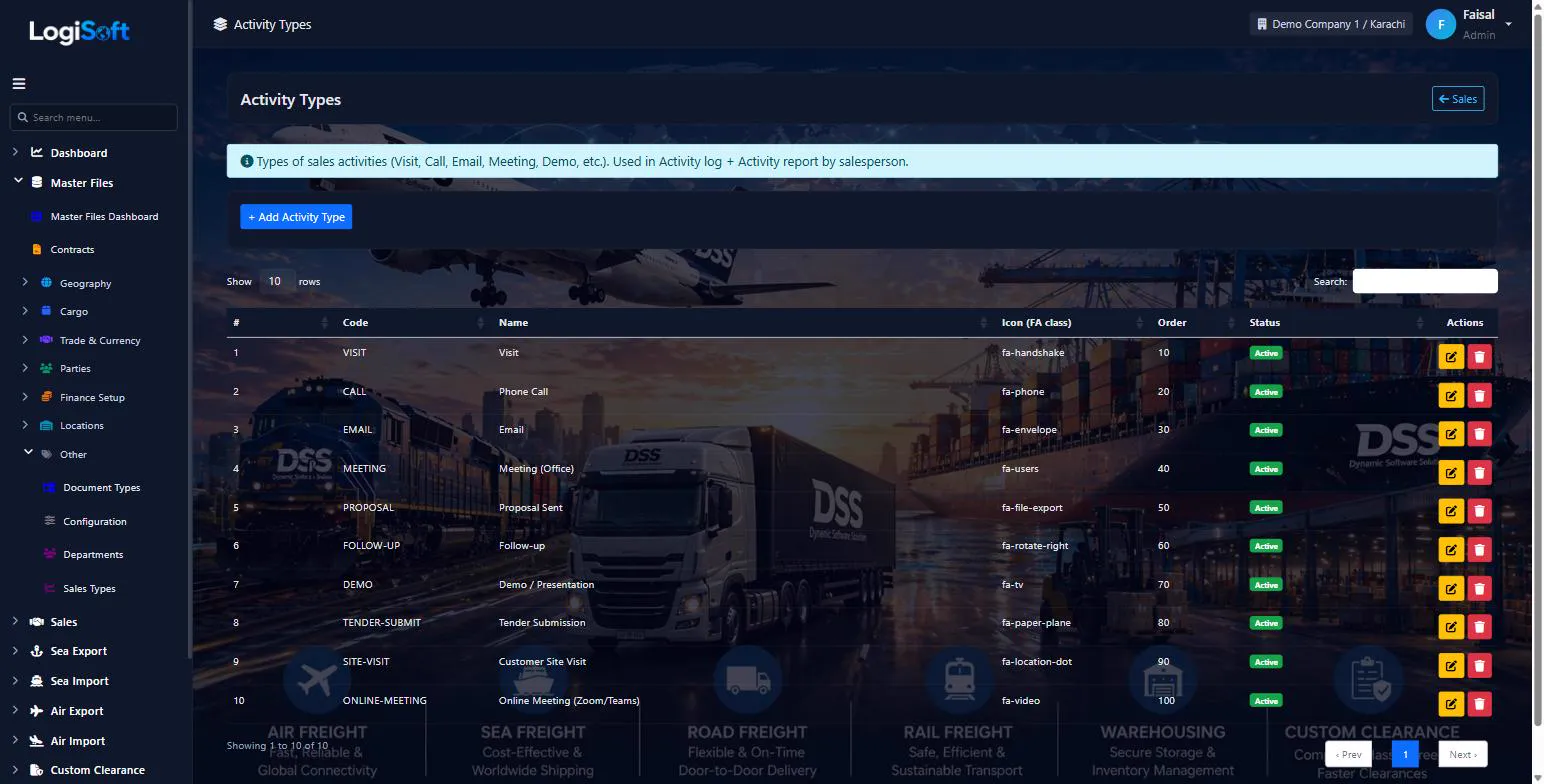
Activity Types
?LogiSoft help
Activity Types
Call / Meeting / Email / Visit / Note / Demo. Drives icons + reporting on Activities.
Activity Types classify CRM activities. Each type has a Name and optionally an icon. Activity Reports group by type.
Common tasks
- 1. **+ Add Activity Type** → Name + Icon (FontAwesome class)
The same help appears on this screen inside LogiSoft.
Call / Meeting / Email / Visit / Note / Demo. Drives icons + reporting on Activities.
-
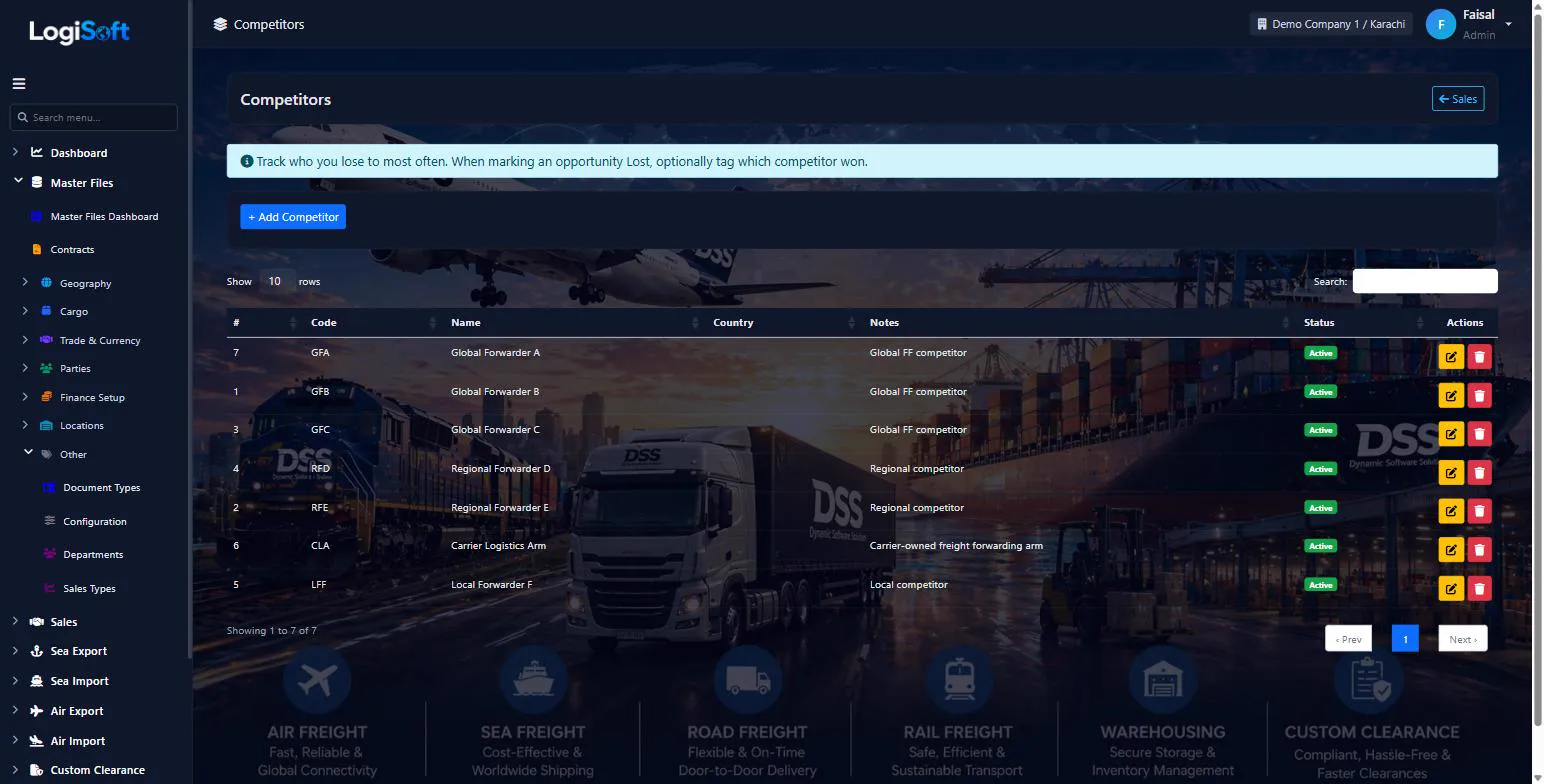
Competitors
?LogiSoft help
Competitors
Track competing freight forwarders. Used on Tender lanes (who else bid) and Loss reports.
Competitors is your master list of competing forwarders. Used to record which competitor won lanes you lost — drives competitive intelligence.
Common tasks
- 1. **+ Add Competitor** → Name + notes
The same help appears on this screen inside LogiSoft.
Track competing freight forwarders. Used on Tender lanes (who else bid) and Loss reports.
-
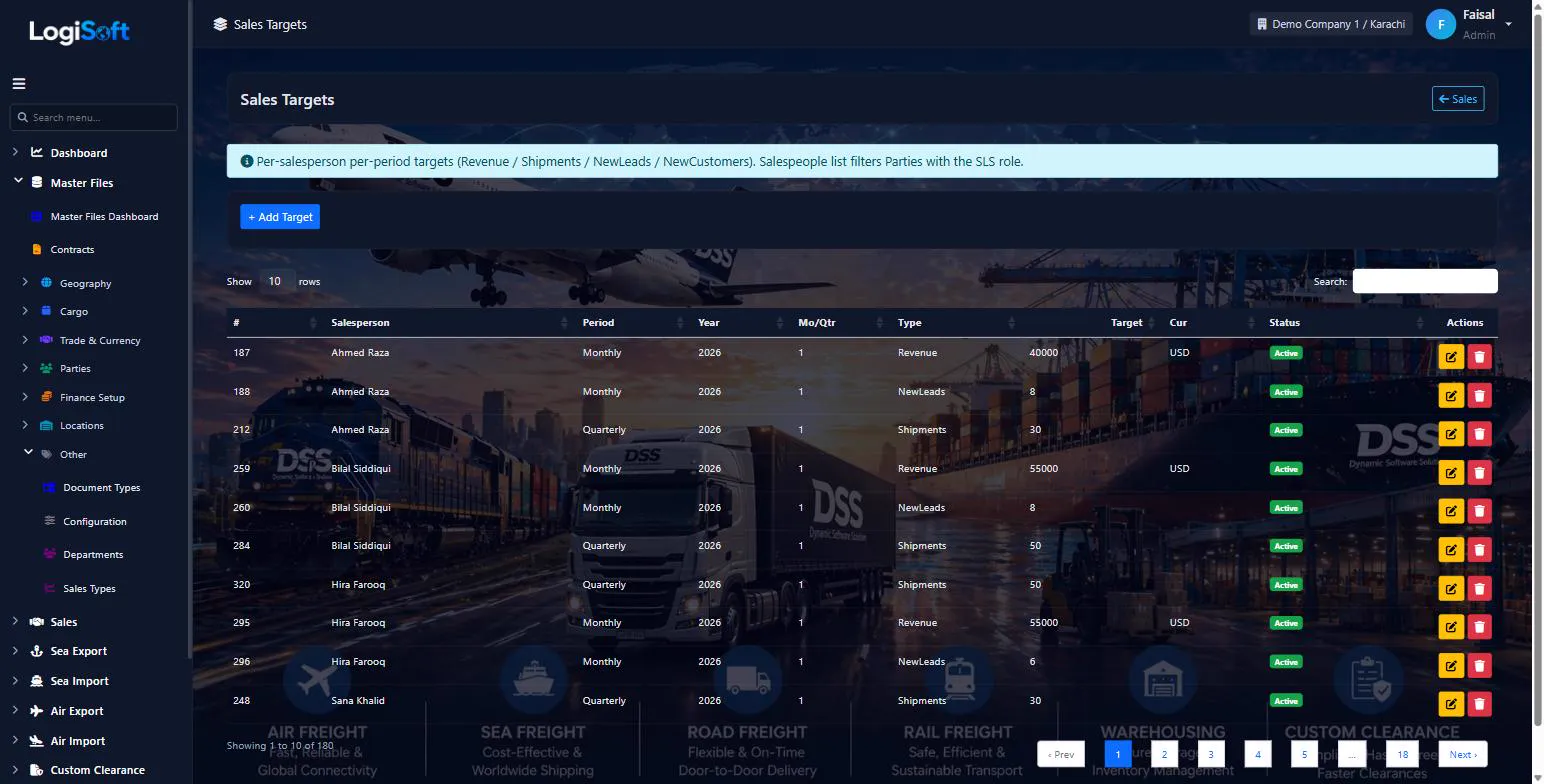
Sales Targets
?LogiSoft help
Sales Targets
Per-salesperson revenue / volume targets per period. Reports show actual vs. target.
Sales Targets track salesperson goals. Each target has User, period (quarter/year), revenue target, volume target. Reports show actual revenue/volume vs. target — gauge chart shows attainment %.
Common tasks
- 1. **+ Add Target** → pick User, period, revenue + volume targets
- 2. Save
The same help appears on this screen inside LogiSoft.
Per-salesperson revenue / volume targets per period. Reports show actual vs. target.
Settings
-
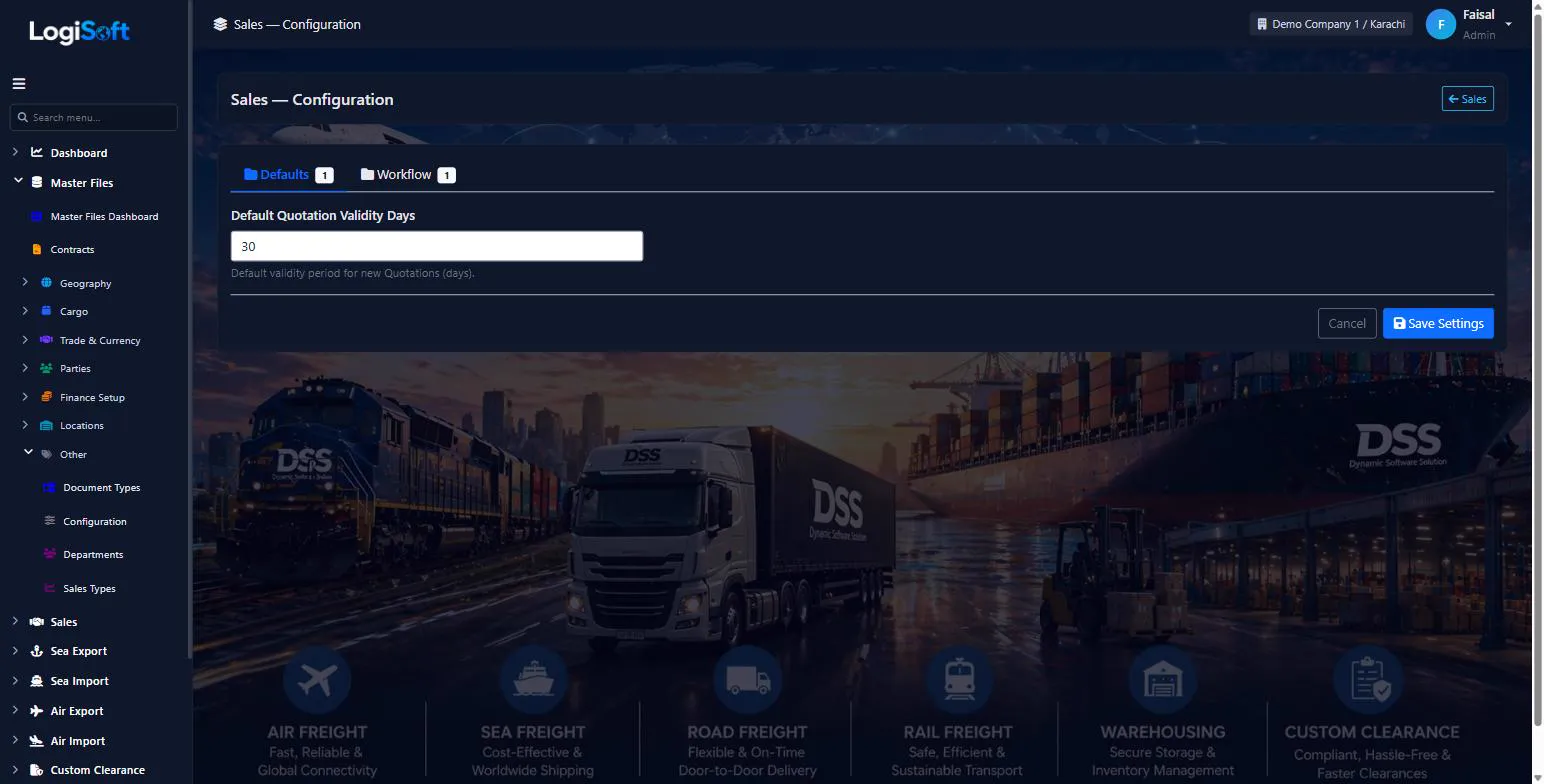
Configuration
?LogiSoft help
Sales — Configuration
Module-specific settings for Sales.
Settings that apply across the entire Sales module. Each setting is grouped under a Category tab — pick the tab, change the value, click Save Settings.
Common tasks
- Browse the tabs to see what's configurable
- Change a setting and Save
The same help appears on this screen inside LogiSoft.
Module-specific settings for Sales.
Pipeline
-
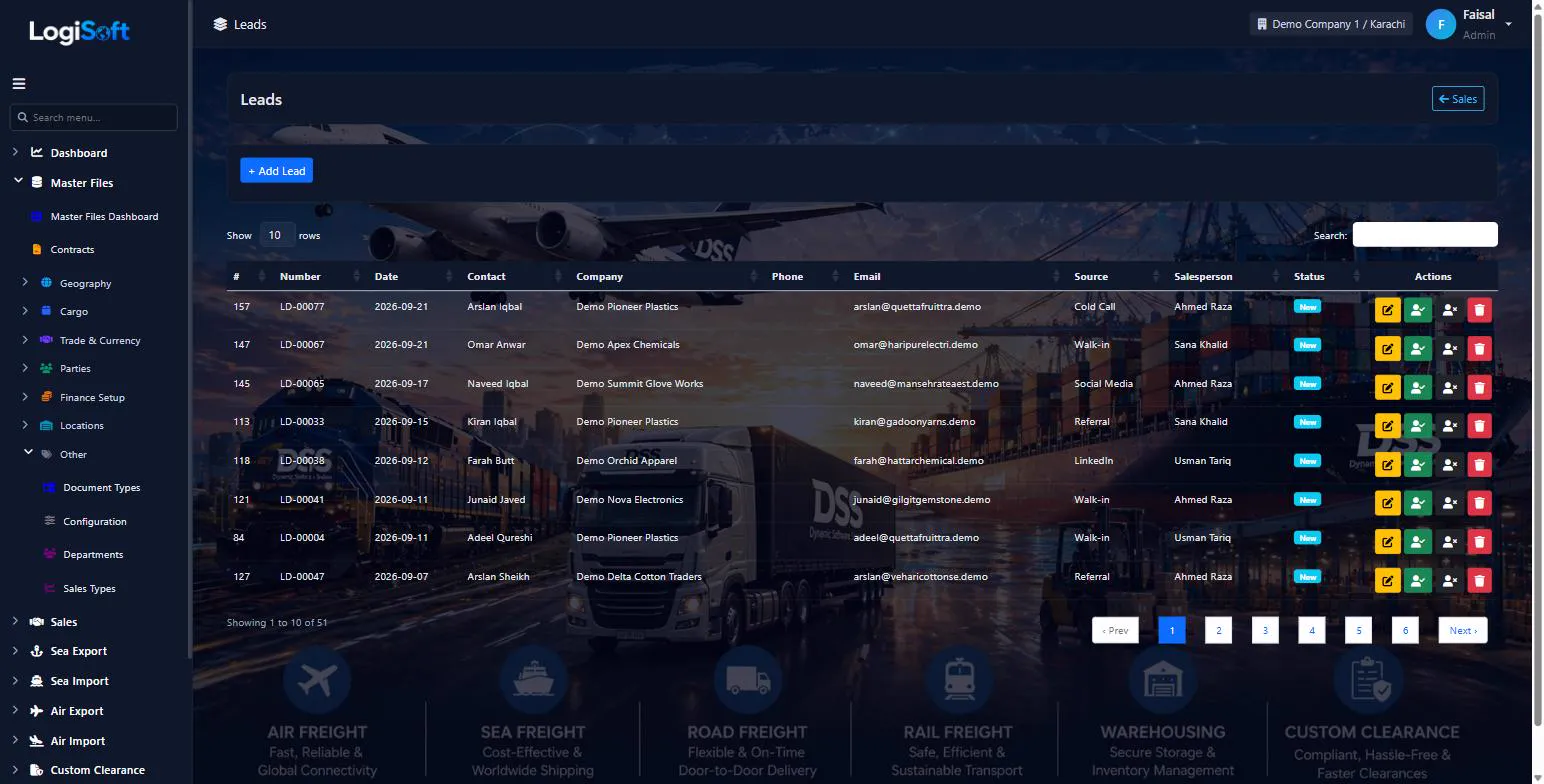
Leads
?LogiSoft help
Leads
Prospects you're trying to convert into customers. Track contact details, qualification status, and conversion to customer Party.
A Lead is a sales prospect — someone who might become a customer but isn't yet. Each lead has Contact info, qualification status, source (Lead Sources master), and meta-data.
Conversion workflow:
- Status changes: New → Contacted → Qualified → Converted (or Disqualified)
- Convert action ties this lead to a Customer Party — moves them out of pipeline into customer data
- Disqualify action records a Loss Reason — stays as historical reference but no longer active
Common tasks
- 1. **+ Add Lead** → contact info on Contact tab
- 2. Qualification tab → status, source, estimated value
- 3. Convert button → links to / creates a Customer Party
- 4. Or Disqualify → pick reason, lead becomes archived
The same help appears on this screen inside LogiSoft.
Prospects you're trying to convert into customers. Track contact details, qualification status, and conversion to customer Party.
-
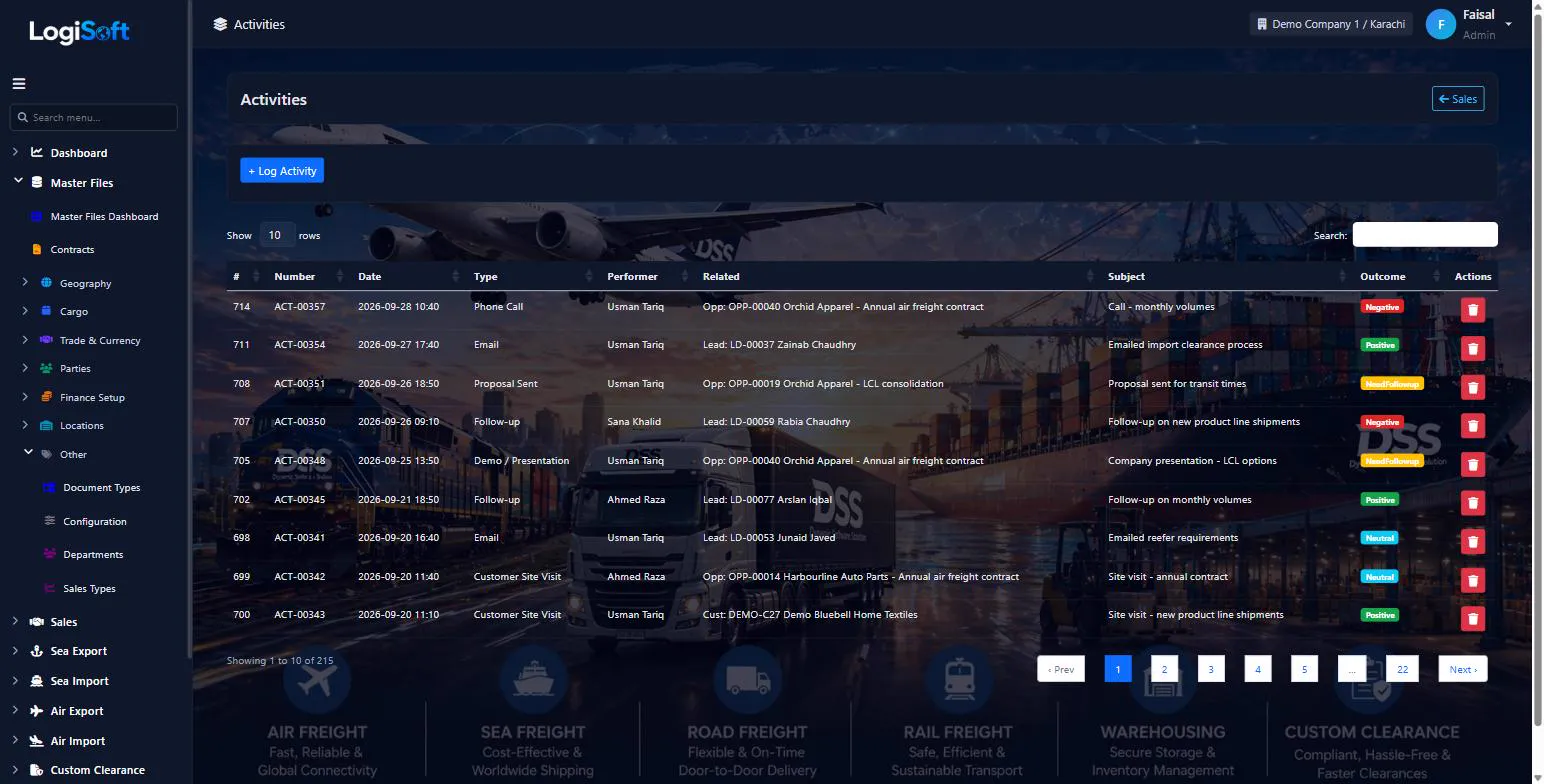
Activities
?LogiSoft help
Activities
Calls, meetings, emails, visits — anything you do that's related to a Lead, Opportunity, or Customer.
Activities is your CRM activity log. Each activity records who/when/what:
- Activity Type (Call / Meeting / Email / Visit / Note / etc.)
- Related to: a Lead, Opportunity, or Customer (polymorphic)
- Date, duration, notes
- Optional GPS coordinates (if logged via mobile visit)
- Follow-up flag
Reports across activities tell you who's active, which customers haven't been contacted recently, etc.
Common tasks
- 1. **+ Add Activity**
- 2. Pick Type
- 3. Pick Related Entity (Lead / Opportunity / Customer) and the specific record
- 4. Add date, notes
- 5. Save. Optionally set Follow-up date — creates a Sales Task
The same help appears on this screen inside LogiSoft.
Calls, meetings, emails, visits — anything you do that's related to a Lead, Opportunity, or Customer.
-
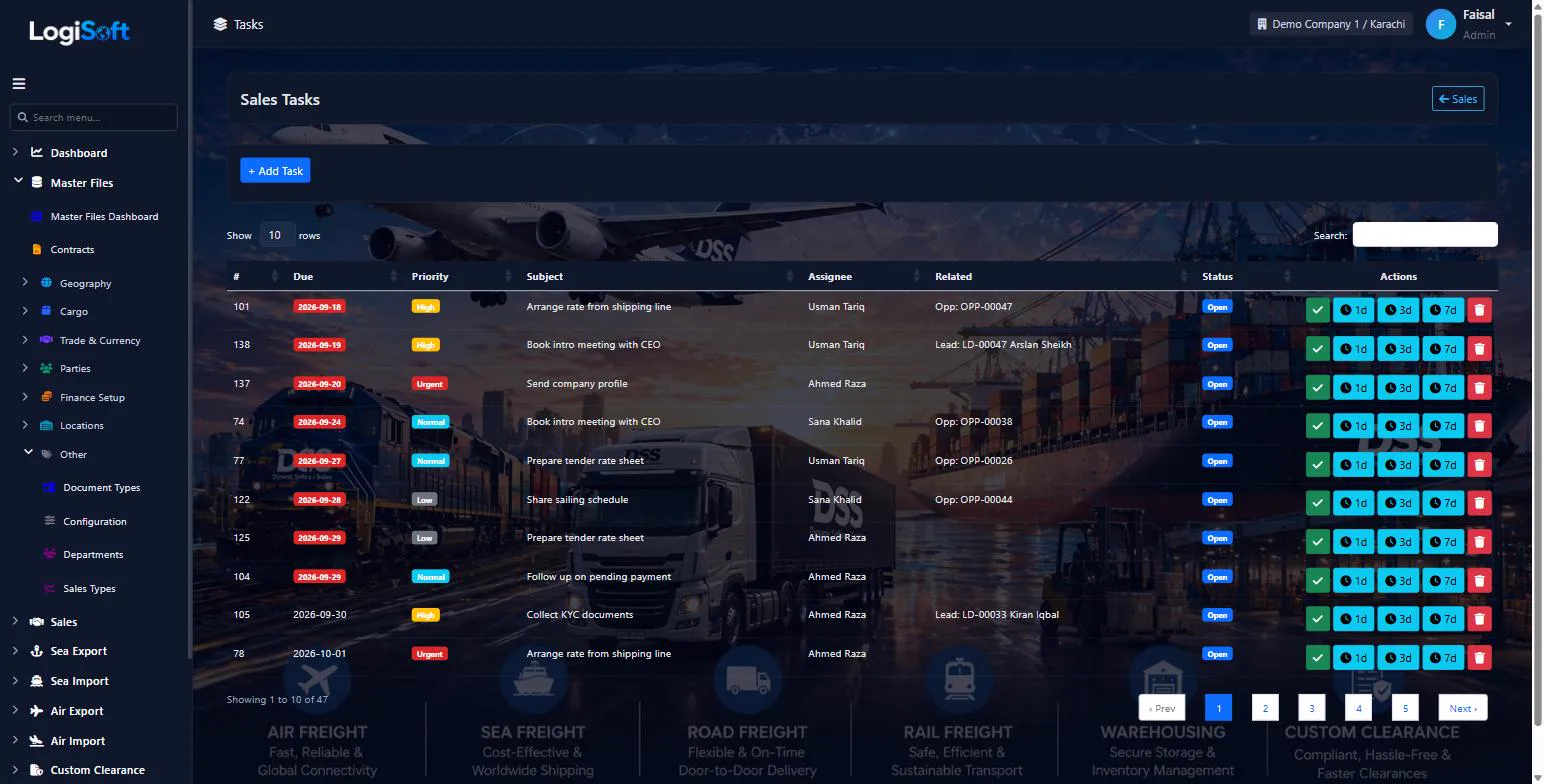
Tasks
?LogiSoft help
Sales Tasks
Follow-up reminders. Created automatically from Activities or manually. Snooze 1d/3d/7d, complete, delete.
Sales Tasks are personal reminders for sales staff. Date-driven: tasks past their due date show as overdue (red badge); tasks due today show as orange; future as normal.
Quick-action chips on each row let you snooze (1d / 3d / 7d), complete, or delete without opening the task.
Common tasks
- 1. **+ Add Task** or auto-create from an Activity's follow-up
- 2. Set due date and link to Lead/Opportunity/Customer
- 3. Use snooze chips to push out, or Complete when done
The same help appears on this screen inside LogiSoft.
Follow-up reminders. Created automatically from Activities or manually. Snooze 1d/3d/7d, complete, delete.
-
Opportunities
?LogiSoft help
Opportunities
Pipeline deals — qualified opportunities you're working to win. Tracked by stage, value, probability, and close date.
An Opportunity is a deal in your pipeline. Each opportunity has:
- Customer (or Lead, if pre-conversion)
- Stage (Sales Stages master — drives the pipeline view)
- Estimated value, probability %, expected close date
- Services Junction — tick which services are in scope (sea / air / road / warehousing / customs / etc.)
- Win/Loss tracking on close
Reports: Pipeline by Stage (probability-weighted), Conversion Funnel, Win/Loss Analysis.
Common tasks
- 1. **+ Add Opportunity** → 3-tab form (Basic / Deal / Close)
- 2. Pick Customer, Stage, Value, Probability, Expected Close
- 3. Tick Services in scope
- 4. Save and update stage as deal progresses
The same help appears on this screen inside LogiSoft.
Pipeline deals — qualified opportunities you're working to win. Tracked by stage, value, probability, and close date.
-
Quotations
?LogiSoft help
Quotations
Detailed price quotes to customers with line items, multi-currency, versioning.
A Quotation is a formal price offer to a customer. Multi-line: each line has commodity, qty, rate (in line currency), FX rate to header currency, min charge floor, tax. Header total auto-sums.
Versioning: when you need to revise a quote, the New Version action copies all lines into a new record (VersionNumber+1, ParentQuotationId set), marks the old version as "Superseded". The QuotationNumber stays the same — the version is what differs.
Common tasks
- 1. **+ Add Quotation** → header (customer, validity, currency)
- 2. Add lines: pick charge, qty × rate × FX → auto-computed amount
- 3. Save
- 4. To revise: click **New Version** → copies all lines, increments version, supersedes old
The same help appears on this screen inside LogiSoft.
Detailed price quotes to customers with line items, multi-currency, versioning.
Mobile
-
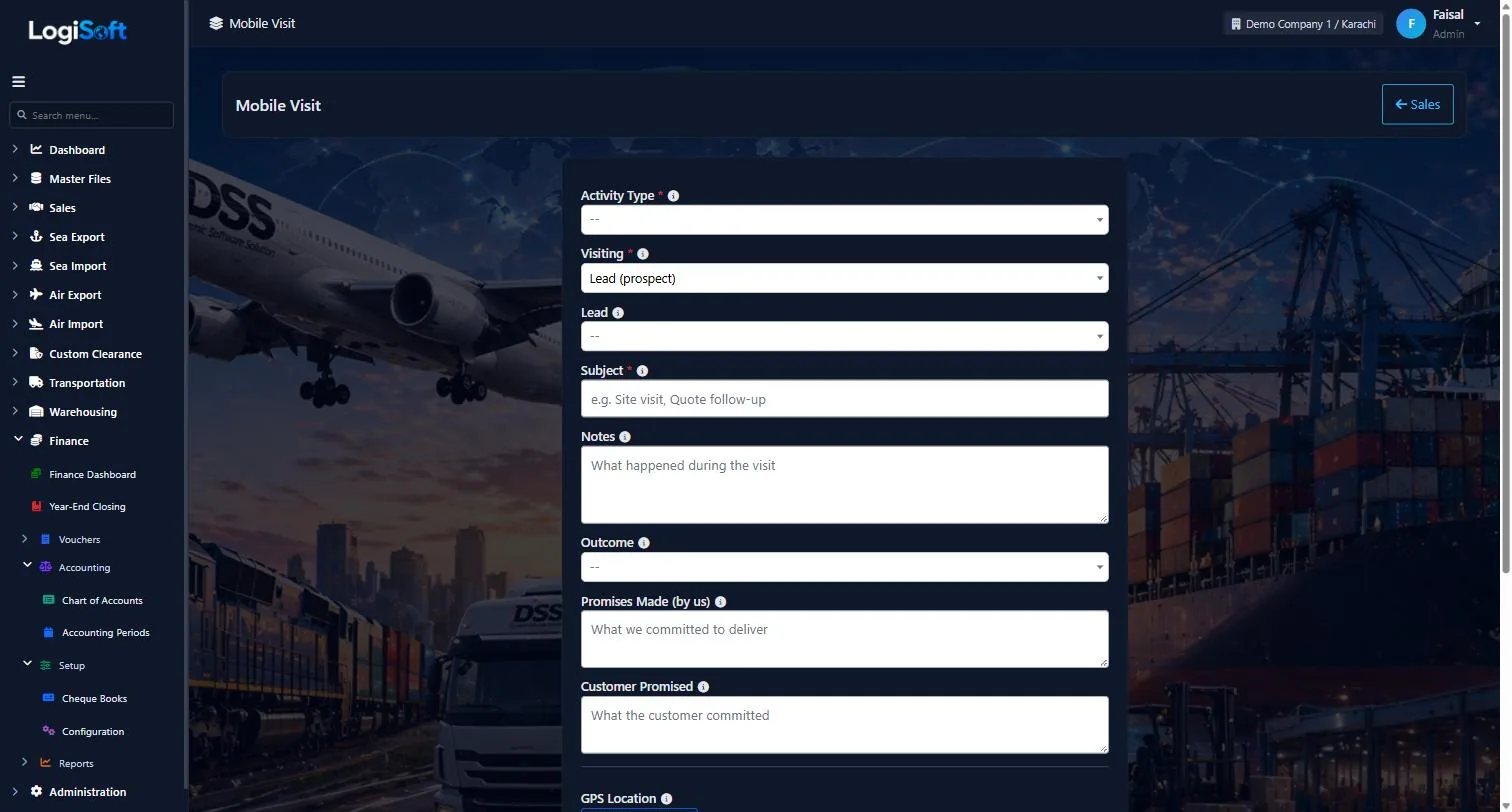
Mobile Visit
?LogiSoft help
Mobile Visit
Mobile-optimized customer visit logging — large touch targets, GPS capture, quick follow-up scheduling.
Mobile Visit is a single-screen visit logger built for in-the-field use. Sales reps open it on their phone while at a customer's office:
- Pick the customer (or lead/opportunity)
- Tap "Capture GPS" → location auto-recorded
- Add visit notes, promises, agreed actions
- Optionally schedule a follow-up task in one click
Layout is single-column, large fonts (1.05rem), large padding on inputs/buttons. Works on any phone browser.
Common tasks
- 1. Open on phone after meeting customer
- 2. Pick customer/lead from dropdown
- 3. Type notes
- 4. Tap Capture GPS to record where you were
- 5. Tick "Schedule follow-up" if needed
- 6. Save
The same help appears on this screen inside LogiSoft.
Mobile-optimized customer visit logging — large touch targets, GPS capture, quick follow-up scheduling.
Tenders
-
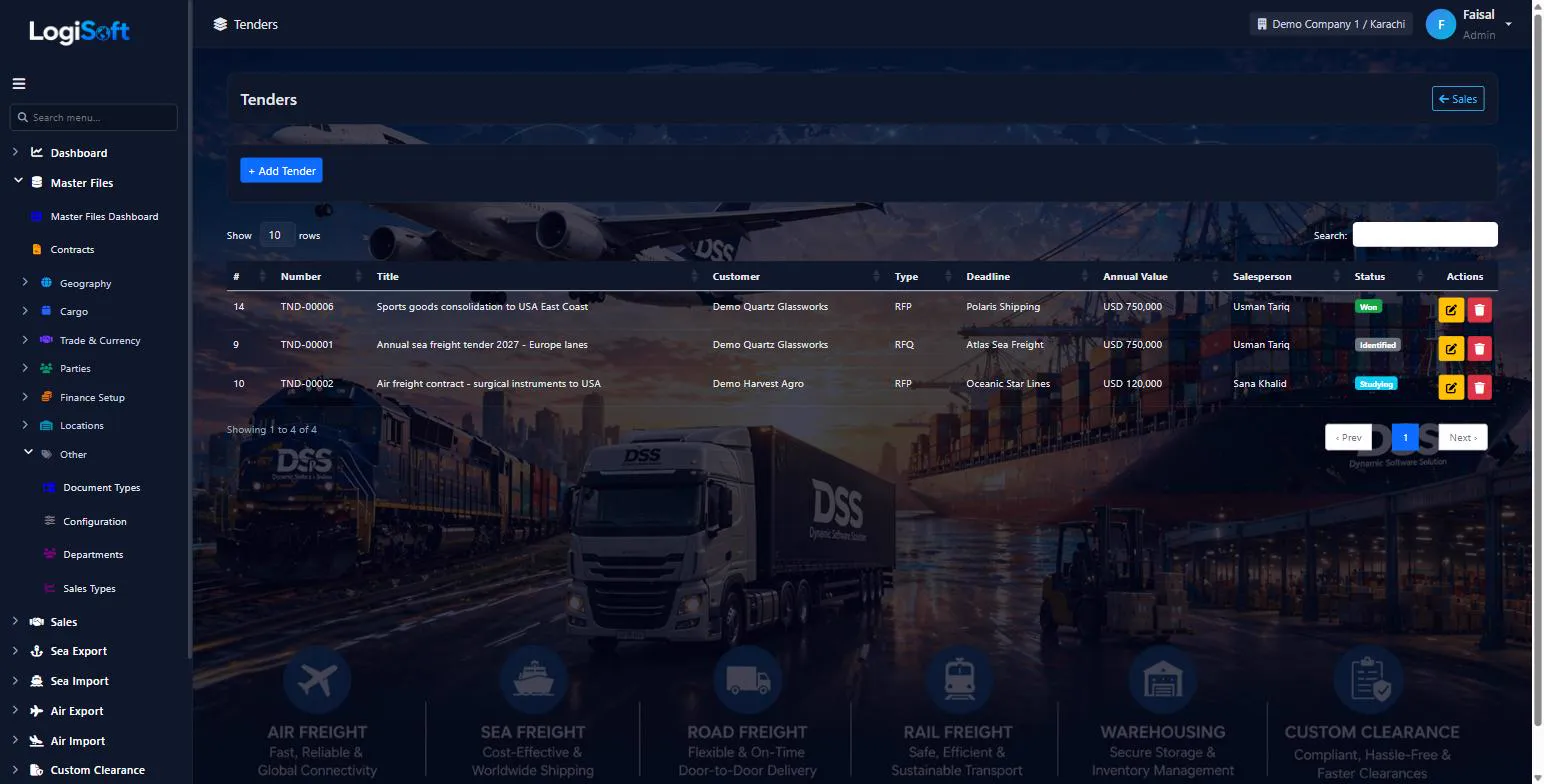
Tenders
?LogiSoft help
Tenders
Lane-by-lane bid responses for shippers running tender RFQs. Multi-mode lanes, multi-bidder competition.
A Tender is a multi-lane bid you're responding to (typically a customer issuing an RFQ for annual freight rates). Each tender has many Lanes (origin → destination, mode, equipment, volume estimate). For each lane you submit a response.
Mode-aware: Sea lanes show Sea Ports dropdowns; Air lanes show Air Ports; Road lanes show Cities. The lane grid swaps origin/destination dropdowns dynamically based on Mode.
Common tasks
- 1. **+ Add Tender** → 3-tab form (Basic / Lanes / Result)
- 2. Lanes tab: + Add Line per lane (Mode → swaps Origin/Dest dropdowns)
- 3. Save
- 4. Use Result tab to record outcome per lane (Won/Lost/Withdrawn) with reason
The same help appears on this screen inside LogiSoft.
Lane-by-lane bid responses for shippers running tender RFQs. Multi-mode lanes, multi-bidder competition.
Reports
-
Sales Reports
?LogiSoft help
Sales Reports
Tabbed dashboard with 5 reports: Pipeline by Stage, Conversion Funnel, Win/Loss, Salesperson Activity, Tender Pipeline.
Sales Reports is a single screen with 5 tabs:
- Pipeline by Stage — bar chart of opportunity value per stage, probability-weighted
- Conversion Funnel — Lead → Contacted → Qualified → Converted with conversion %
- Win/Loss Analysis — closed opportunities + reason
- Salesperson Activity — activities per rep over time
- Tender Pipeline — open tenders with days-to-deadline urgency
Each tab is filterable (date range, salesperson). Reports refresh on filter change.
Common tasks
- 1. Pick a tab
- 2. Adjust date range / salesperson filters
- 3. Read the chart / table
The same help appears on this screen inside LogiSoft.
Tabbed dashboard with 5 reports: Pipeline by Stage, Conversion Funnel, Win/Loss, Salesperson Activity, Tender Pipeline.
What's included
Everything in the Sales CRM module.
Pipeline
- Leads and lead sources
- Opportunities by stage
- Sales stages with probability
- Loss reasons and competitors
Selling
- Quotations with versions
- Tenders and contracts
- Activities and tasks
- Mobile visits with GPS
Management
- Sales targets per salesperson
- Five pipeline reports
- Works alongside bookings and accounts
Do old quotation versions get lost when we revise a quote?
No. Each revision creates a new version and the previous one is kept as superseded.
Can managers see each salesperson's pipeline?
Yes. Opportunities carry a salesperson, and the reports break the pipeline down by stage and by salesperson activity.
Does the mobile visit work on a phone?
Yes. The mobile visit form is built for phones and records the rep's location with the visit.
Works together with
See all features →Sea Import
Book space against your carrier contracts, sell it to customers, collect shipping instructions, open the Master and House B/Ls, track every milestone and invoice the job, all in one flow.
Explore Sea ImportMaster Files
Every list your team picks from, kept in one place: parties, ports, cities, HS codes, currencies, container types and more, with imports so you do not start from scratch.
Explore Master FilesAdministration
Run several companies and branches in one system, decide exactly who can do what, and keep a record of every change.
Explore AdministrationReady to retire your desktop freight tools?
See LogiSoft on your own workflow in a 30-minute screen share with the founder. No commitment.