Module · Construction & Real Estate Suite

HR & Payroll – Scope of Work

An industry-standard HR & Payroll module that also works on its own: employee files, attendance from biometric devices on every site and on the mobile for riders, policy profiles for late, early going, punches, overtime and leave, a grade master, salary structures with effective dates, advances and loans, a payroll run that is checked, approved and locked, EOBI / social security / PF / gratuity, income tax from an editable slab table, payslips by e-mail and WhatsApp, bank advice letters, final settlement and recruitment with a public apply page for every opening. Anything not written on this page is not part of this module.

All modules
HR
PR
HR & Payroll

What HR & Payroll covers

01

Recruitment

Openings · apply page · applicants

02

Employees

File · policy profile · documents

03

Attendance

Site devices by IP · standard month

04

Leave

Balances · advance · approval

05

Payroll run

Preview → checks → approve → lock

06

Payslips & bank

Payslip · bank advice letter

How it fitsWhat HR & Payroll uses or gives
StandaloneHR & Payroll can be used and sold on its own: it has its own companies, projects (cost centres), users, approvals and document numbering, and gives the salary journal as a report / export for any accounting system.
Inside the suiteUses Core Setup (companies, projects, users, Approval Master, Document Sequences). Salary, advance, loan and settlement vouchers are created in Finance automatically – left un-approved for Finance to check and approve.
ProjectsEvery employee belongs to a project (cost centre); salary cost is charged to projects on the basis chosen by the client.
Site labourConstruction site labour is engaged through contractors (Planning & Contracts – work orders and RA bills), so a daily-wage labour payroll is not part of Phase 1.
The GIFs play the steps of each screen automatically; the orange box shows where to look in each step. Click any picture to open it full size. Screens are a preview of the planned design – names, rates and amounts are sample data.

Part A

Employees and setup

One employee file and the rules that apply to each group of staff.

A1Employee file

Where

HR & Payroll › Employees.

Why

Everything about a person in one file – with a history of every change.

How

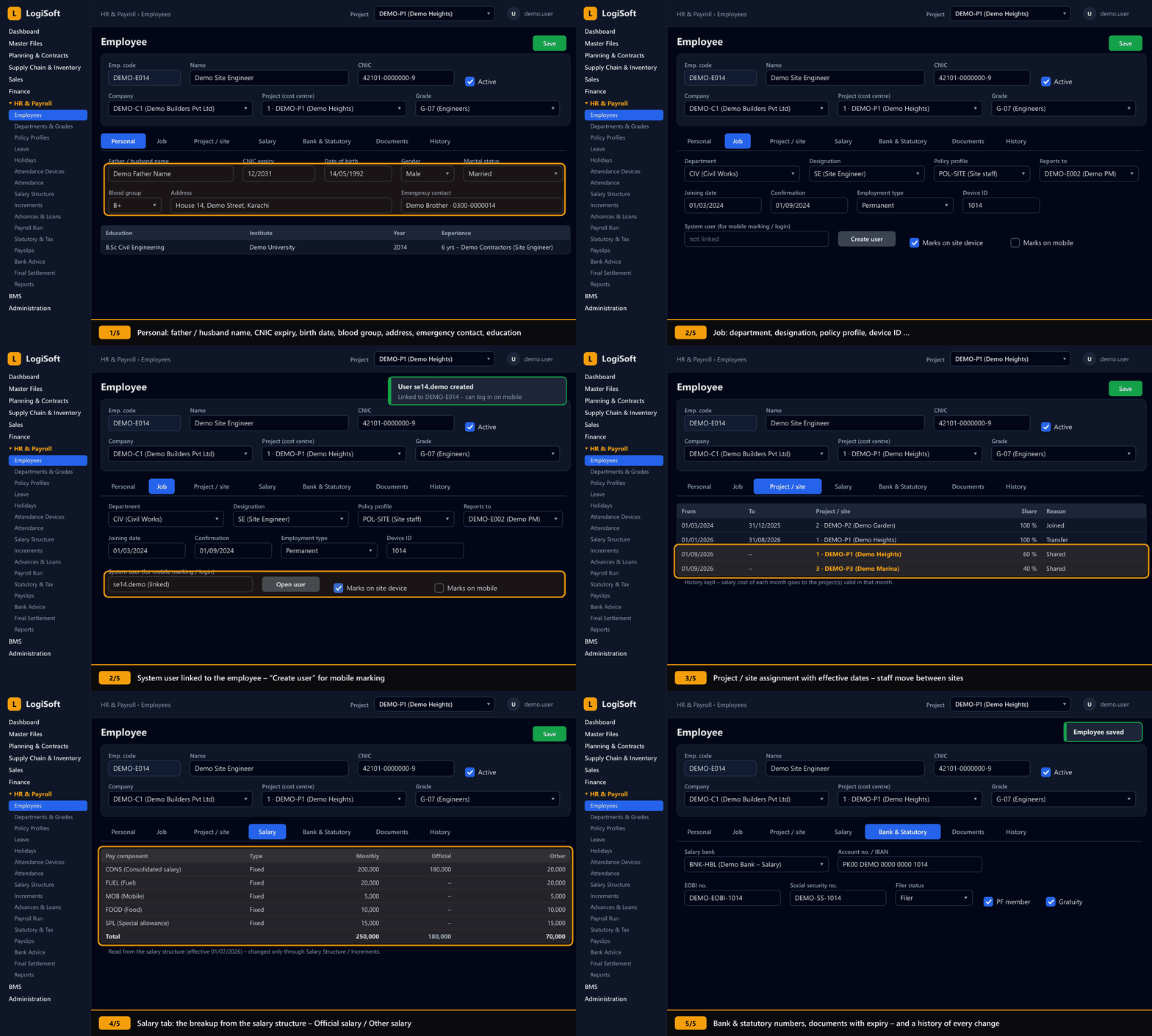
Code, name, CNIC, company, project (cost centre), grade, Active. Personal: father / husband name, CNIC expiry, date of birth, gender, marital status, blood group, address, emergency contact, education and experience. Job: department, designation, policy profile, reports-to, joining and confirmation, employment type, device ID, “Marks on site device” / “Marks on mobile”, and the linked System user (Employee ↔ User file; “Create user” makes the login used for mobile marking). Project / site: assignments with effective dates and share % – each month’s salary cost goes to the project(s) valid in that month. Salary: the breakup read from the salary structure – components with amounts, Official salary and Other salary totals. Bank & statutory: salary bank and account, EOBI and social-security numbers, filer status, PF and gratuity. Documents with expiry dates; history of every change.
Employee file

A2Departments and designations

Where

HR & Payroll › Departments & Grades.

Why

Common lists for every report.

How

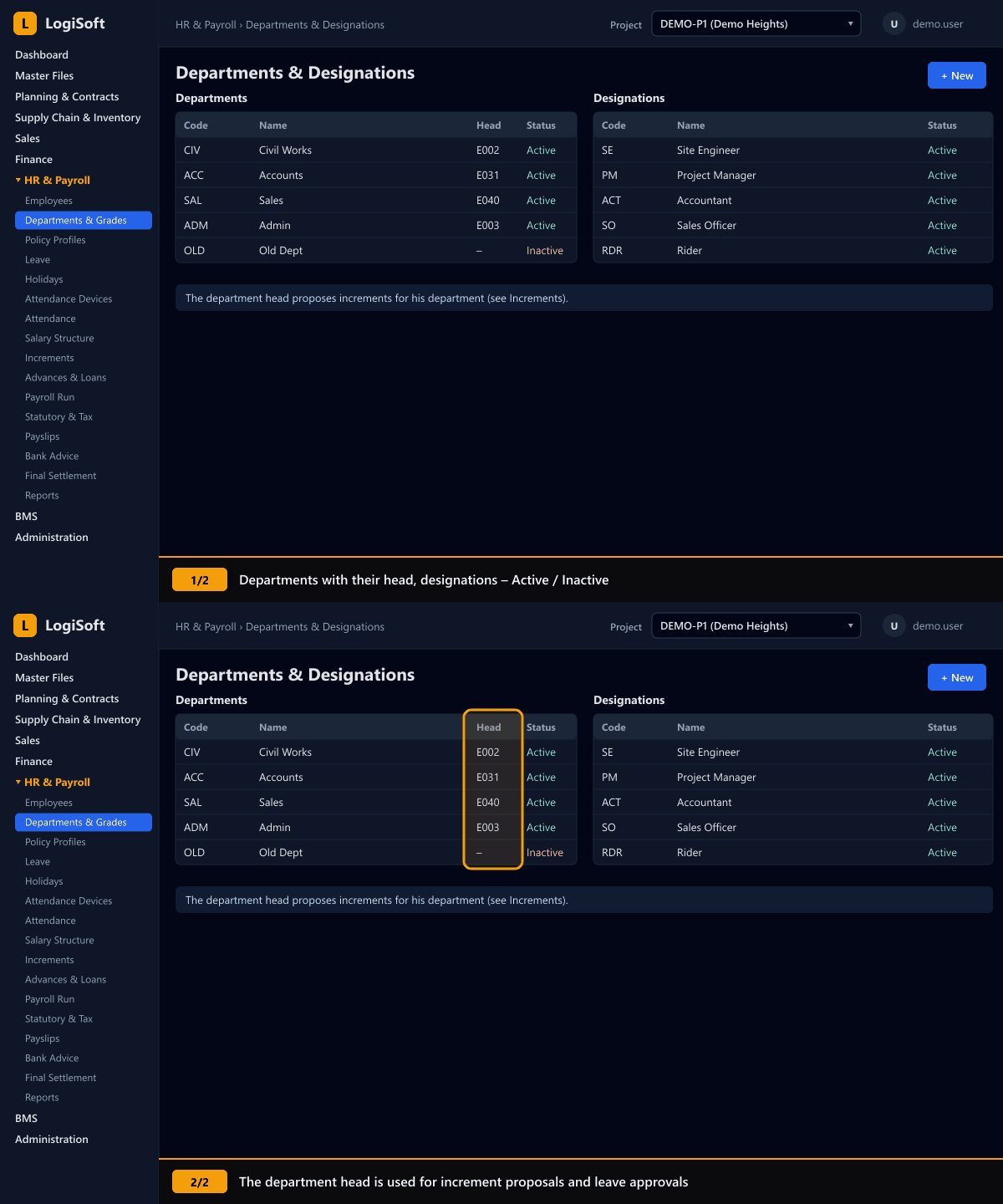
Departments with their head (used for increment proposals and leave approvals) and designations, each with Active / Inactive.

Departments and designations

A3Grade master

Where

HR & Payroll › Departments & Grades › Grades.

Why

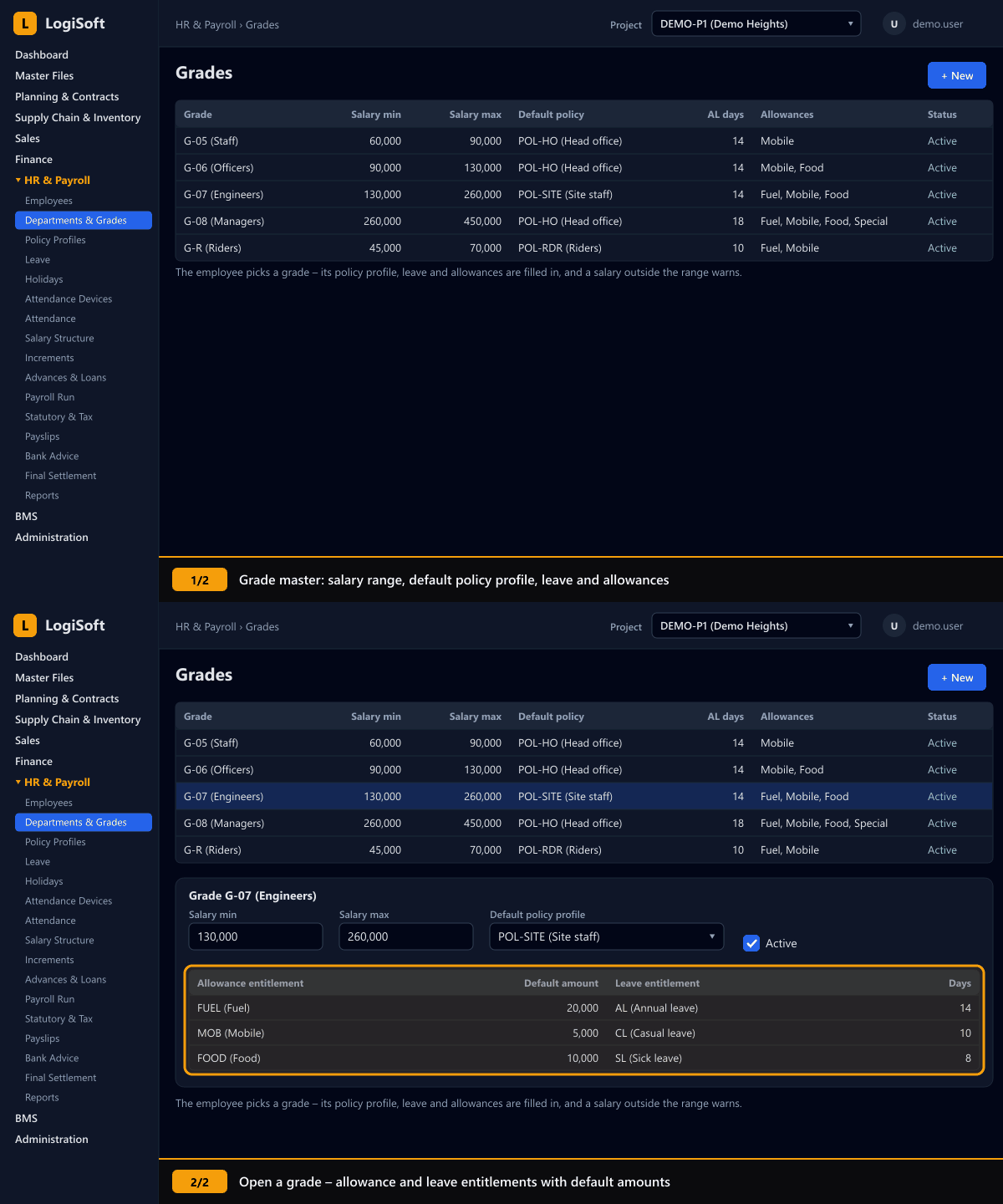
A grade carries the rules that come with it – the employee only picks the grade.

How

Grade code and name, salary minimum – maximum, default policy profile, leave entitlement and allowance entitlements with default amounts (e.g. fuel, mobile, food), Active / Inactive. Picking the grade on the employee fills these in; a salary outside the range warns on the salary structure and in the payroll checks.

Grade master

A4Policy profiles

Where

HR & Payroll › Policy Profiles.

Why

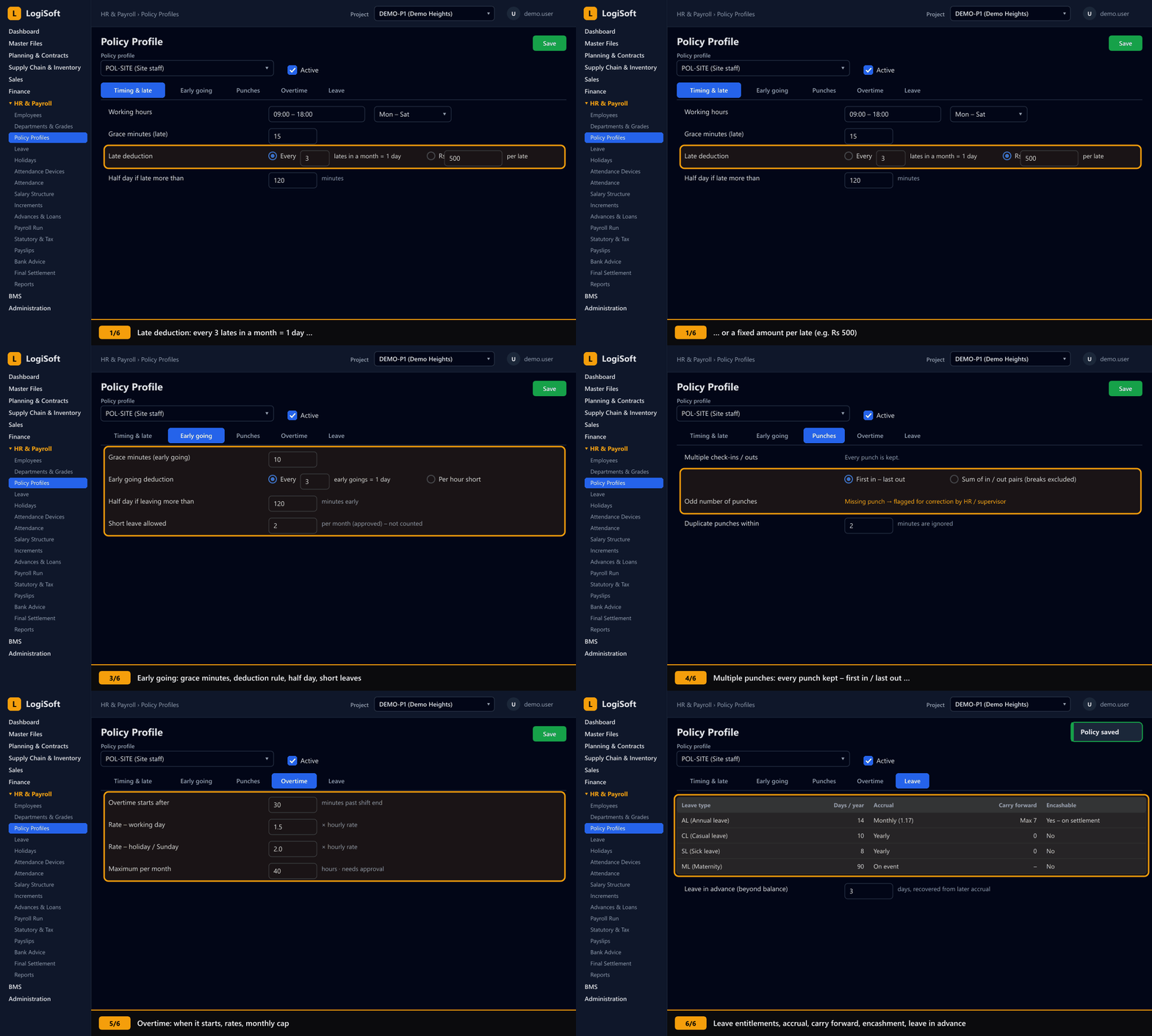
Head office, site staff and riders follow different rules – set once per group, not per person.

How

Timing & late: working hours and days, grace minutes, late deduction either “every N lates in a month = 1 day” or a fixed amount per late (e.g. Rs 500), half day after N minutes late. Early going: grace minutes, deduction rule (every N early goings = 1 day or per hour short), half day, short leaves allowed. Punches: every punch is kept; worked hours by “First in – last out” or “Sum of in / out pairs (breaks excluded)”; an odd punch is flagged as a missing punch for correction; duplicate punches ignored. Overtime: start, rates on working days and holidays, monthly cap with approval. Leave: entitlement per type, accrual, carry forward, encashment and days allowed in advance.

Policy profiles

A5Holiday calendar

Where

HR & Payroll › Holidays.

Why

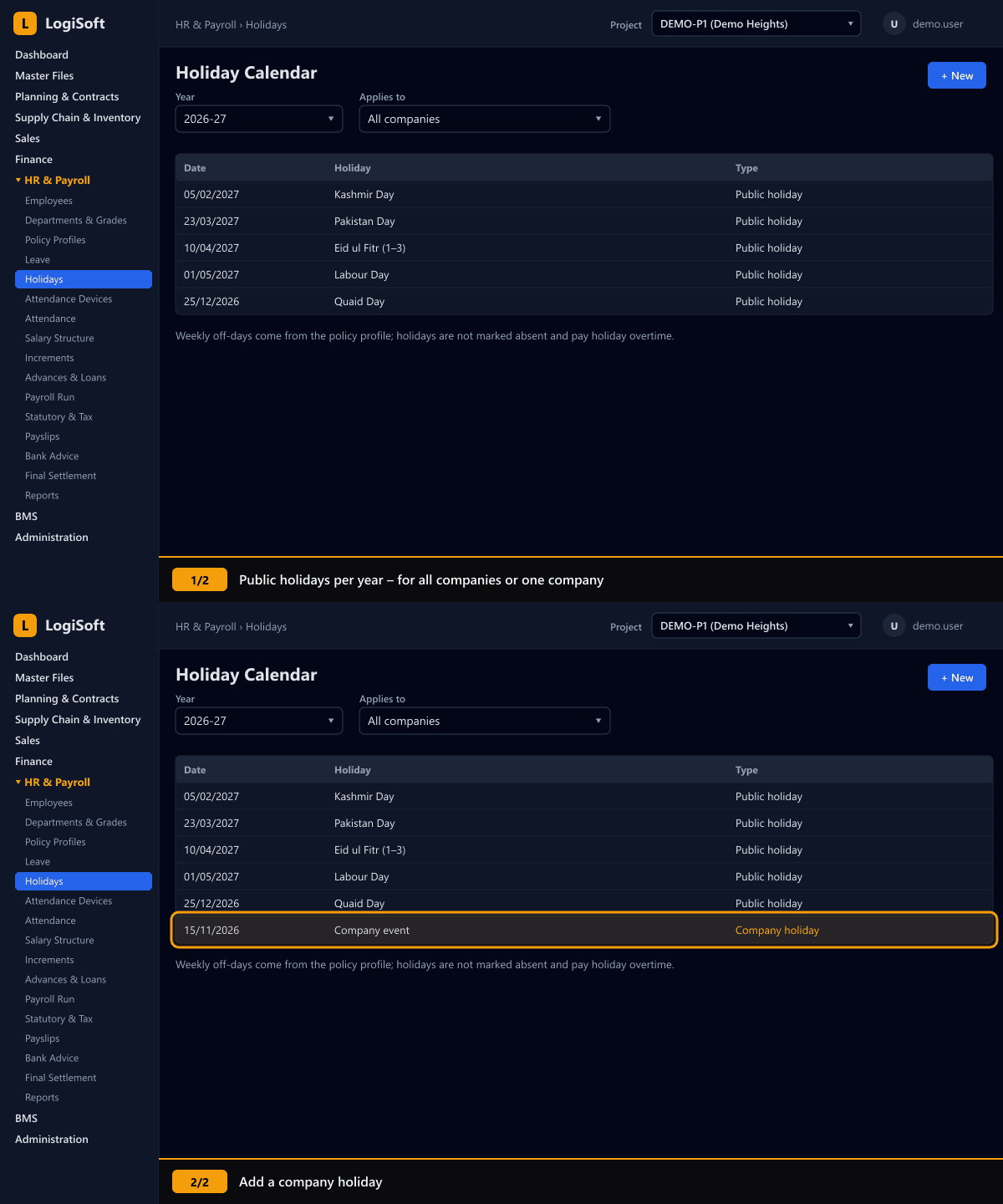
Public and company holidays are not marked absent and pay holiday overtime.

How

Holidays per year for all companies or one company; weekly off-days come from the policy profile.

Holiday calendar

Part B

Attendance and leave

Site staff mark on devices, riders on their mobile; staff without either get a standard month.

B1Attendance devices on sites

Where

HR & Payroll › Attendance Devices.

Why

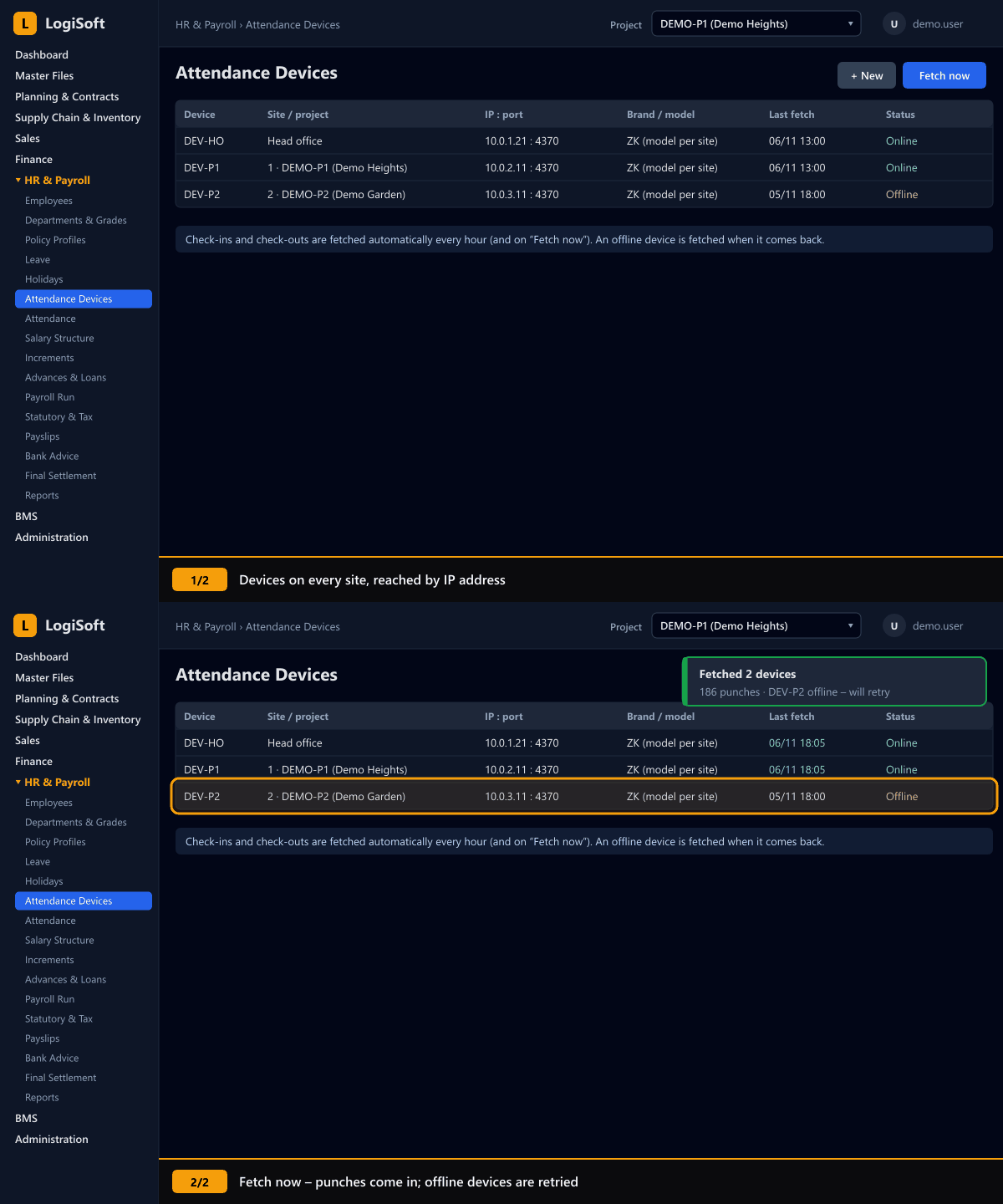
Biometric devices at head office and on every site, reached over the network.

How

Device, site / project, IP address and port, brand / model, last fetch, online / offline. Check-ins and check-outs are fetched automatically every hour and on “Fetch now”; an offline device is fetched when it comes back. Riders mark on their mobile instead (B3).

Attendance devices on sites

B2Daily attendance

Where

HR & Payroll › Attendance.

Why

In, out, hours, overtime and status for every employee – worked out by the policy.

How

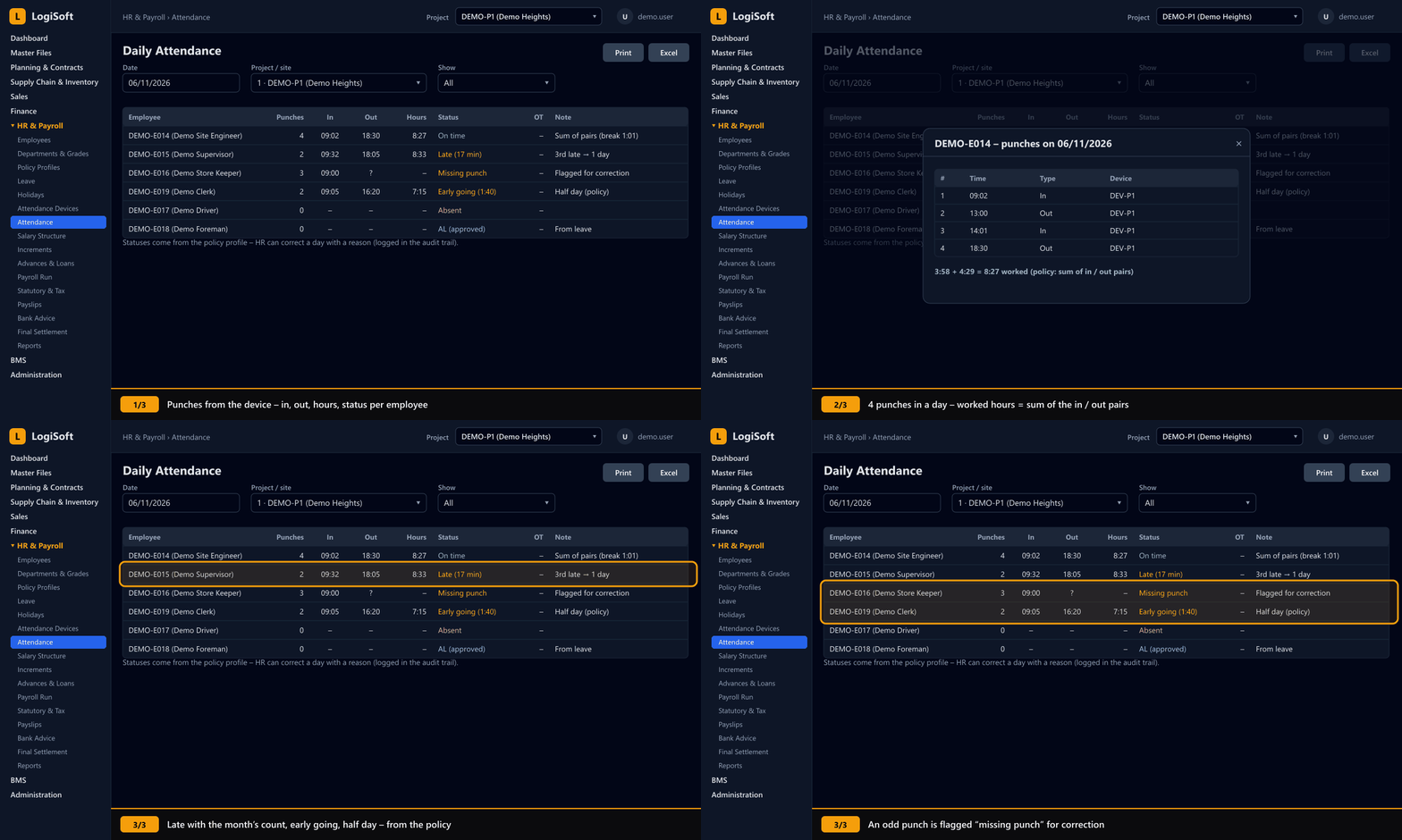
From the device punches: number of punches, first in, last out, worked hours, status – on time, late (with the month’s count), early going, half day, missing punch, absent, on approved leave. With 4 punches (in, out for lunch, in, out) the worked hours are the sum of the pairs when the policy says so. The late rule turns e.g. the 3rd late into a day’s deduction. HR can correct a day with a reason – logged in the audit trail.

Daily attendance

B3Mobile attendance (riders)

Where

LogiSoft attendance page on the phone (browser or installed on the home screen).

Why

Riders are on the road and never near a device – and the marks must be trustworthy.

How

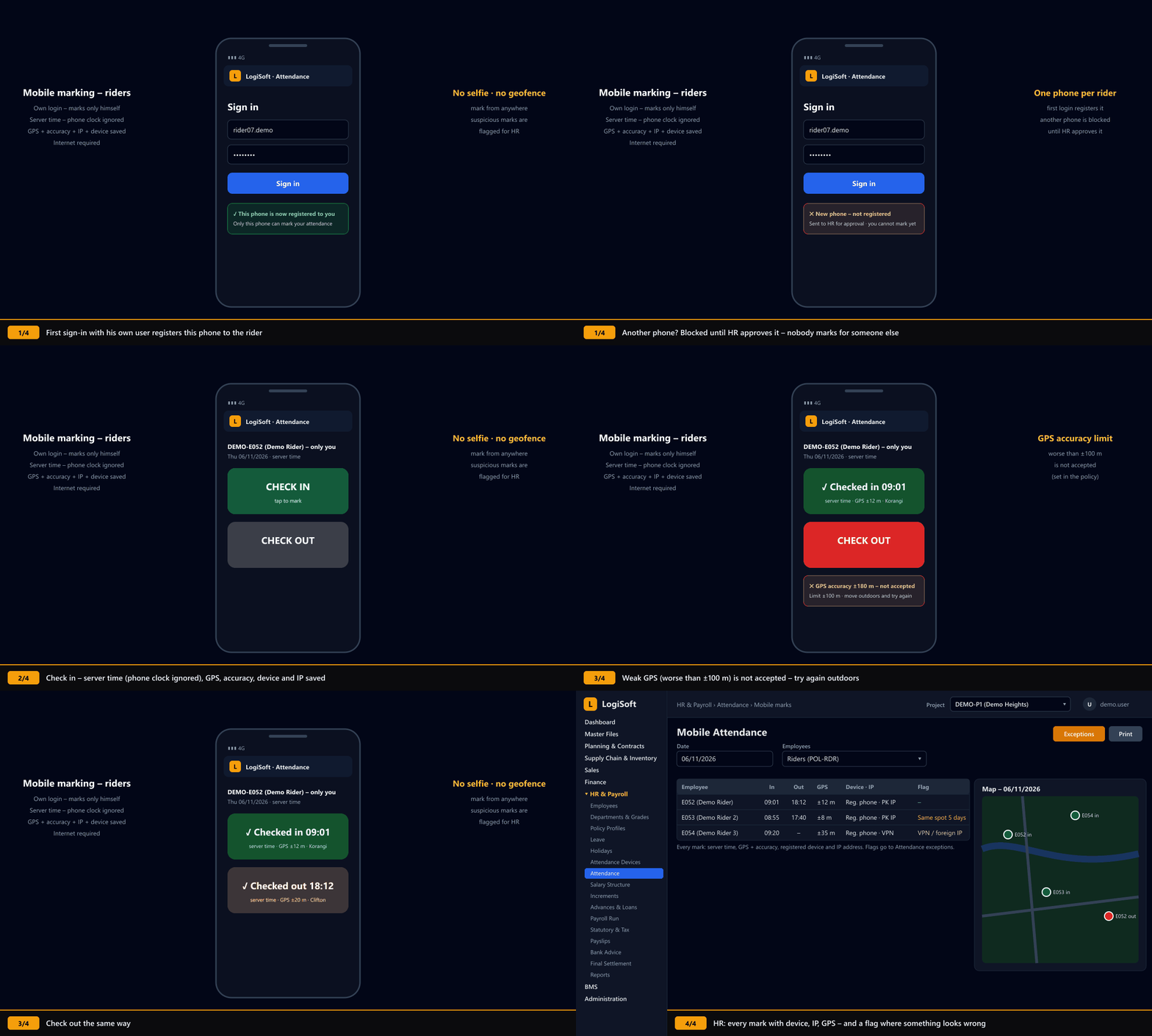
The rider signs in with his own system user (linked on the employee file, “Marks on mobile” ticked) and can mark only himself. ONE registered phone per rider: the first sign-in registers the phone; another phone is blocked until HR approves it. Big Check in / Check out buttons; the SERVER time is used (the phone clock is ignored); GPS location and accuracy, the device and the IP address are saved with every mark. GPS worse than the limit (e.g. ±100 m) is not accepted – try again outdoors. No selfie and no geofence; internet is required. Marks follow the rider’s policy profile; HR sees every mark in a list and on a map, with flags.

Mobile attendance (riders)

Honest note: a web page cannot fully detect rooted phones or fake-GPS apps. The flags below catch most misuse; a native Android app can detect mock locations better – listed as a later option.

B4Attendance exceptions

Where

HR & Payroll › Attendance › Exceptions.

Why

Ill practice is caught every day, not discovered at month end.

How

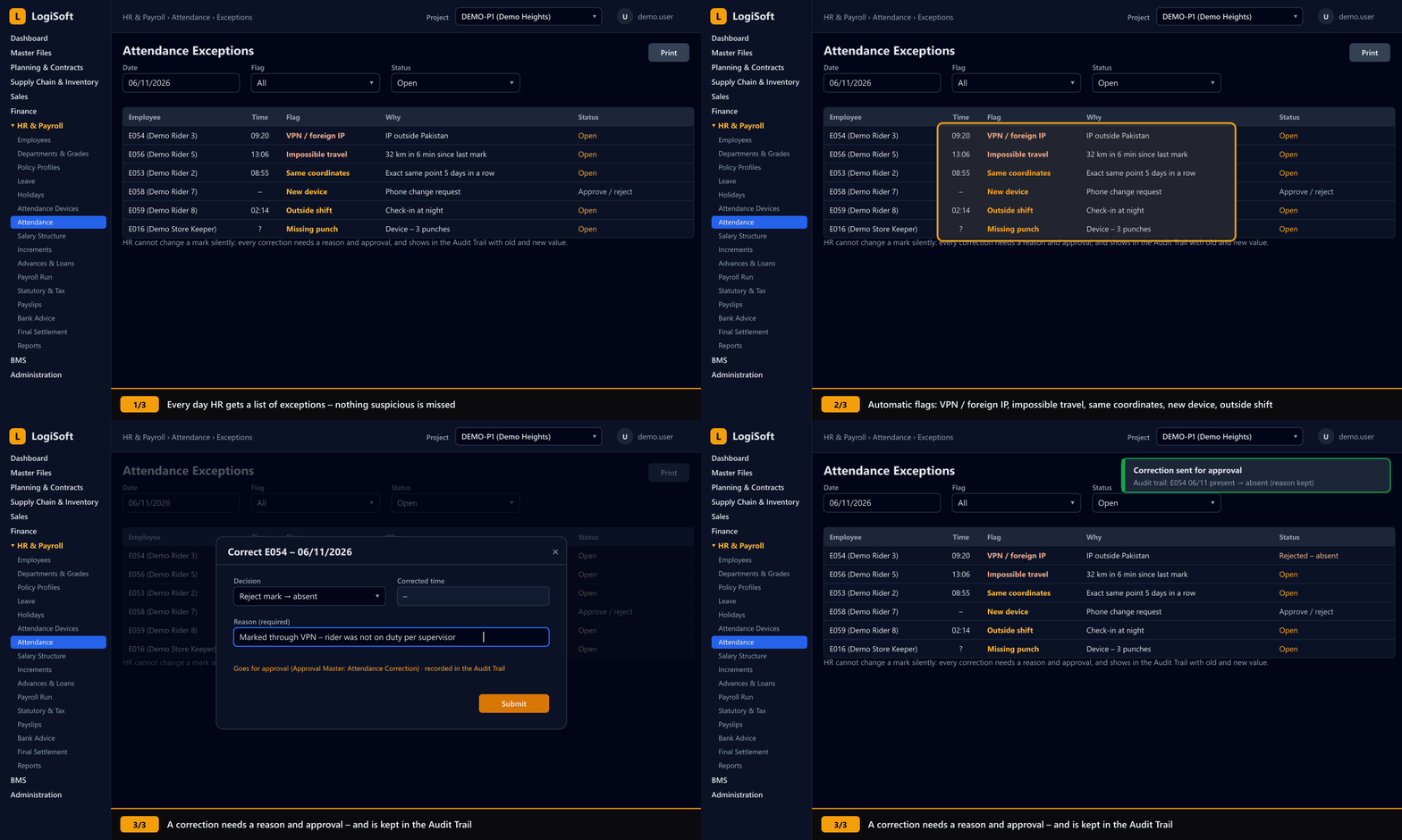
Daily list of automatic flags: VPN / foreign IP, impossible travel between two marks, the same exact coordinates repeated, a new / other device, a mark outside the shift, missing device punches. HR decides each one; any correction needs a reason and approval (Approval Master: Attendance Correction) and appears in the Audit Trail with old and new value – no silent changes.

Attendance exceptions

B5Fill standard month (no device)

Where

HR & Payroll › Attendance › Without device.

Why

Many site staff mark attendance by hand – this is part of Phase 1.

How

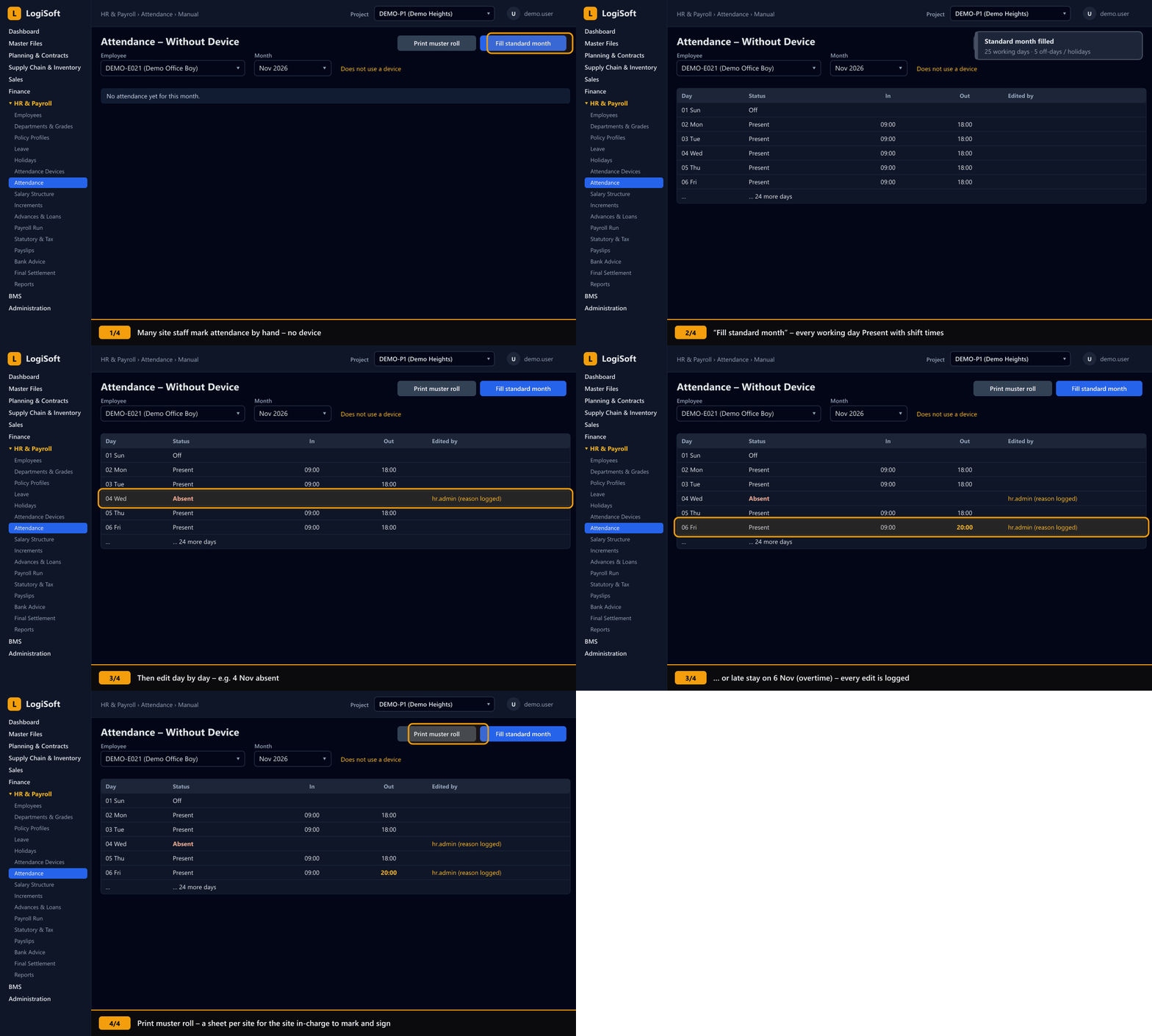
“Fill standard month” marks every working day Present with the shift times (off-days and holidays from the calendar). HR then edits day by day – absent, late, leave, late stay for overtime – every edit is logged. “Print muster roll” gives the site in-charge a sheet per site to mark and sign.

Fill standard month (no device)

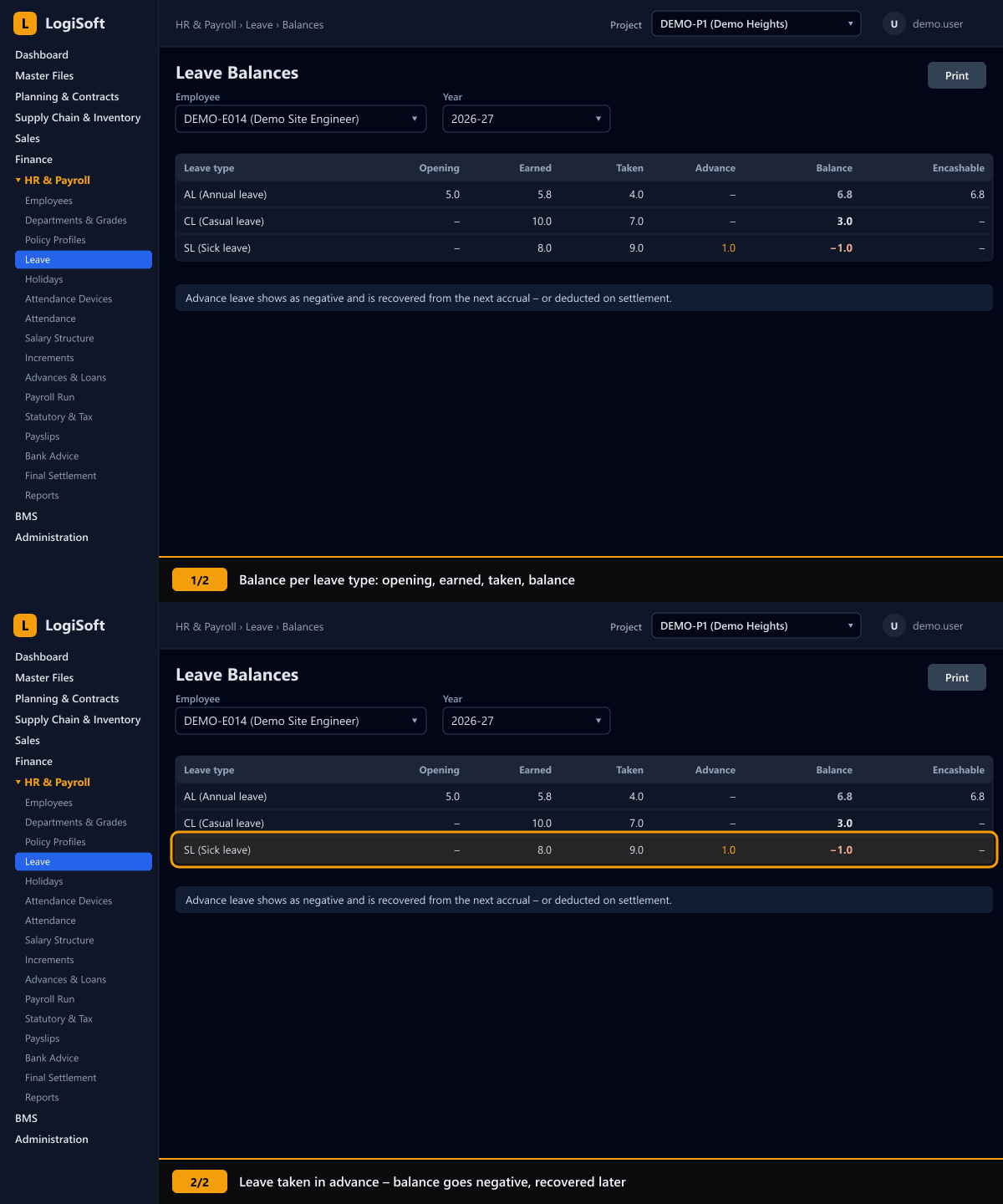
B6Leave balances

Where

HR & Payroll › Leave › Balances.

Why

Always know what each employee has left.

How

Per leave type: opening, earned (accrued), taken, advance and balance, plus the encashable part. Leave taken in advance shows as a negative balance and is recovered from the next accrual – or adjusted on final settlement.

Leave balances

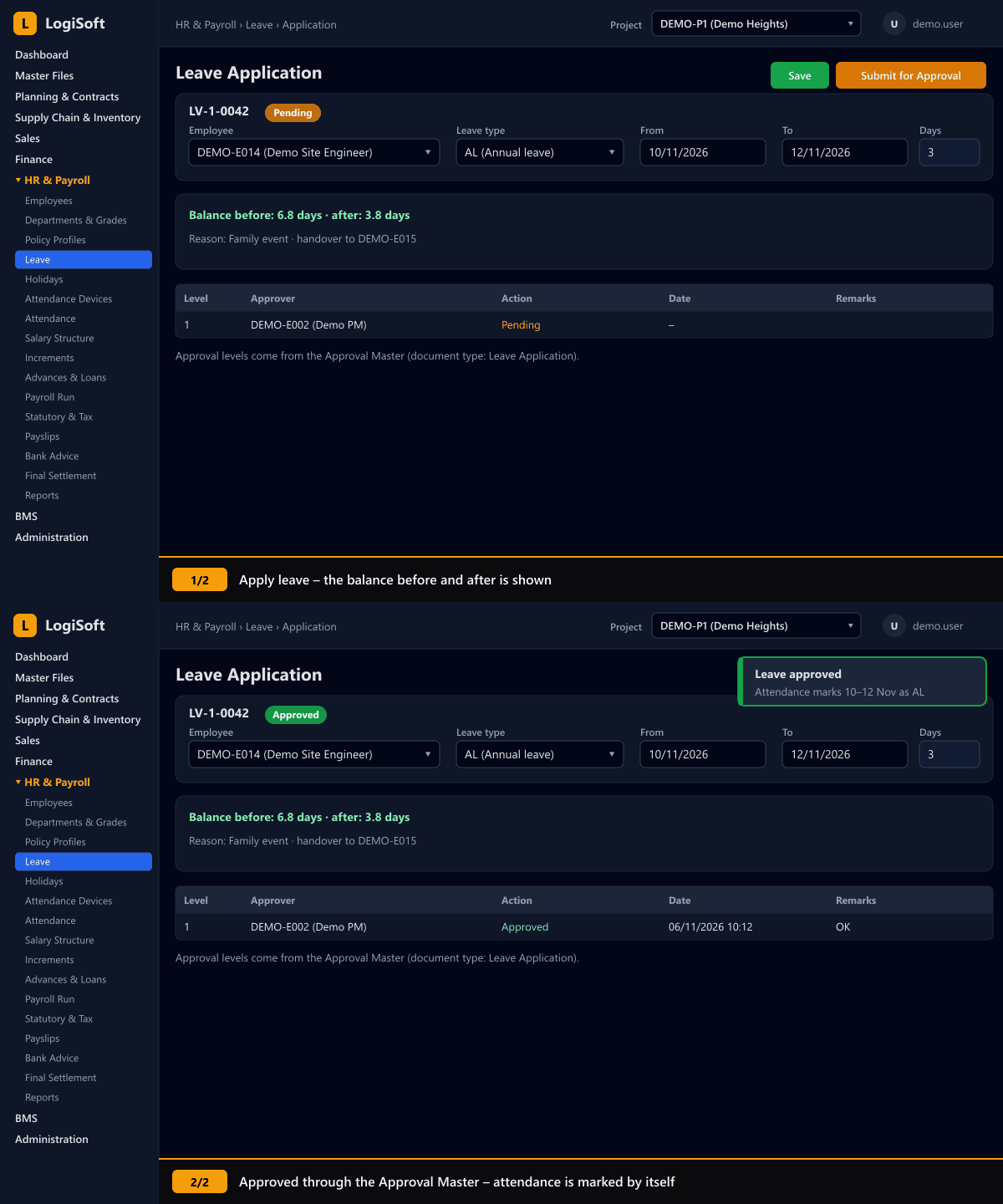
B7Leave application

Where

HR & Payroll › Leave › Application.

Why

Leave is approved before it is taken – and attendance follows by itself.

How

Employee, leave type, from – to, days, reason; balance before and after is shown. Approval through the Approval Master (document type Leave Application, any number of levels and users). On approval the days are marked on attendance.

Leave application

Part C

Salary and payroll

Salary structures with effective dates, loans with instalments, and a payroll run that is checked, approved and locked.

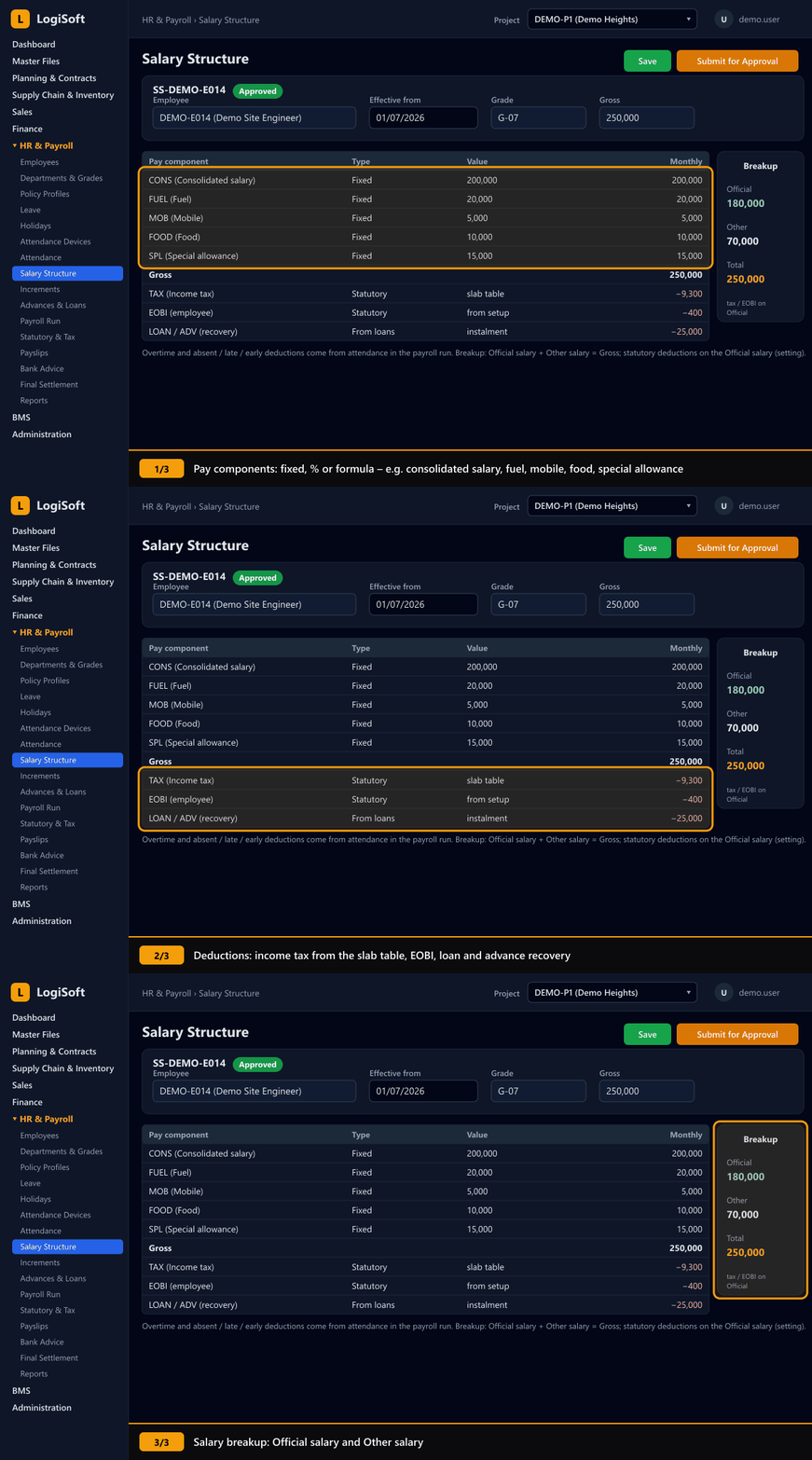
C1Salary structure

Where

HR & Payroll › Salary Structure.

Why

Pay components instead of one fixed amount – with history.

How

Components from a list: fixed amount, % or a formula – e.g. consolidated salary, overtime, fuel, mobile, food, special allowance; deductions income tax, EOBI, loan and advance recovery, and absent / late / early deductions from attendance; each structure has an effective date, so old months keep the old salary. Statutory lines (EOBI, social security, PF, income tax) come from their setup and the tax slab table. Salary breakup: Official salary + Other salary = Gross; statutory deductions are worked out on the Official salary (setting). Approval through the Approval Master.

Salary structure

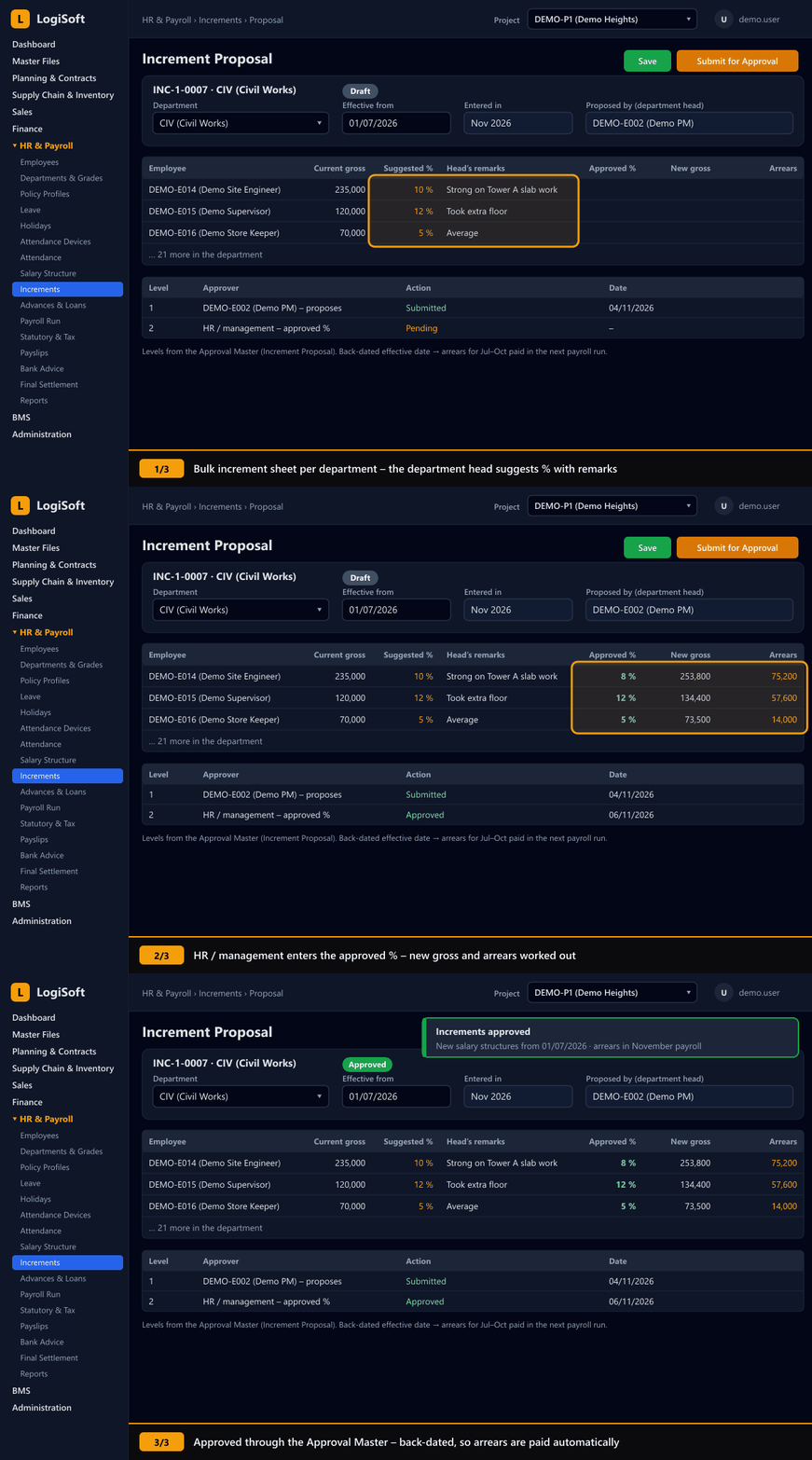
C2Increment proposals and arrears

Where

HR & Payroll › Increments.

Why

Increments are proposed by the department head and decided by management – with arrears worked out.

How

A bulk increment sheet per department: for every employee the department head enters a suggested % and remarks; HR / management then enter the approved % and the effective date (may be in the past). New gross and arrears are worked out per person. Approval levels from the Approval Master (Increment Proposal). On approval the new salary structures are created with the effective date and the arrears are paid in the next payroll run, taxed in the right tax year.

Increment proposals and arrears

C3Advances and loans

Where

HR & Payroll › Advances & Loans.

Why

Money given to staff must be recovered – and always show its balance.

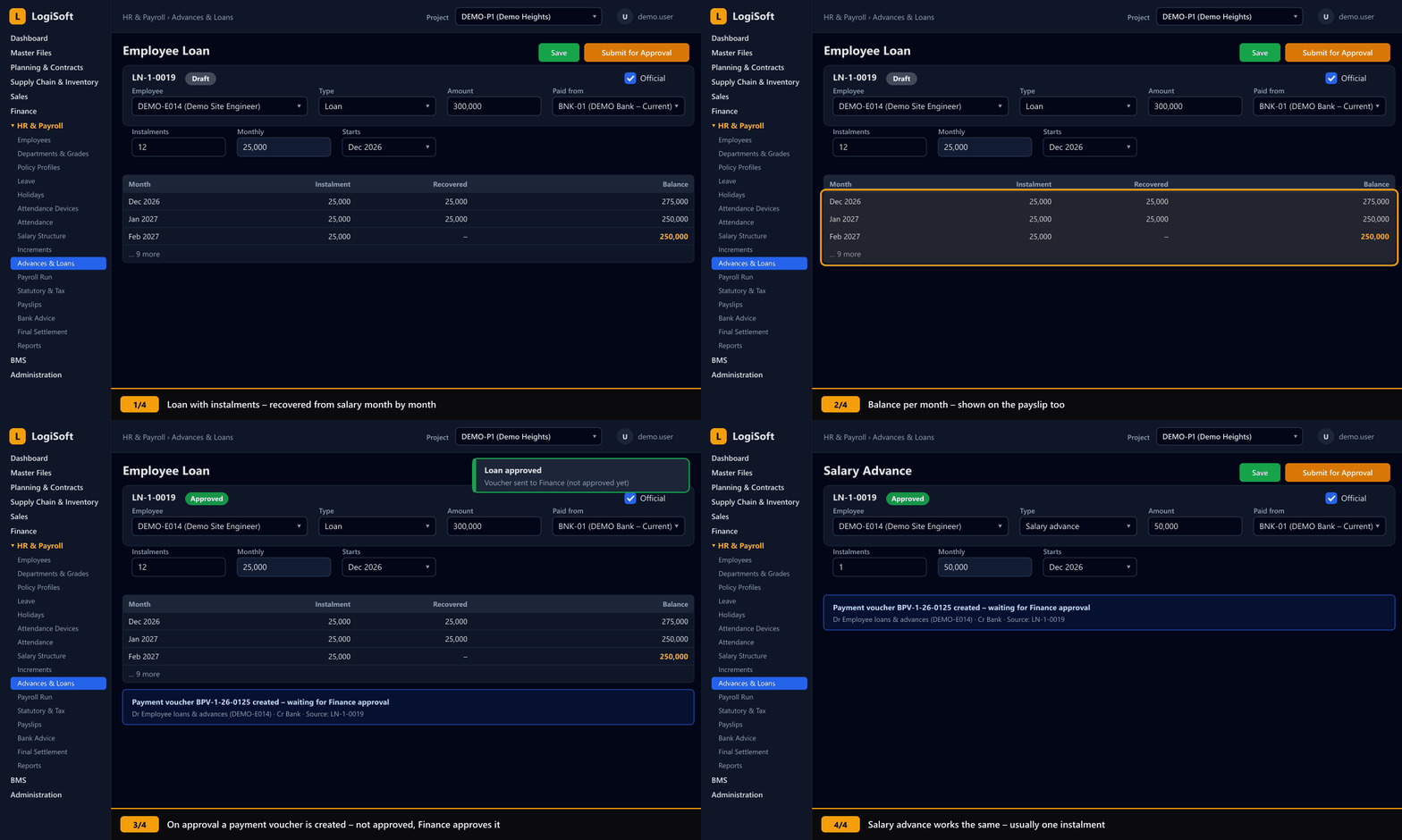
How

Loan or salary advance, amount, paid-from account, number of instalments and start month. Instalments are recovered in the payroll run; the balance shows per month and on the payslip. On approval a payment voucher is created in Finance – not approved – for Finance to check and approve. Official tick.

Advances and loans

C4Payroll run

Where

HR & Payroll › Payroll Run.

Why

One controlled run per month – nothing changes after it is approved.

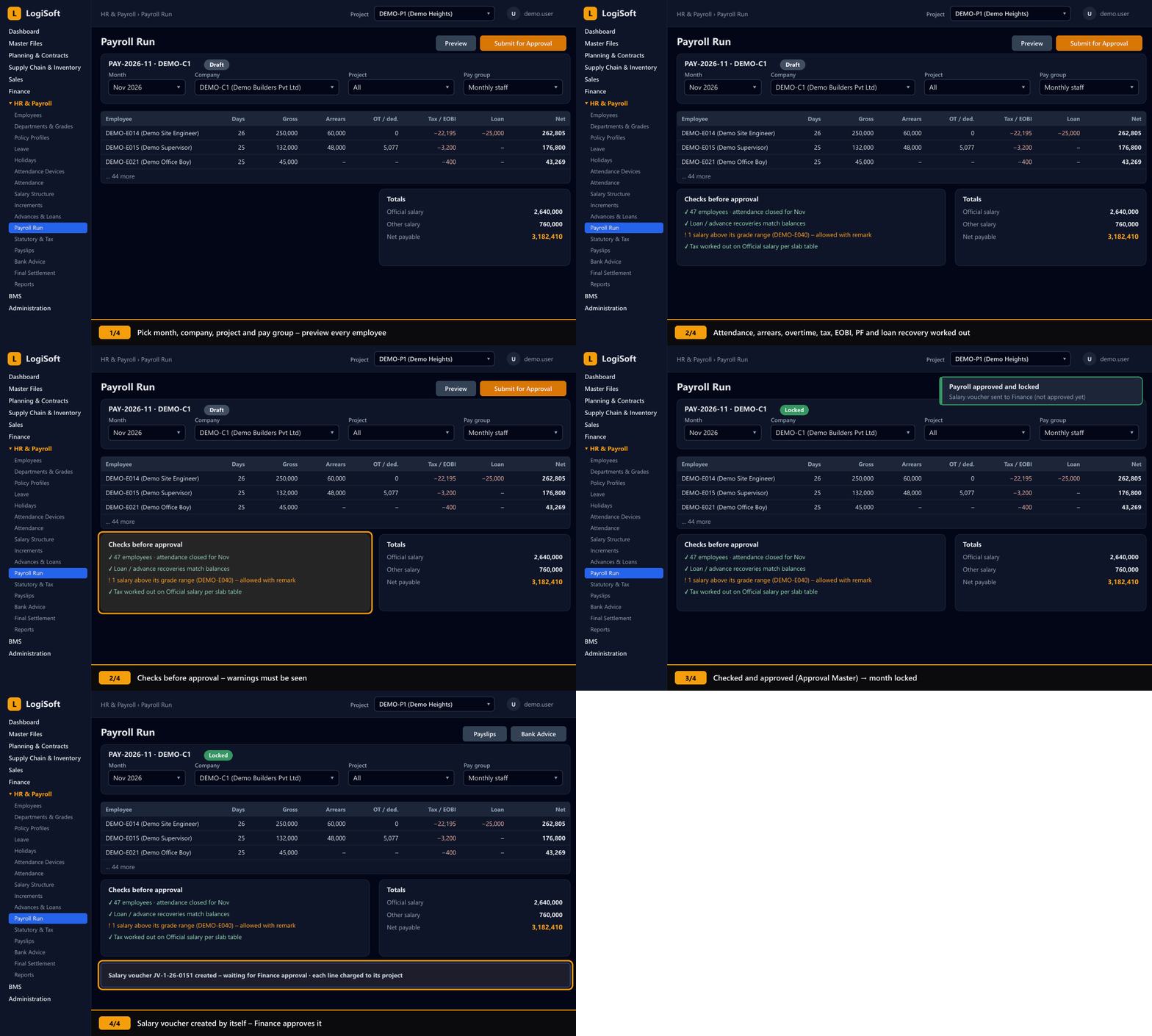
How

Month, company, project and pay group → preview every employee: days, gross, arrears, overtime / deductions from attendance, tax + EOBI + PF, loan recovery, net. Checks before approval (attendance closed, recoveries match balances, salaries outside the grade range). Checked and approved through the Approval Master → the month is locked. The salary voucher is then created in Finance by itself – not approved – with each line charged to its project. Totals show Official salary and Other salary.

Payroll run

C5Salary cost to projects

Where

HR & Payroll › Payroll Run › Salary cost to projects.

Why

Project cost must include the staff who work on it.

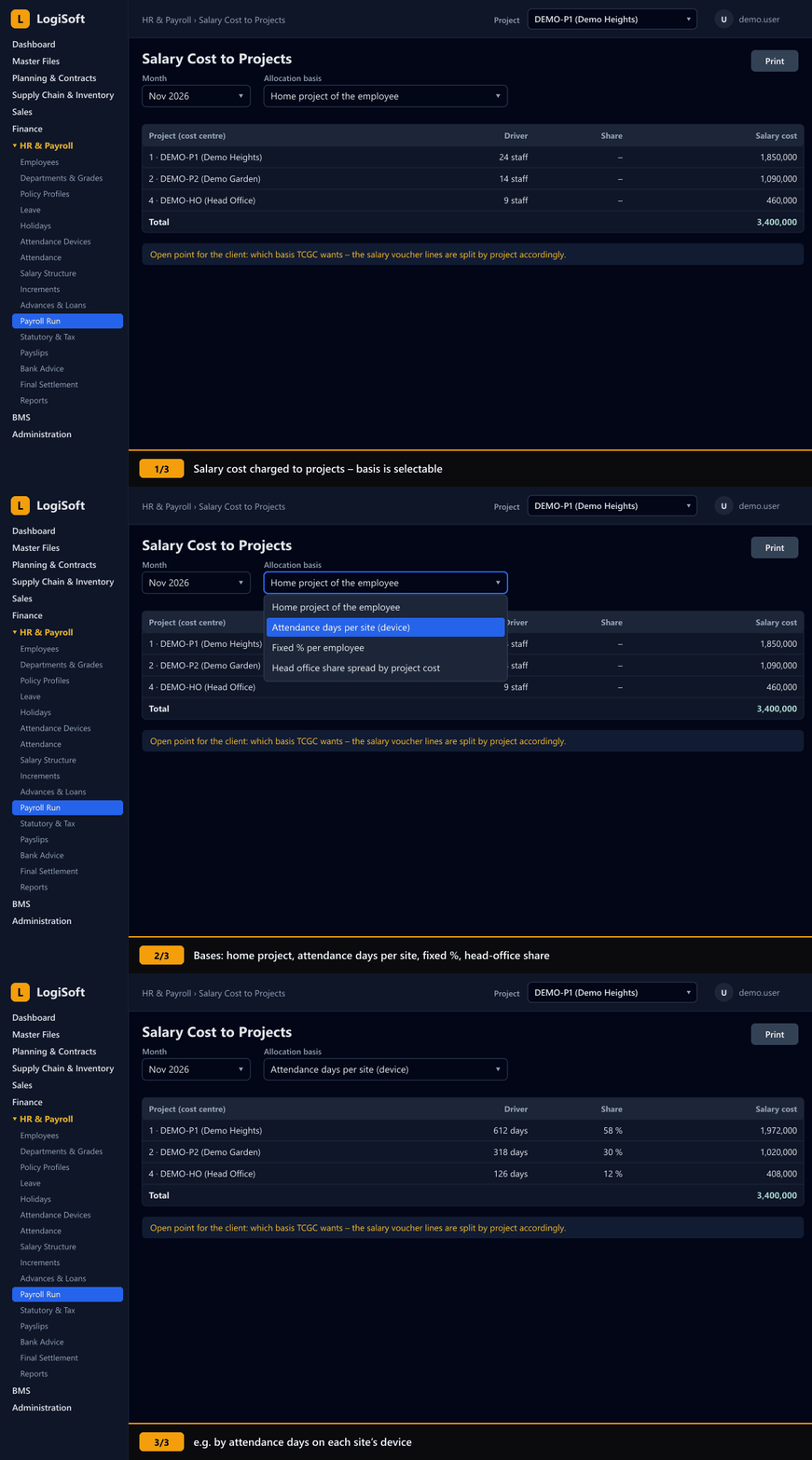
How

The basis is selectable: home project of the employee, attendance days on each site’s device, a fixed % per employee, or a head-office share spread by project cost. The salary voucher lines are split by project on that basis. Which basis TCGC wants is an open point.

Salary cost to projects

Part D

Statutory and tax

Rates and slabs are master files with effective dates – changed by your team when the government changes them.

D1EOBI, social security, PF, gratuity

Where

HR & Payroll › Statutory & Tax › Statutory.

Why

Statutory rates change – old months must keep their old rates.

How

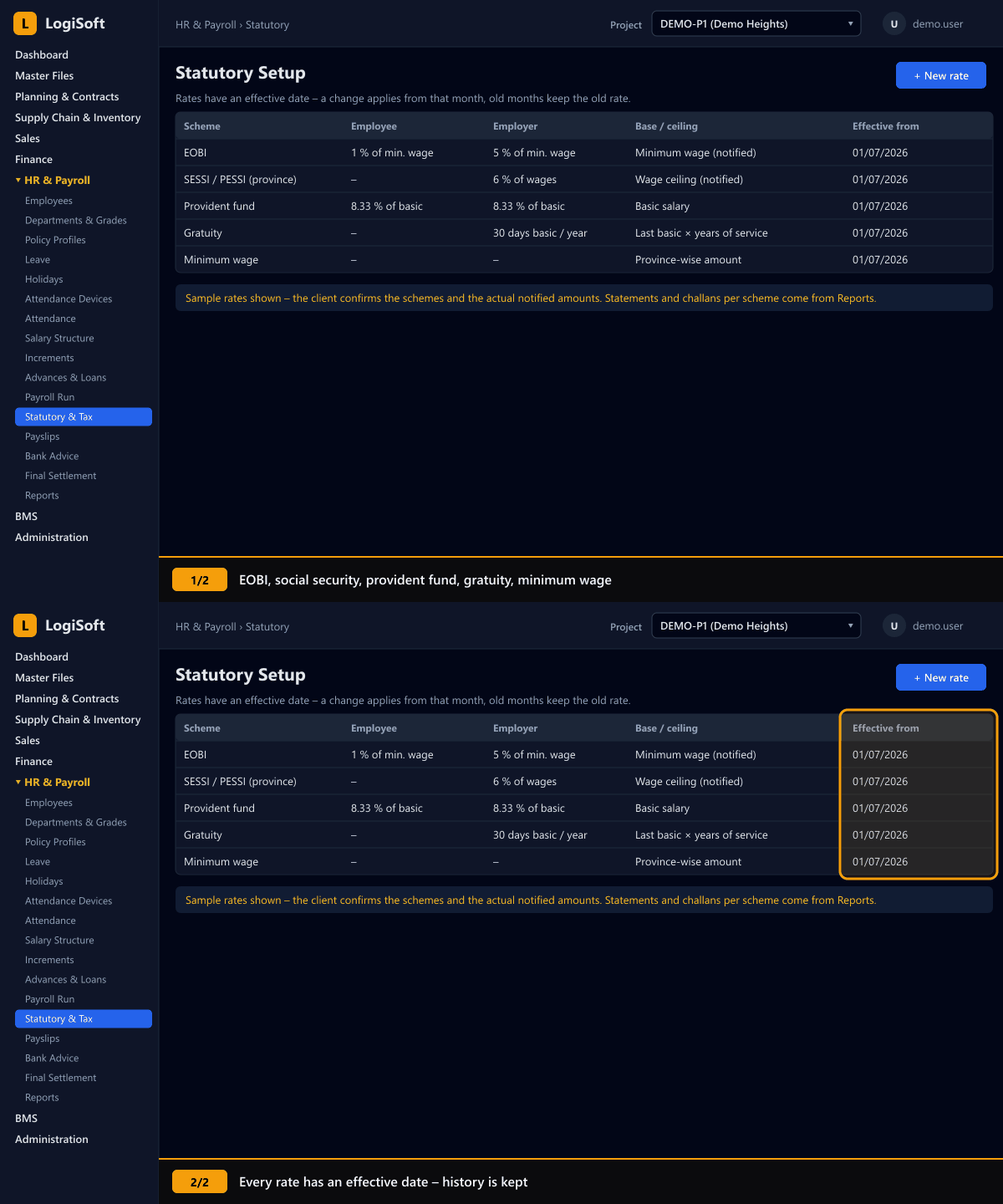
EOBI (employee / employer share on the notified minimum wage), provincial social security (SESSI / PESSI), provident fund, gratuity and minimum wage – each with an effective date. Statements and challans per scheme come from Reports. The client confirms which schemes apply and the notified amounts.

EOBI, social security, PF, gratuity

D2Income tax slabs (master file)

Where

HR & Payroll › Statutory & Tax › Tax Slabs.

Why

Tax is worked out, not typed – and the slabs change every budget.

How

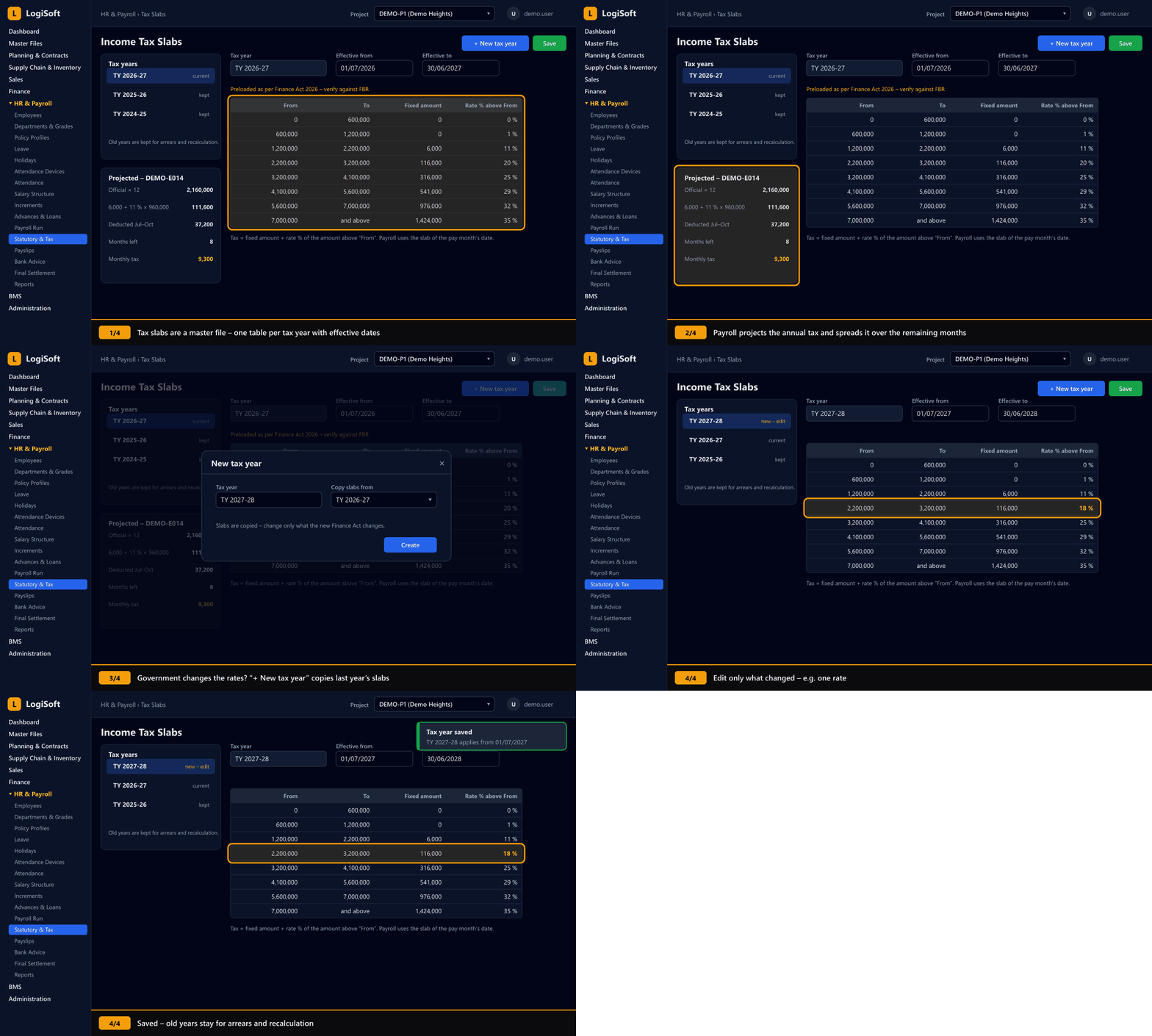
One table per tax year with effective-from and to dates; rows From · To · Fixed amount · Rate % on the amount above From. Preloaded TY 2026-27 as per Finance Act 2026 (to verify against FBR): 0–600,000 0 % · 600,000–1,200,000 1 % · 1.2–2.2 M 6,000 + 11 % · 2.2–3.2 M 116,000 + 20 % · 3.2–4.1 M 316,000 + 25 % · 4.1–5.6 M 541,000 + 29 % · 5.6–7 M 976,000 + 32 % · above 7 M 1,424,000 + 35 %. “+ New tax year” copies last year’s slabs to edit; old years are kept for arrears and recalculation. Payroll uses the slab of the pay month’s date and spreads the projected annual tax over the remaining months.

Income tax slabs (master file)

Part E

Payslips, bank and settlement

What the employee and the bank receive – and the last pay when someone leaves.

E1Payslip

Where

HR & Payroll › Payslips.

Why

A clear payslip for every employee, without printing them one by one.

How

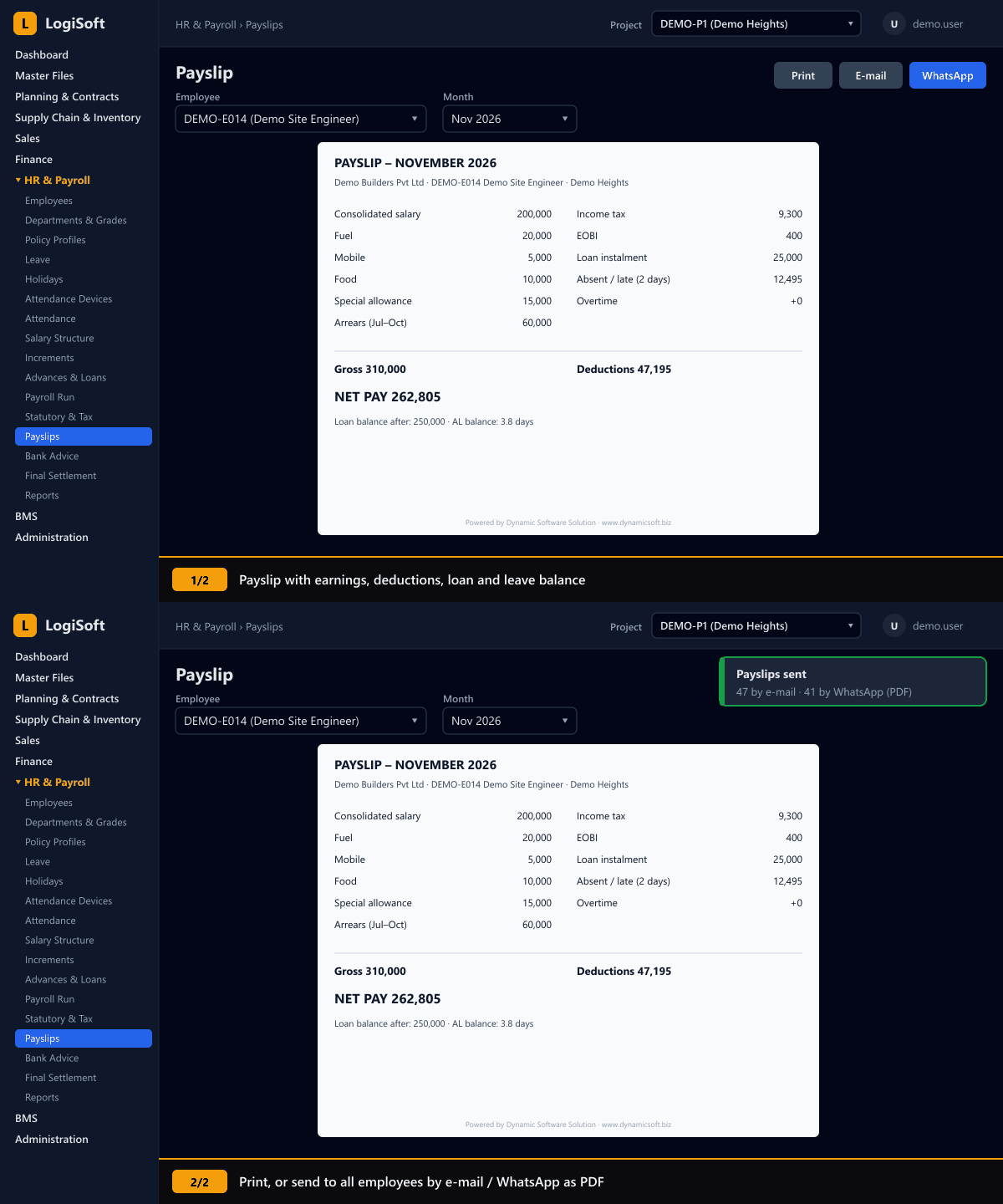
Earnings, deductions, net pay, loan balance and leave balance. Print, or send to all employees by e-mail and WhatsApp as PDF. No employee self-service portal in this phase.

Payslip

E2Bank advice letter

Where

HR & Payroll › Bank Advice.

Why

The bank needs a signed letter to transfer the salaries.

How

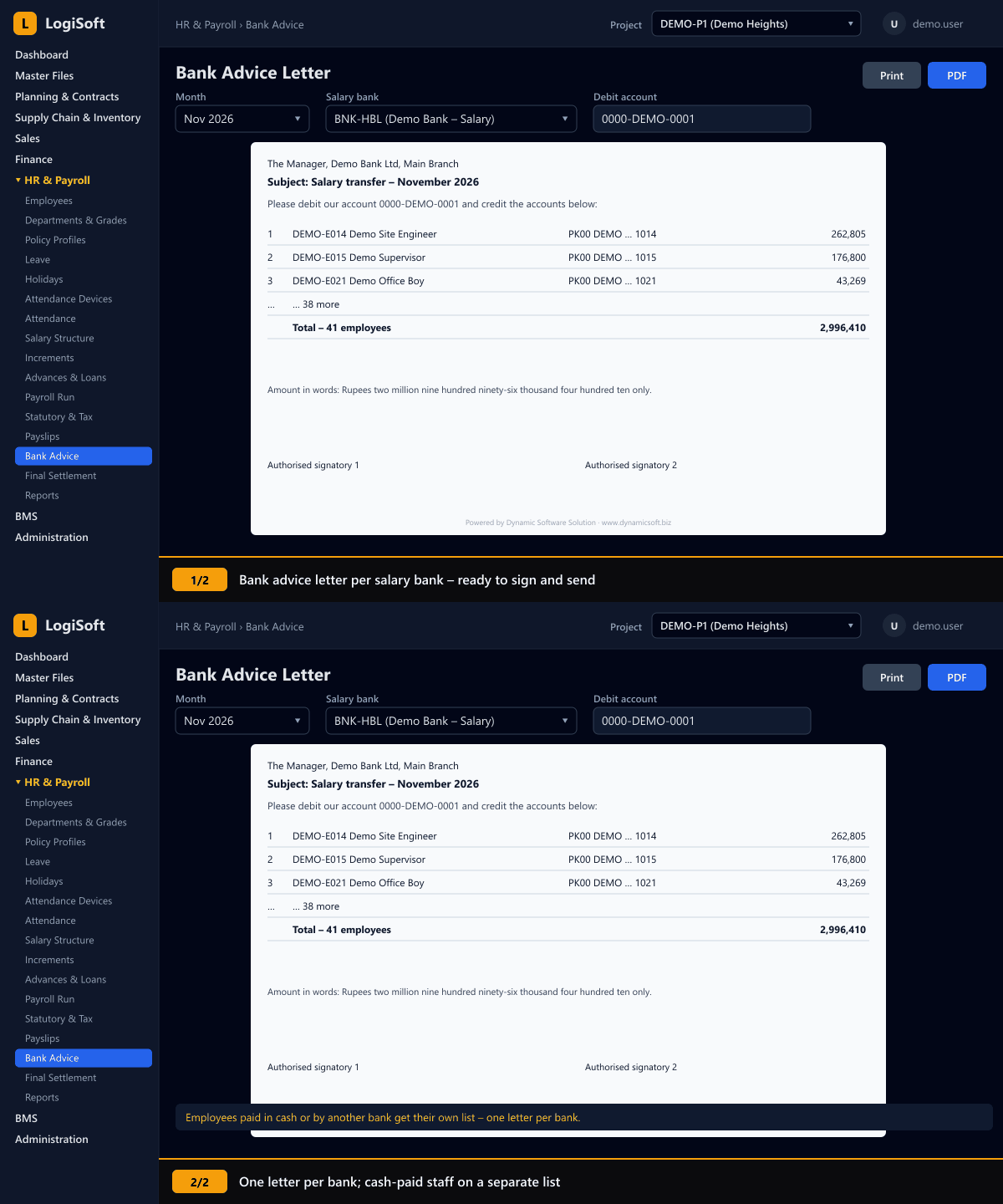
One letter per salary bank: debit account, every employee with account / IBAN and amount, total in figures and words, signatory lines; print or PDF. Employees paid in cash or by another bank are on separate lists. (Bank upload files are not needed in this phase.)

Bank advice letter

E3Final settlement

Where

HR & Payroll › Final Settlement.

Why

Everything owed to and by a leaving employee, worked out in one place.

How

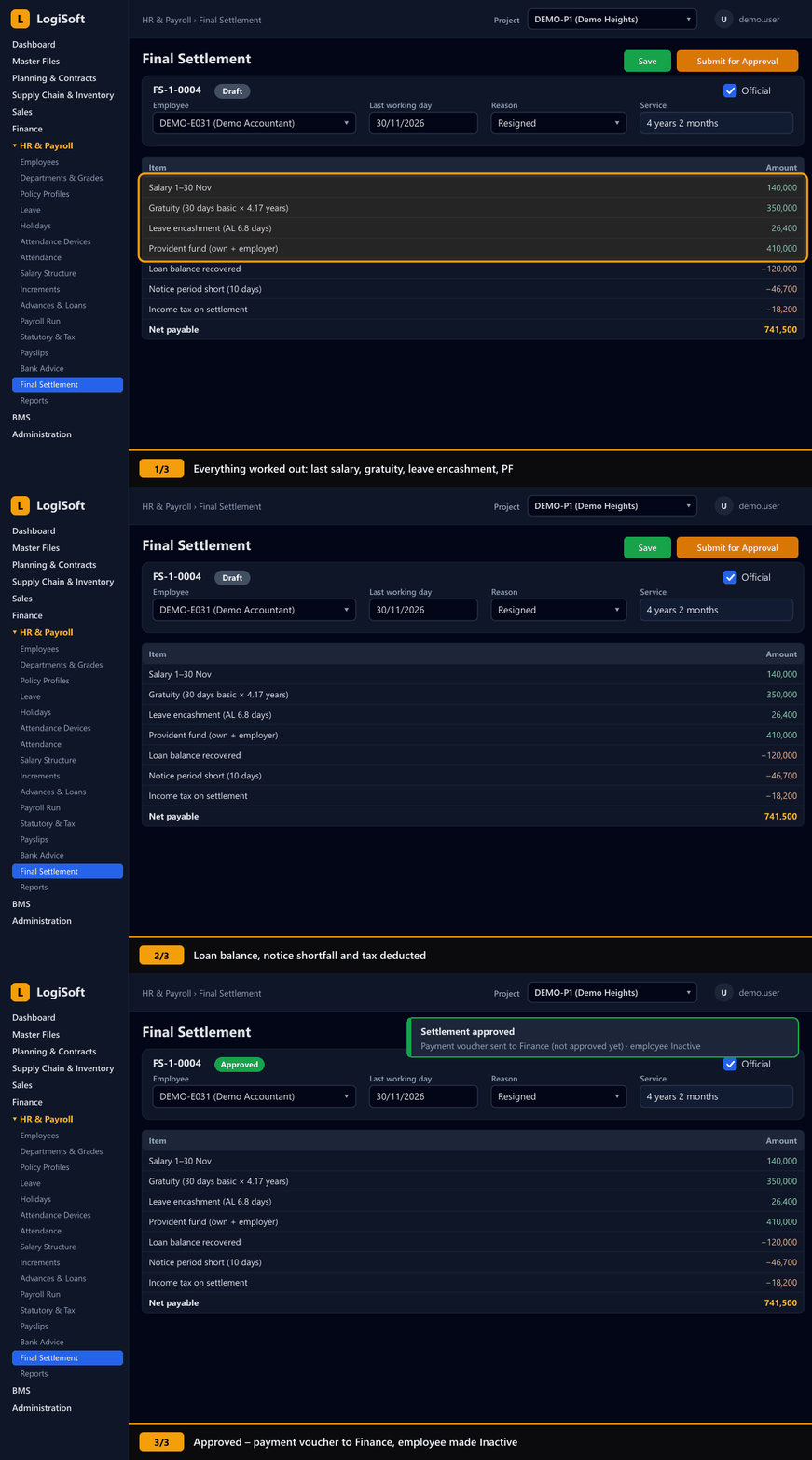
Last salary, gratuity (rule from the statutory setup), leave encashment, provident fund, minus loan balance, notice-period shortfall and tax. Approval through the Approval Master; on approval a payment voucher is created in Finance (not approved) and the employee becomes Inactive.

Final settlement

Part F

Recruitment

Every job opening gets its own public apply page; applicants are tracked until they become employees.

F1Job openings

Where

HR & Payroll › Recruitment › Job Openings.

Why

Advertise a vacancy with one link that collects every application.

How

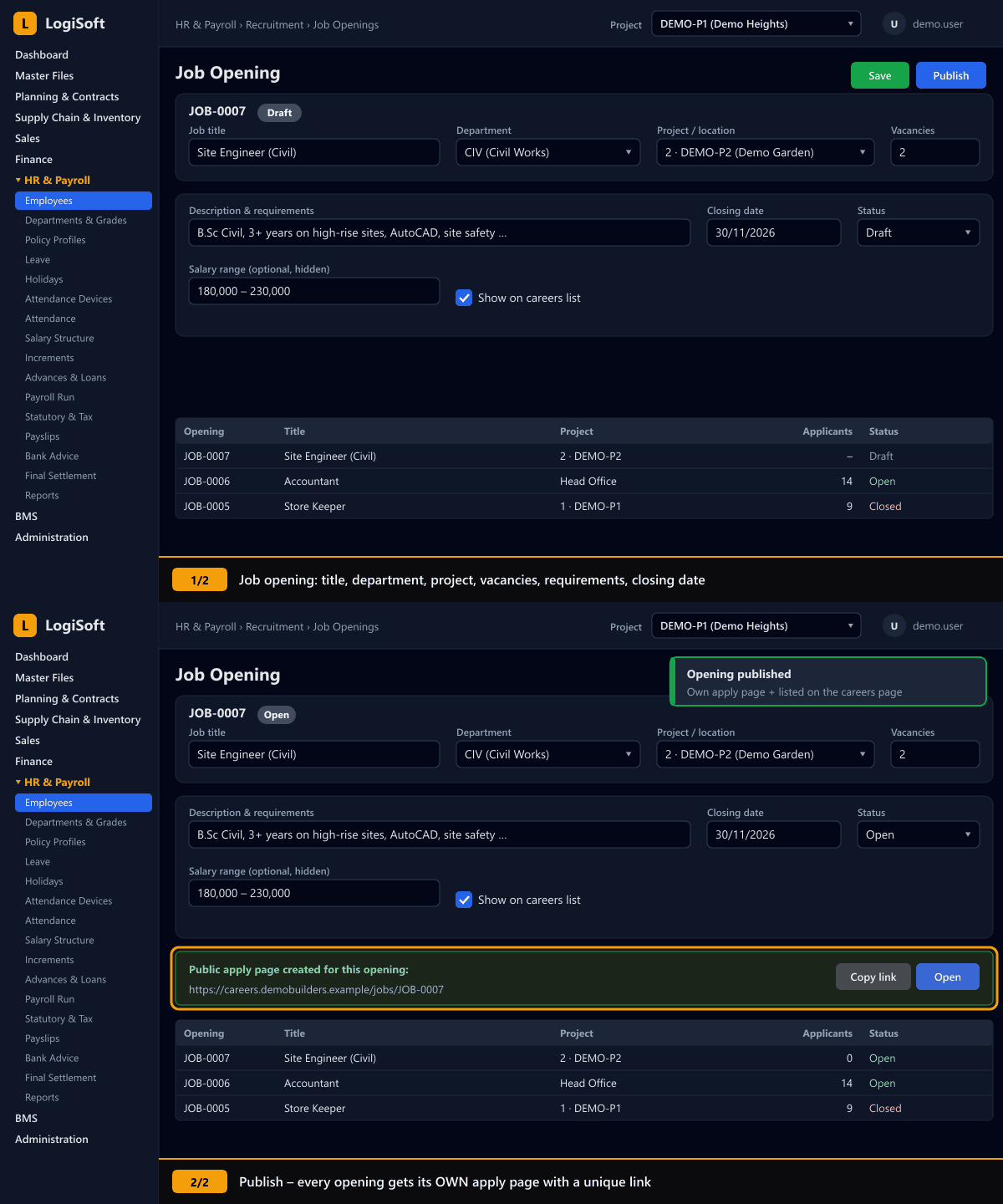
Title, department, project / location, vacancies, description and requirements, closing date, optional hidden salary range, status Open / Closed. Publishing creates the opening’s OWN apply page with a unique link (e.g. …/jobs/JOB-0007) – every opening has a different page – and lists it on the careers page.

Job openings

F2Public apply page

Where

Web page of the opening (company branding, not the software).

Why

Candidates apply from their phone or computer – no paper CVs.

How

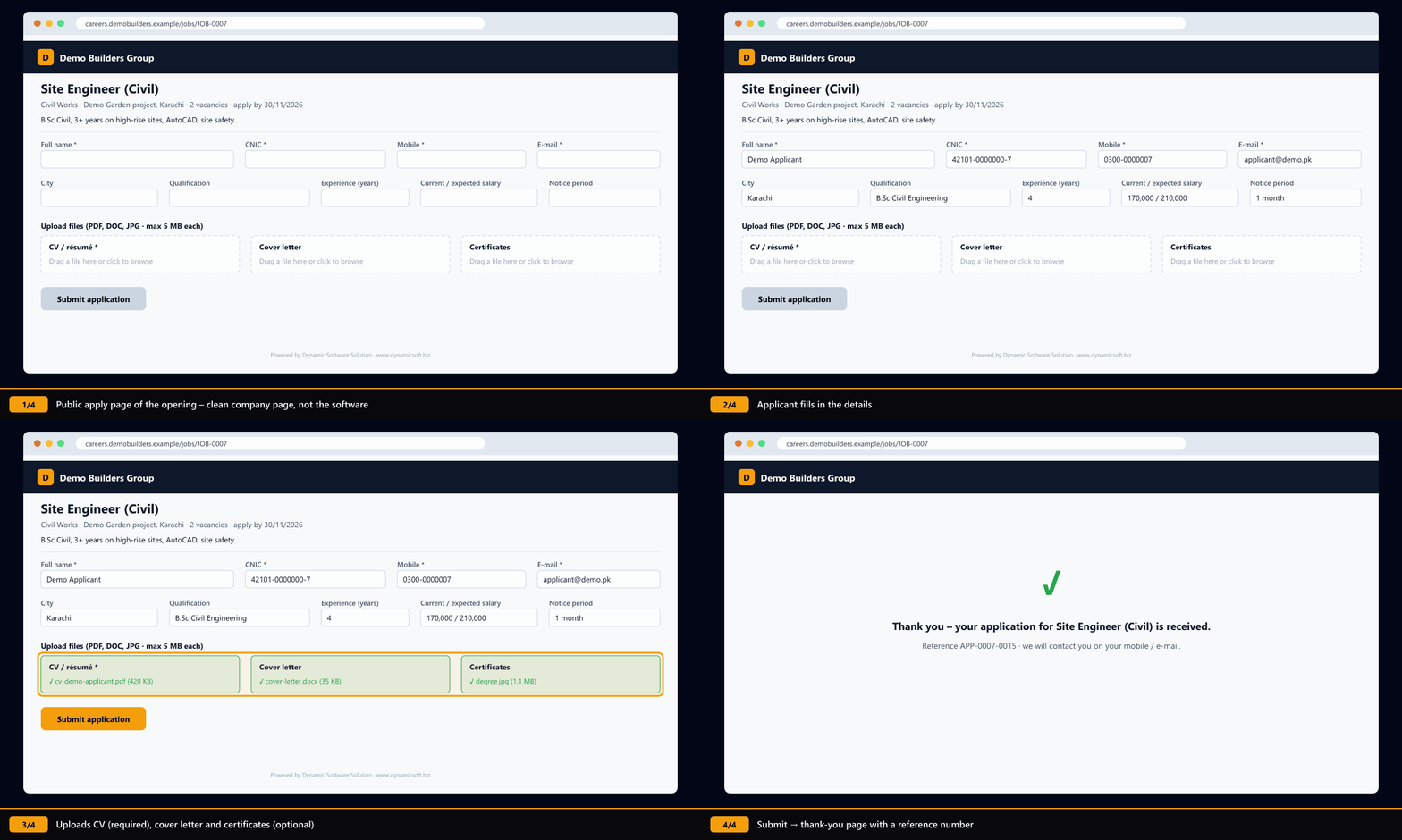
Job details on top; form with name, CNIC, mobile, e-mail, city, qualification, years of experience, current / expected salary and notice period; file uploads – CV required, cover letter and certificates optional (PDF / DOC / JPG, size limit). Submit → thank-you page with a reference number.

Public apply page

F3Careers link on your website

Where

Your own website.

Why

Use the website you already have – just add a link.

How

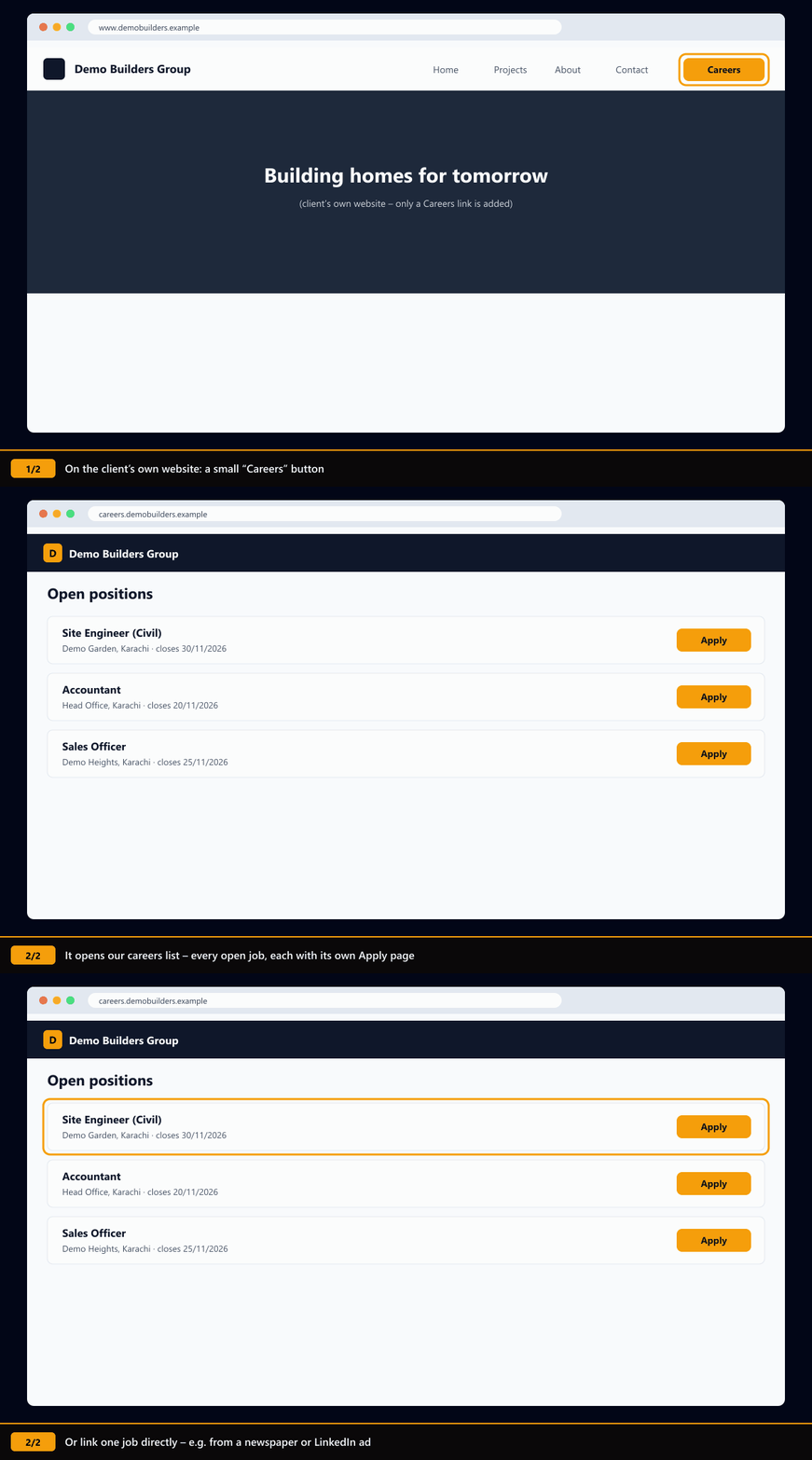
A small “Careers” button on your website opens the careers list with all open jobs, each with its own Apply page. A single job’s link can also be shared directly – e.g. in a newspaper or LinkedIn advert.

Careers link on your website

F4Applicants

Where

HR & Payroll › Recruitment › Applicants.

Why

Every application tracked from first look to joining.

How

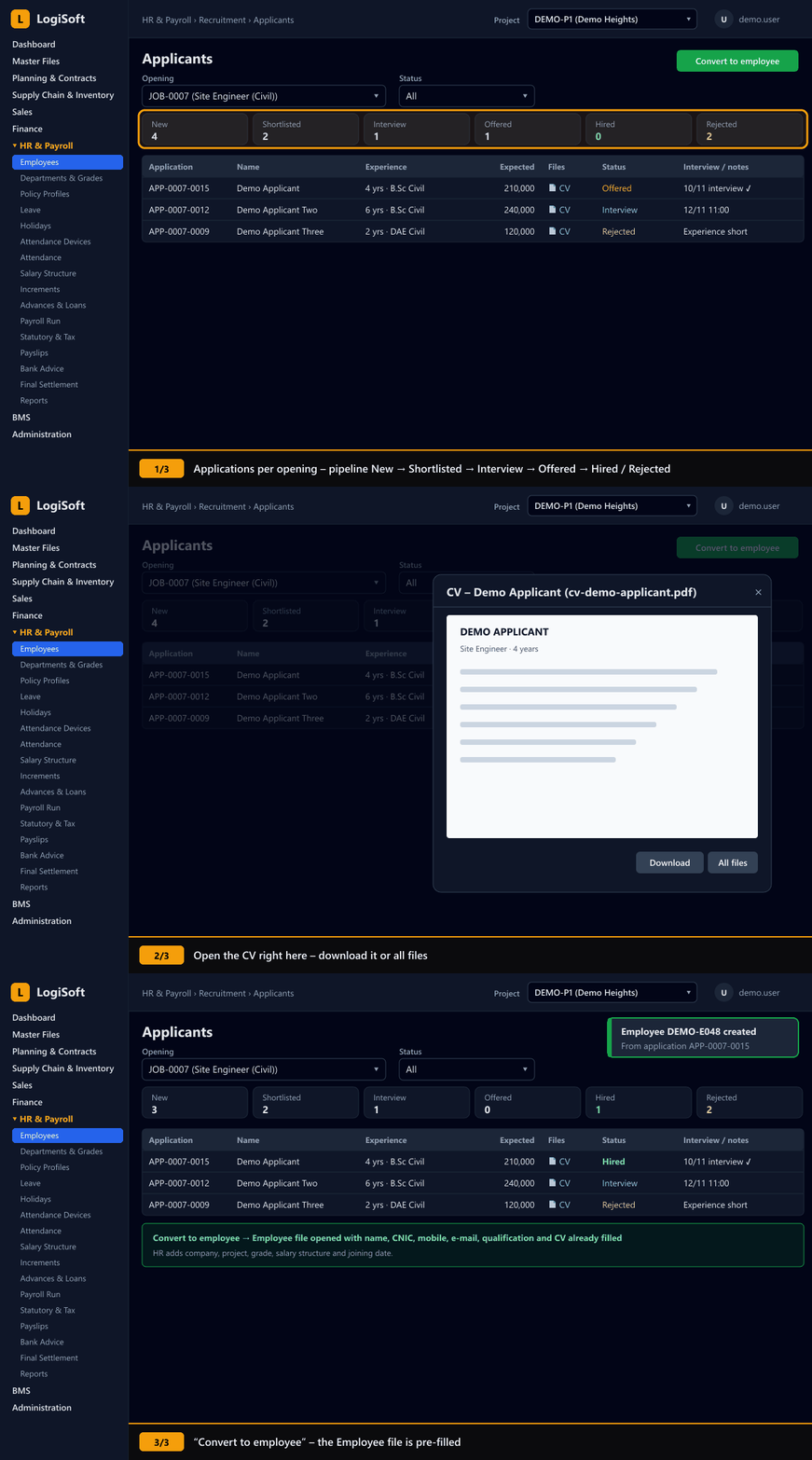
Applications per opening with CV preview and download; pipeline New → Shortlisted → Interview → Offered → Hired / Rejected with counts, notes and interview dates. “Convert to employee” opens the Employee file already filled with the applicant’s details and CV.

Applicants

Part G

Accounting entries and reports

Inside the suite the vouchers are created in Finance automatically and left un-approved for Finance; used on its own, the same entries come as a salary journal report / export.

Accounting entries

DocumentDebitCredit
Advance / loan givenEmployee loans & advances (employee)Bank / cash – voucher created, approved by Finance
Salary (payroll approved)Salary expense by component (with project)Salaries payable · income tax payable · EOBI / social security / PF payable · loan recovery
Salary paid (bank advice)Salaries payableBank
Statutory depositedTax / EOBI / social security / PF payableBank
Final settlementGratuity / leave encashment / salary payableBank · loan recovered · tax payable

Reports

R1Salary register – Official salary / Other salary / total, by company, project, department
R2Attendance summary, late and overtime report
R3Leave register and balances
R4Loan and advance register with balances
R5EOBI, social security and PF statements
R6Income tax deduction report and annual tax certificate per employee
R7Headcount and salary cost by project
R8Increments and arrears history
R9Recruitment: openings, applicants by status
R10Audit trail – who changed what, when

All reports: filters (company, project, department, month / year, employee), print / PDF / Excel, company logo.

Not included

  • Daily-wage labour payroll for construction sites – site labour is engaged through contractors.
  • Employee self-service portal (payslips, leave requests online) – not needed in this phase.
  • Bank upload files – a bank advice letter is provided instead.
  • Selfie / face check, geofencing and offline marking for mobile attendance (later phase).
  • Native Android attendance app with mock-location / rooted-phone detection (later option – the web page cannot fully detect fake GPS).
  • Online tests and video interviews in recruitment.

Acceptance

The module is accepted when: punches are fetched from a site device and the 3rd late of a month becomes an absent → a no-device employee gets a standard month and one day is edited → a leave is approved and shows on attendance → a back-dated increment pays its arrears in the next run → a loan is recovered over instalments and its balance shows on the payslip → a payroll run is checked, approved and locked and the salary voucher appears in Finance un-approved, split by project → income tax matches the slab table, and a new tax year is copied and edited → a bank advice letter and payslips are produced → a final settlement is approved → an applicant applies on a job’s own page and is converted to an employee.

Open points

For your decision

01

Salary cost to projects

Which basis should charge salary cost to projects – home project, attendance days per site, fixed % per employee, or a head-office share?

02

Social security

Which province’s scheme applies to each company (SESSI / PESSI / other)?

03

Provident fund and gratuity

Rates and eligibility – who is a member, from when, and the gratuity rule (days per year of service, minimum service).

04

Attendance devices

Brand and model of the device on each site, and whether each site’s network can be reached from the server.

05

Careers page address

Careers pages on our domain, or on a sub-domain of yours (e.g. careers.yourcompany.com)?

Prepared by Dynamic Software Solution · 05 Nov 2026 · Document version 0.1

Powered by Dynamic Software Solution · www.dynamicsoft.biz