Module 1 · Construction & Real Estate Suite

Planning & Contracts – Scope of Work

Manage each construction project from land purchase to the work done by contractors: project structure, cost BOQ and budget, material breakdown, drawings, work programme, sub-contracts, running bills and daily progress – with approvals and automatic accounting entries in Finance. Anything not written on this page is not part of this module.

All modules
PC
Planning & Contracts

How it will work

01

Land

Land purchase → seller bill in Finance

02

BOQ & budget

BOQ, materials, cost budget, variations

03

Drawings

Upload, revise and approve drawings

04

Programme

Planned vs actual bars, delays in red

05

Work orders

Sub-contracts: qty × rate or lump sum %

06

RA bills

Running bills with recovery, retention, tax

07

Daily progress

Work done, labour, machinery, photos

How it fits in LogiSoftWhere it comes from
Group › Company › ProjectAdministration. New companies / projects and their names and codes are added only by Dynamic Software Solution; your team maintains address, contact and tax details.
Contractors, consultants, sellersMaster Files › Parties – one parties file for customers, suppliers and contractors.
Items and unitsSupply Chain & Inventory › Item Master.
AccountsFinance – entries are created automatically when a document is approved.
Project selectionEvery screen has a Project drop-down at the top, showing only the projects the user is allowed; pre-selected with the user's default project.
The GIFs play the steps of each screen automatically; the orange box shows where to look in each step. Click any picture to open it full size. Screens are a preview of the planned design – names and amounts are sample data.

Part A

Setup screens

Filled once per project. Towers and stores / floors are shared with Supply Chain & Inventory and Property Sales.

A1Project Profile

Where

Planning & Contracts › Setup › Project Profile.

Why

One place for the plot, location, land area and the planned saleable area (e.g. land 10,000 sq ft → 50,000 sq ft saleable).

How

Property type (apartments / plots / commercial), land, covered and planned saleable area, start and expected completion date, project logo.
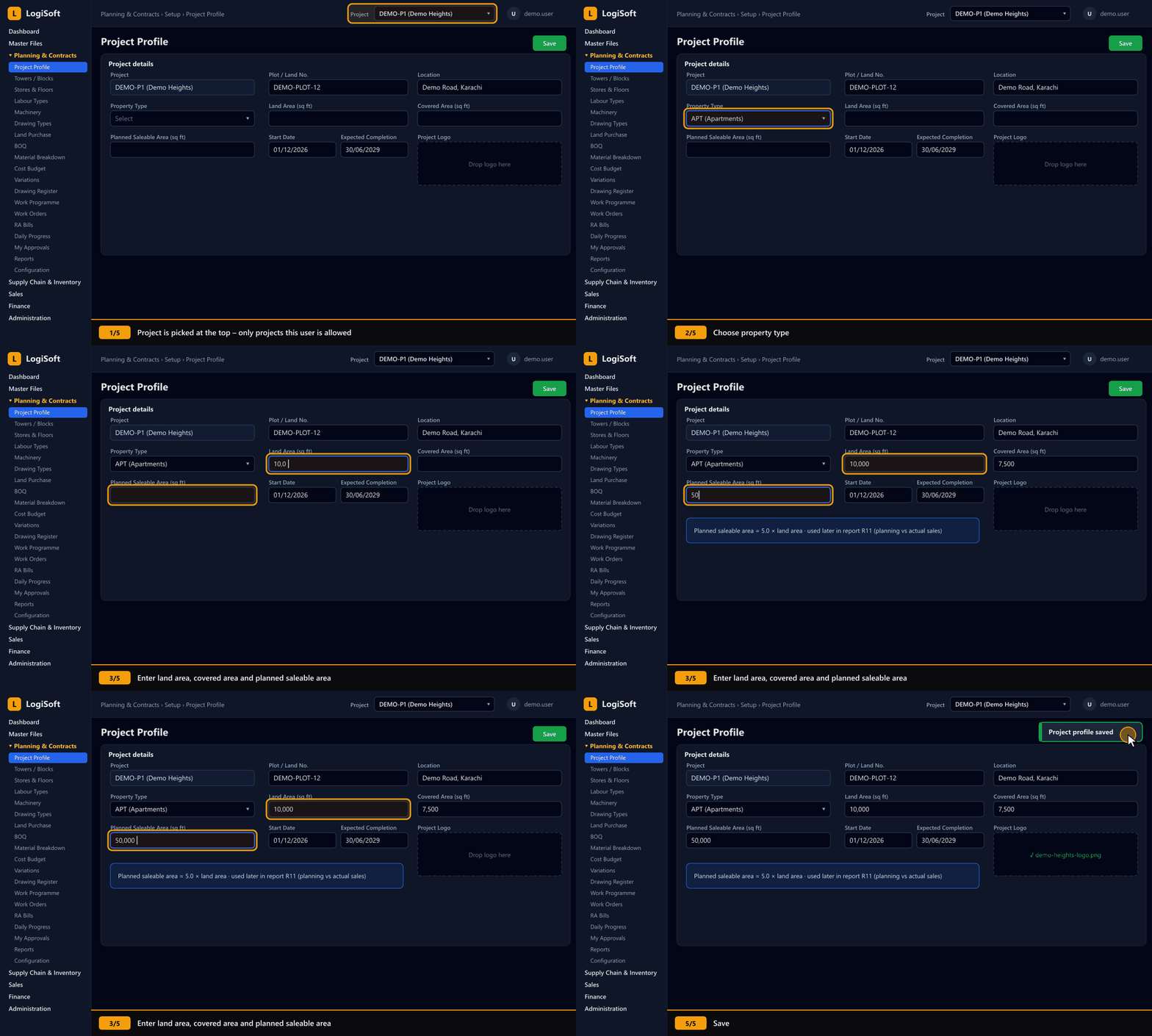
Project Profile

A2Towers / Blocks and Stores & Floors

Where

Planning & Contracts › Setup › Towers / Blocks and Stores & Floors.

Why

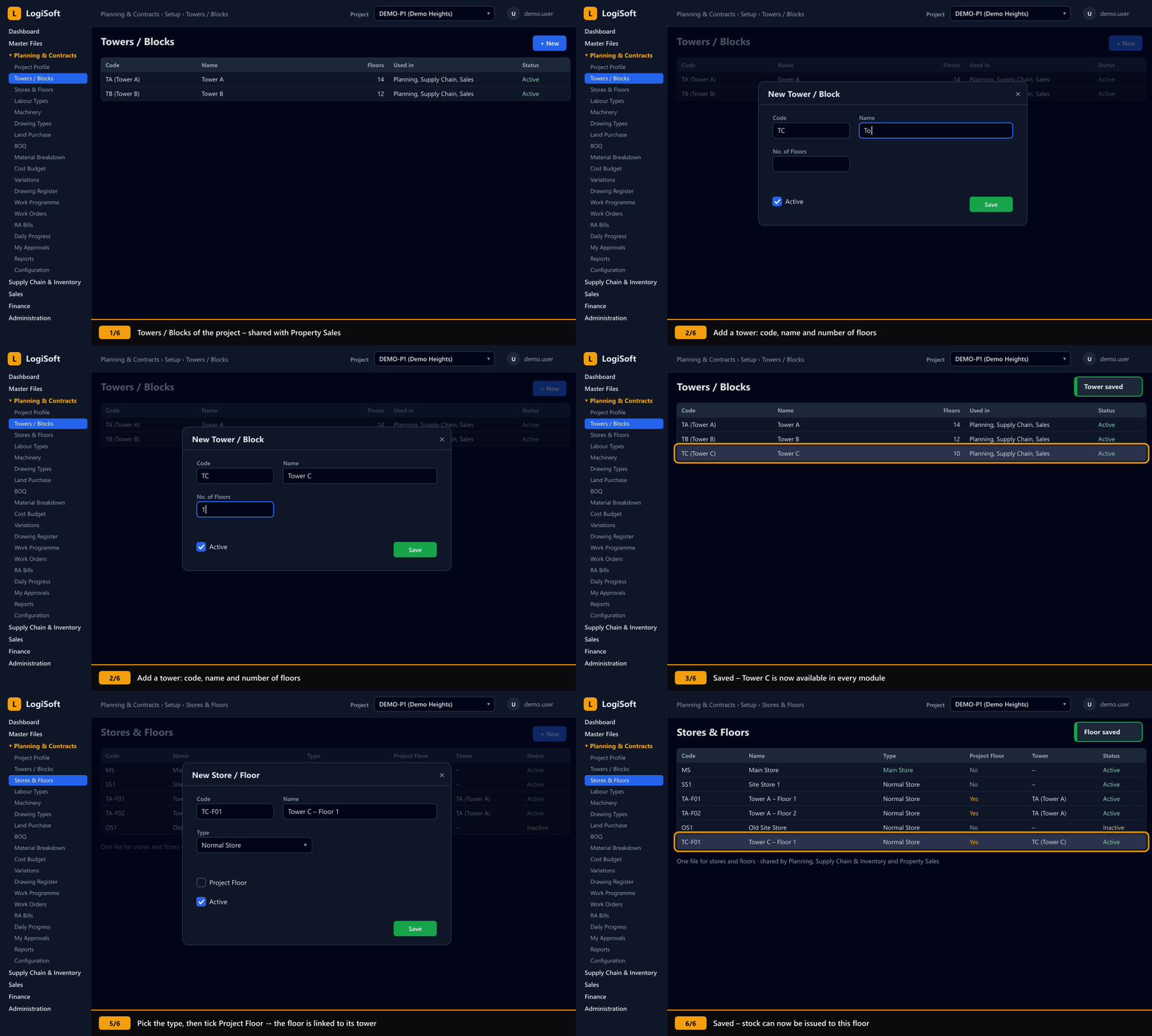
The same towers and floors are used by planning, stores and sales – entered once.

How

Tower: code, name, number of floors. Store / Stock Room file: each entry is a Main Store or Normal Store; any store can be ticked as a Project Floor (linked to its tower). Every master file has an Active / Inactive status – inactive entries stay in old documents but are not offered in new ones.

Towers / Blocks and Stores & Floors

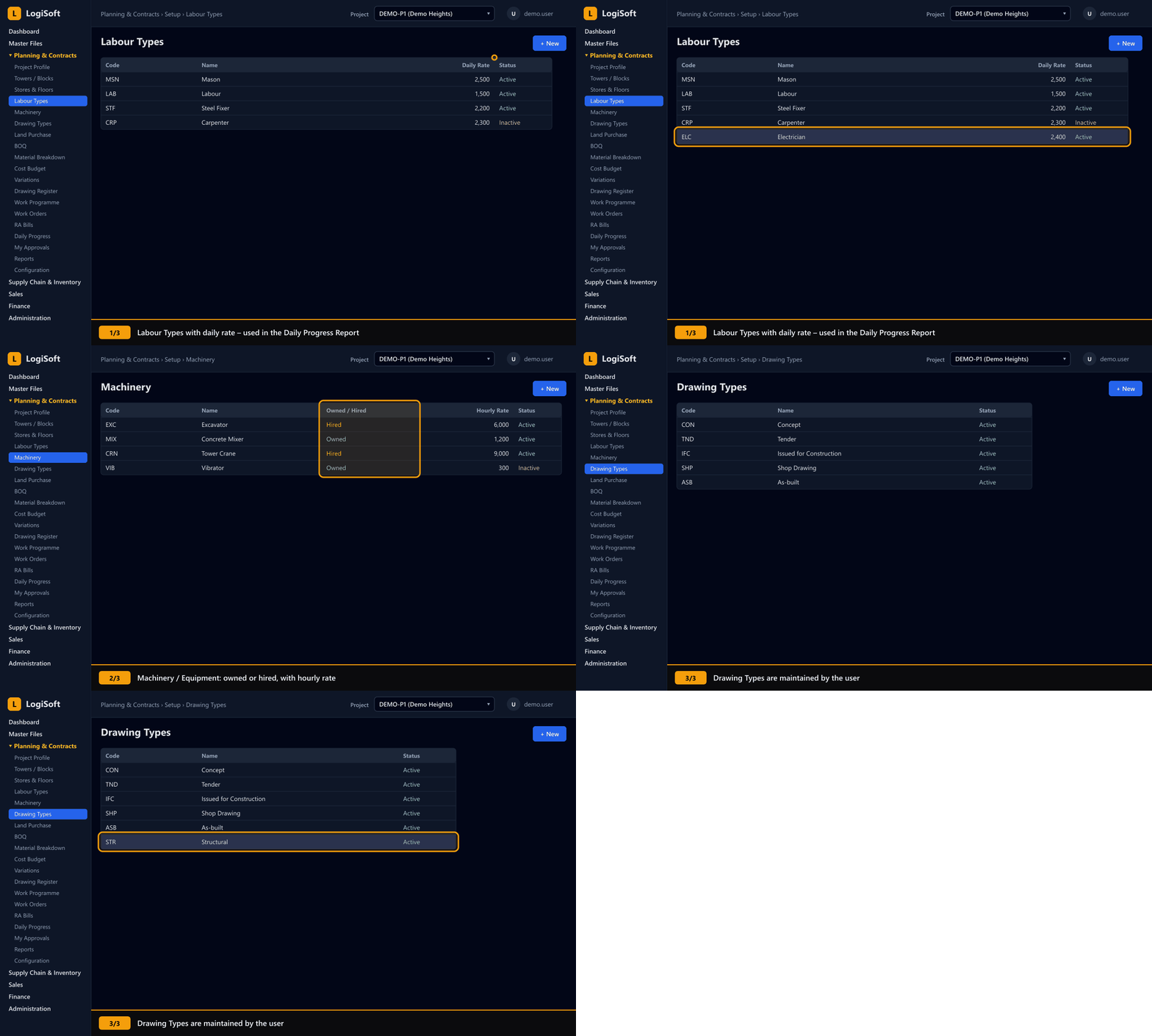
A3Labour Types, Machinery and Drawing Types

Where

Planning & Contracts › Setup.

Why

Lists used by the Daily Progress Report and the Drawing Register.

How

Labour type with daily rate · machinery owned / hired with hourly rate · drawing types (Concept, Tender, IFC, Shop, As-built …) maintained by the user.

Labour Types, Machinery and Drawing Types

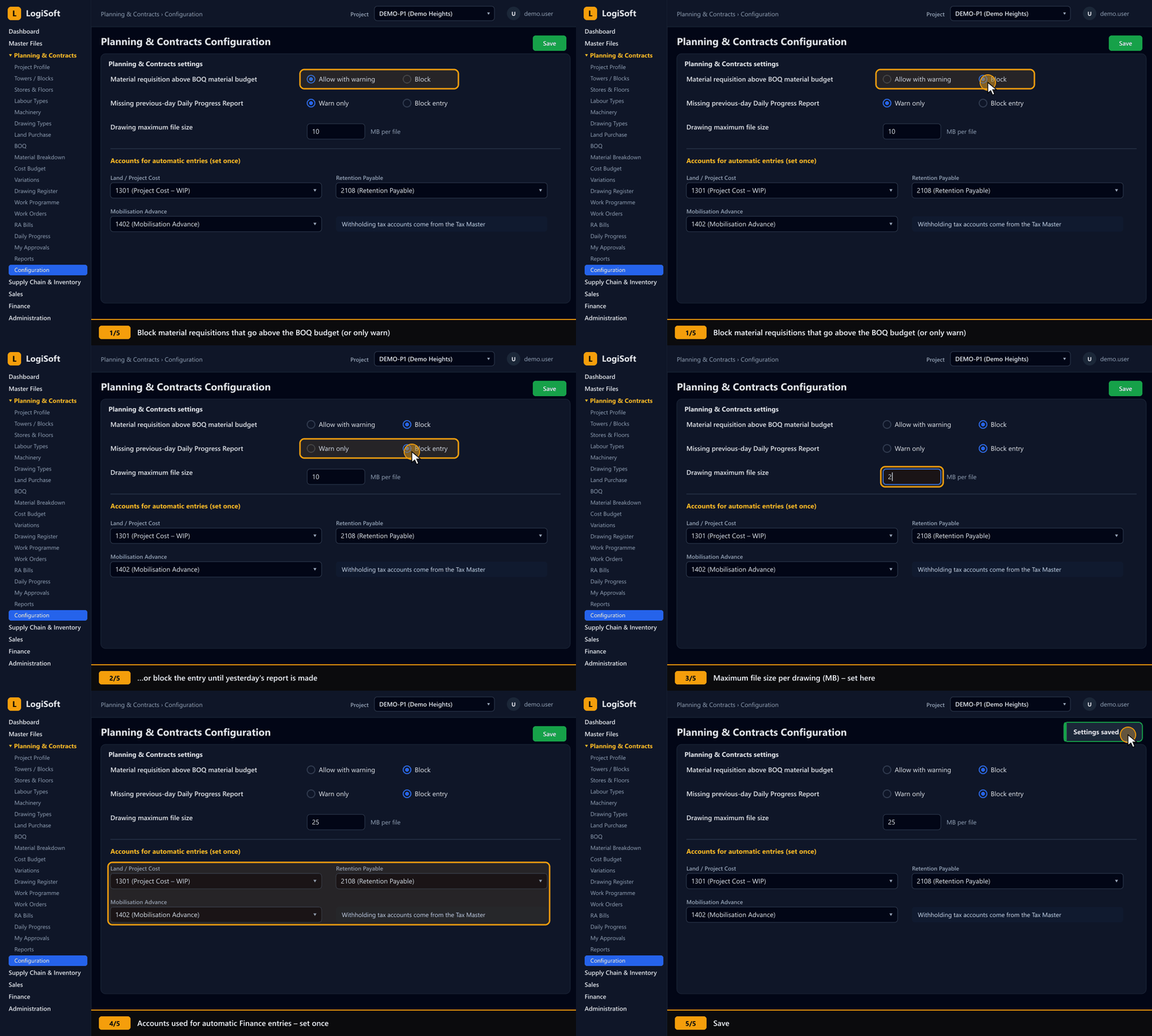
A4Configuration

Where

Planning & Contracts › Configuration.

Why

Your team decides how strict the system is – no code change needed later.

How

Requisition above BOQ budget: allow with warning / block · missing previous-day progress: warn / block · drawing maximum file size · accounts for automatic entries (set once).

Configuration

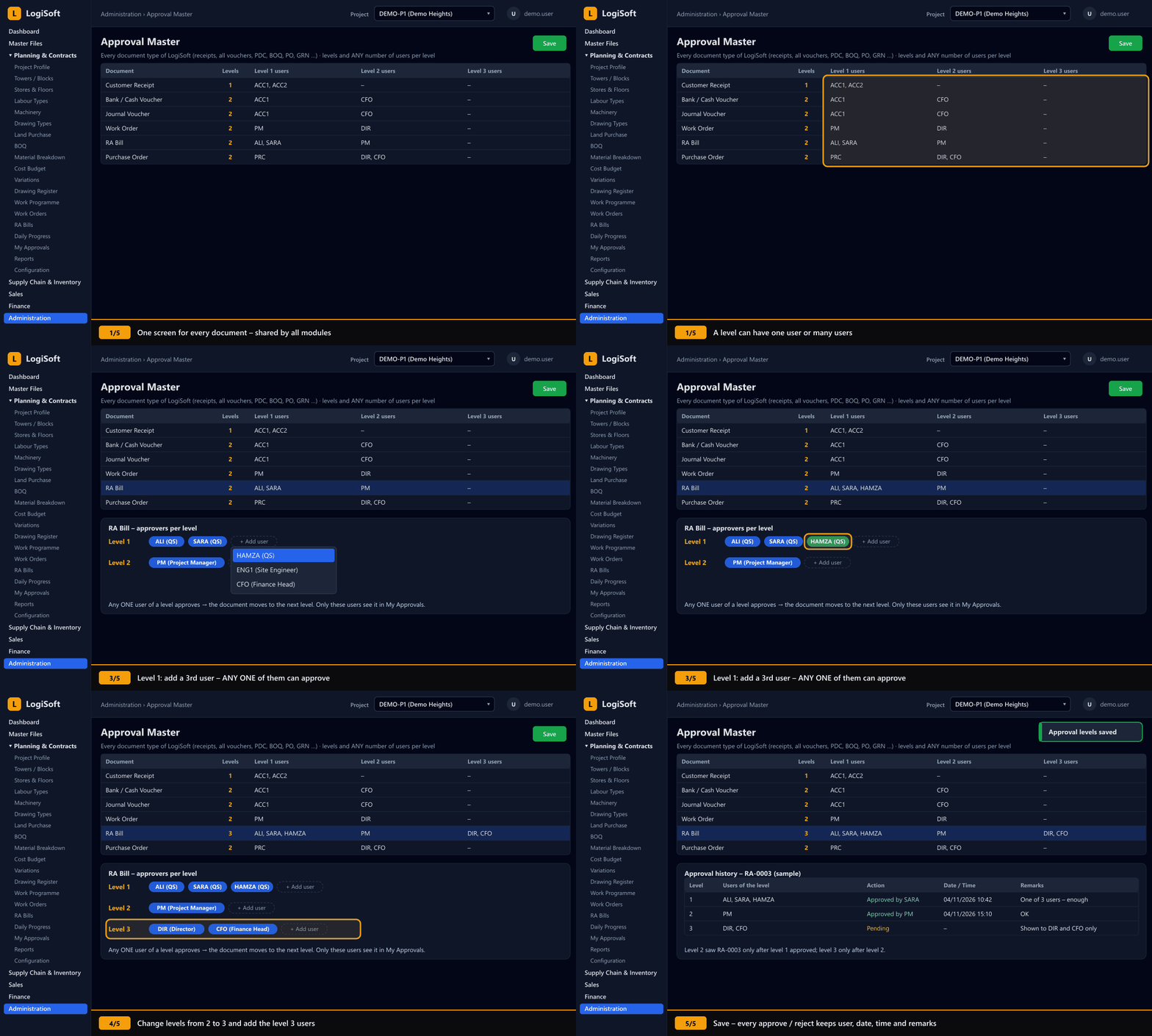
A5Approval Master

Where

Administration › Approval Master (shared by all modules).

Why

Every document type of LogiSoft is approved the same way.

How

For each document set the number of approval levels, and add any number of users to each level. Any ONE user of a level approves and the document moves to the next level; level 2 sees it only after level 1. Only the users of a level see the document in My Approvals. Every approve / reject records user, date, time and remarks.

Approval Master

Part B

Land, BOQ and budget

From land purchase to a fully costed BOQ.

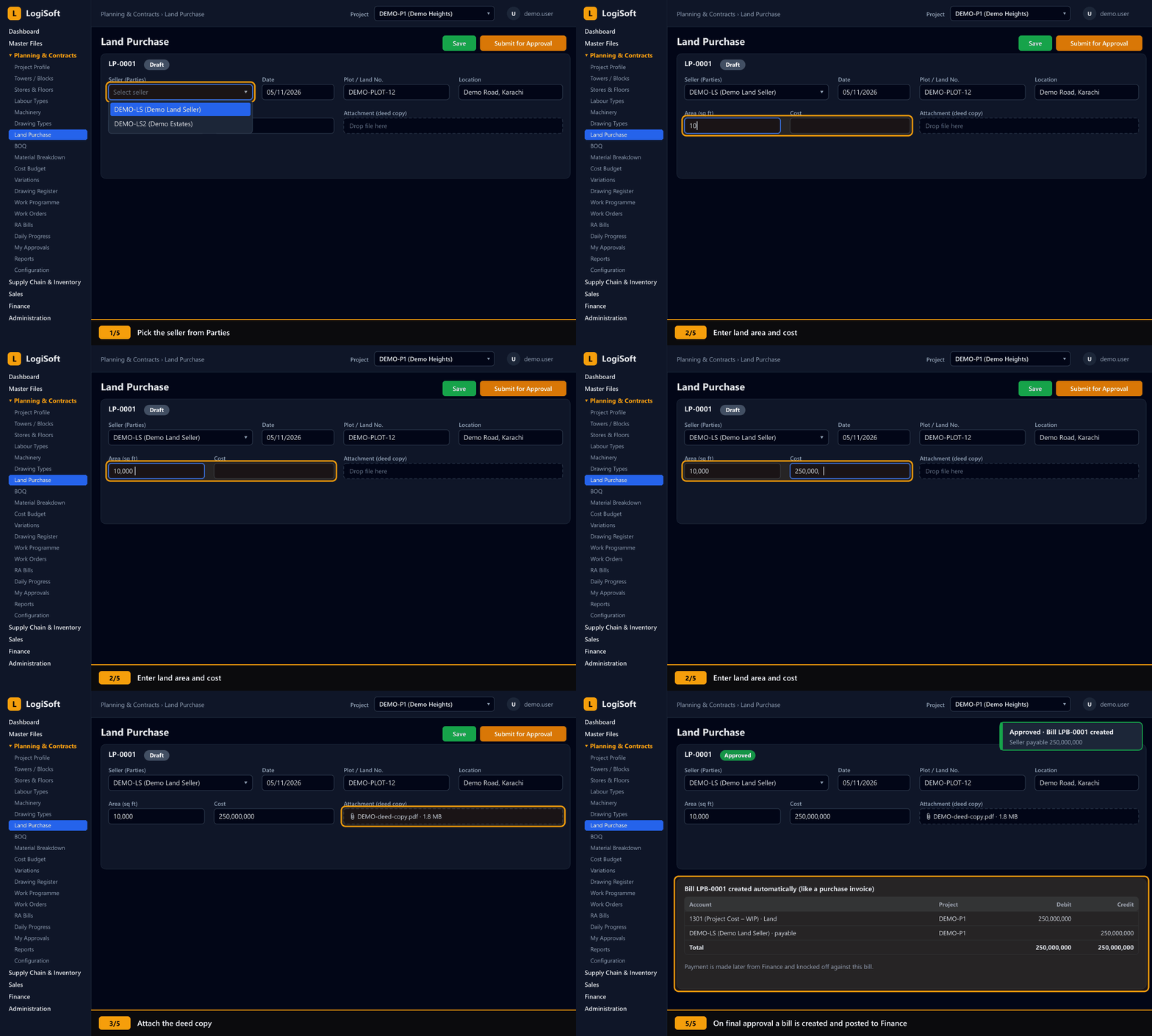
B1Land Purchase

Where

Planning & Contracts › Land Purchase.

Why

Land cost is recorded against the project and the seller is paid from Finance.

How

Seller (Parties), date, plot / land details, area, cost, deed copy attachment. On approval a bill is created like a purchase invoice (seller payable).

Land Purchase

B2BOQ (Bill of Quantities) with revisions

Where

Planning & Contracts › BOQ.

Why

The approved BOQ is the base for budget, requisitions, work orders, progress and bills.

How

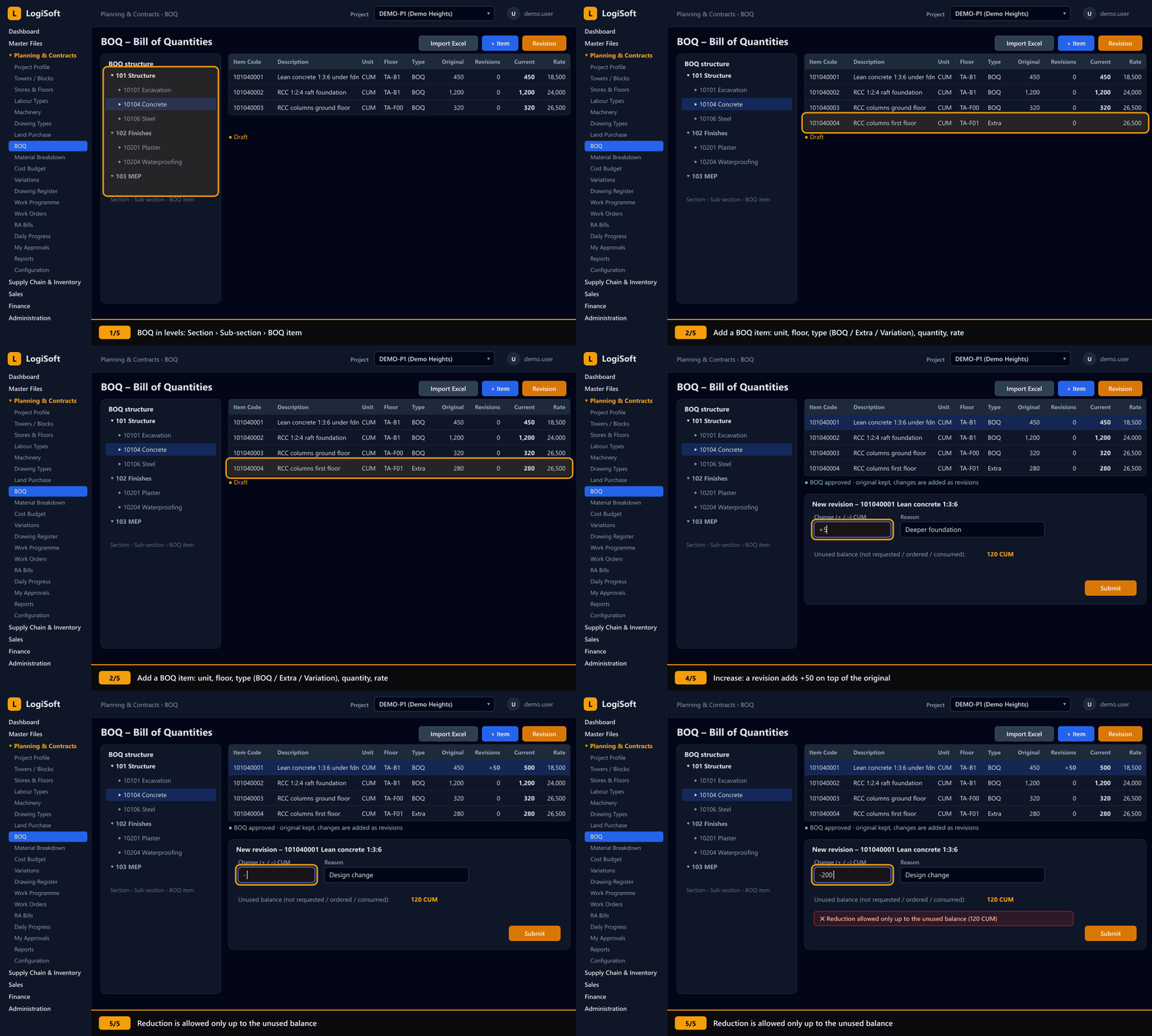
Section › Sub-section › BOQ item with unit, quantity, planning (cost) rate, type (BOQ / Extra / Variation) and tower / floor. Revisions are added on top of the approved BOQ; the original stays as it is.

BOQ (Bill of Quantities) with revisions

A reduction is allowed only up to the unused balance of the item (quantity not yet requested, ordered or consumed). The BOQ shows original + revisions = current quantity.

B3BOQ Excel import

Where

BOQ › Import Excel.

Why

Large BOQs are prepared in Excel by the QS team.

How

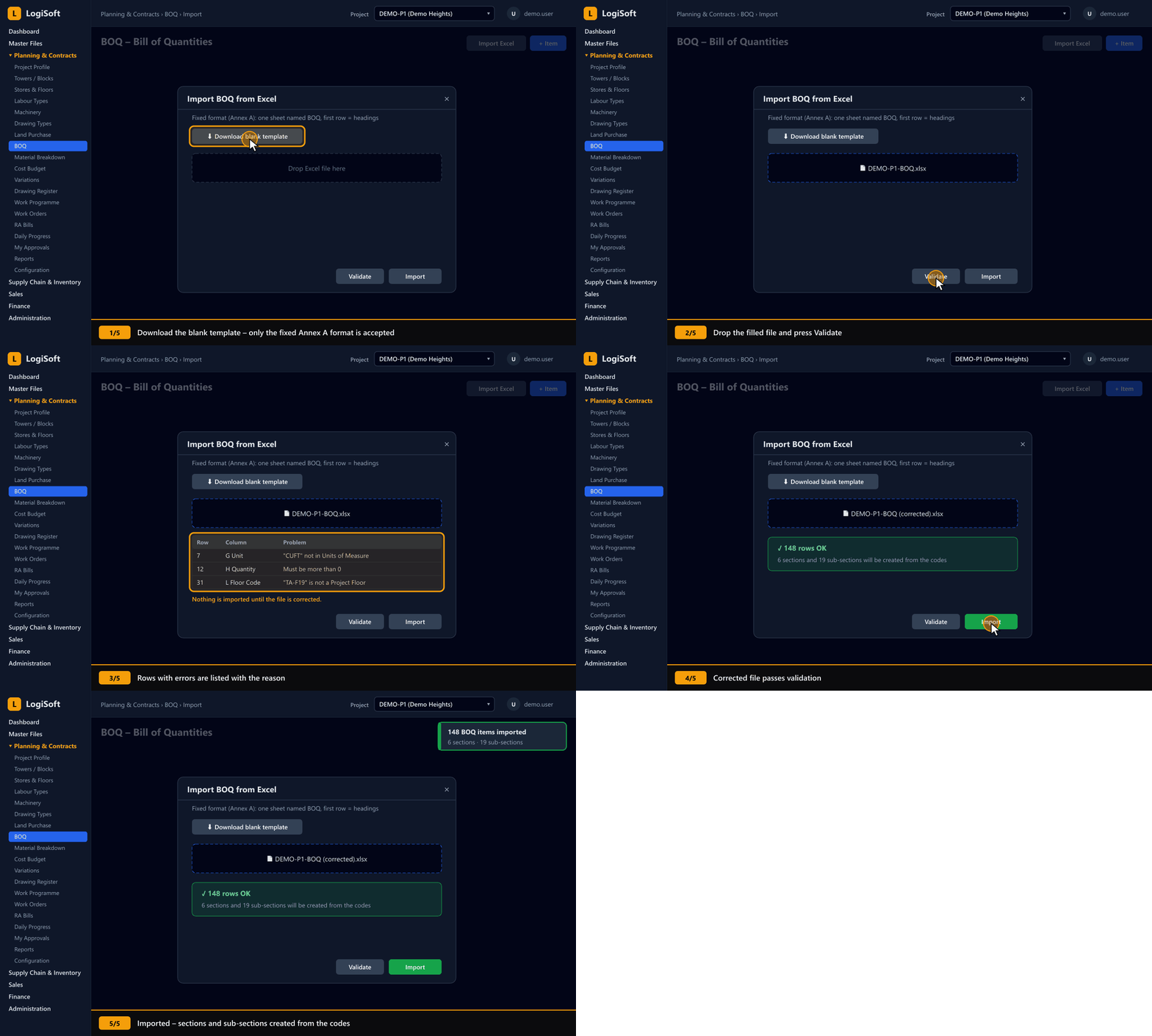
Only the fixed format of Annex A. Rows with errors are listed with the reason and nothing is imported until the file is corrected. A blank template can be downloaded.

BOQ Excel import

B4Material Breakdown and Update Material Rates

Where

Planning & Contracts › Material Breakdown.

Why

Gives the material budget of every BOQ item and controls requisitions later.

How

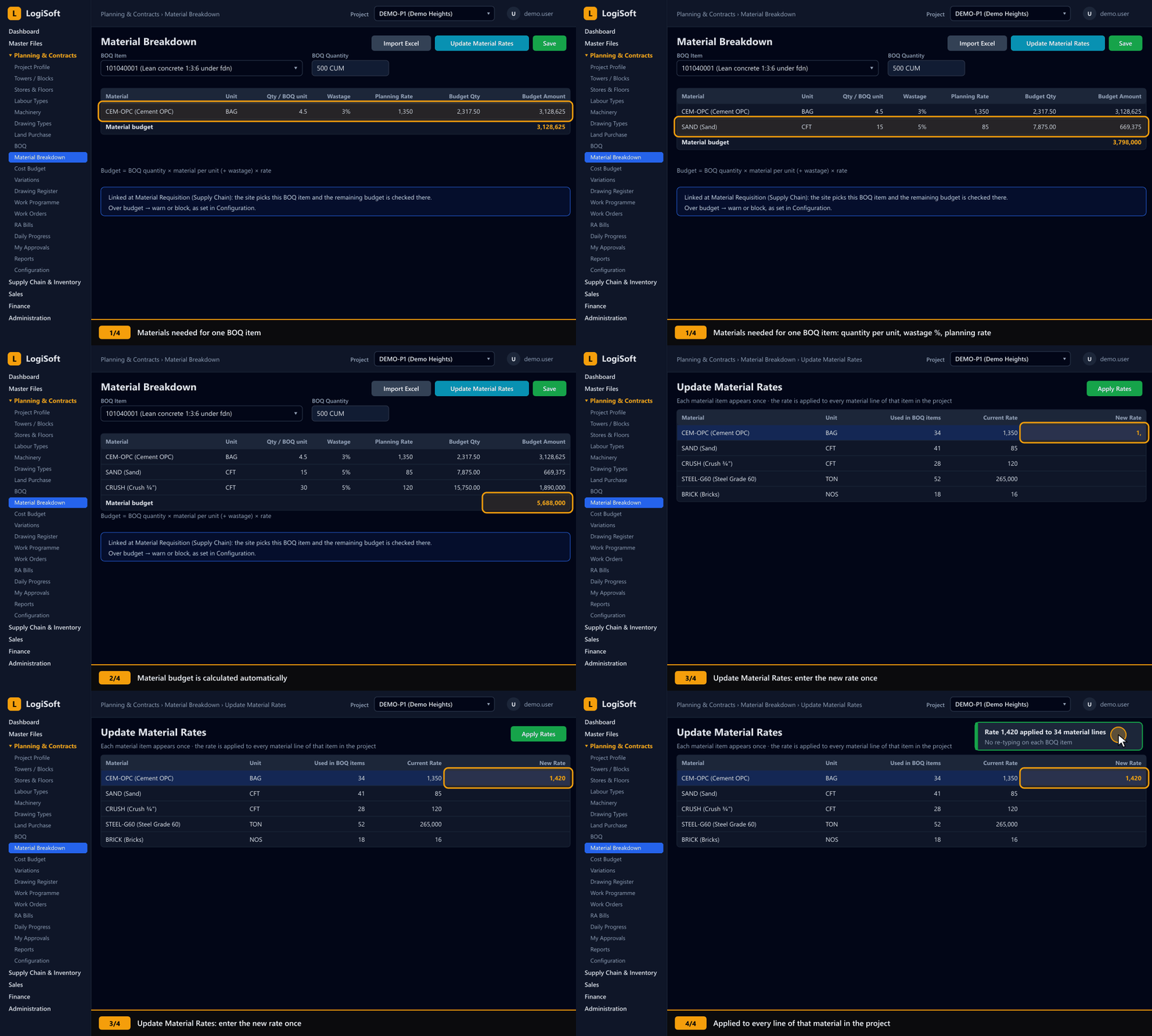
Materials per BOQ item: quantity per unit, wastage %, planning rate. Update Material Rates shows each material once – the rate entered there is applied to every line of that material in the project.

Material Breakdown and Update Material Rates

The BOQ is linked at the Material Requisition (Supply Chain & Inventory): the site picks the BOQ item and the remaining budget is checked there (warn or block). Purchases without a requisition are marked Non-BOQ. Excel import in the fixed format of Annex B.

B5Cost Budget

Where

Planning & Contracts › Cost Budget.

Why

Shows early where money is going over plan.

How

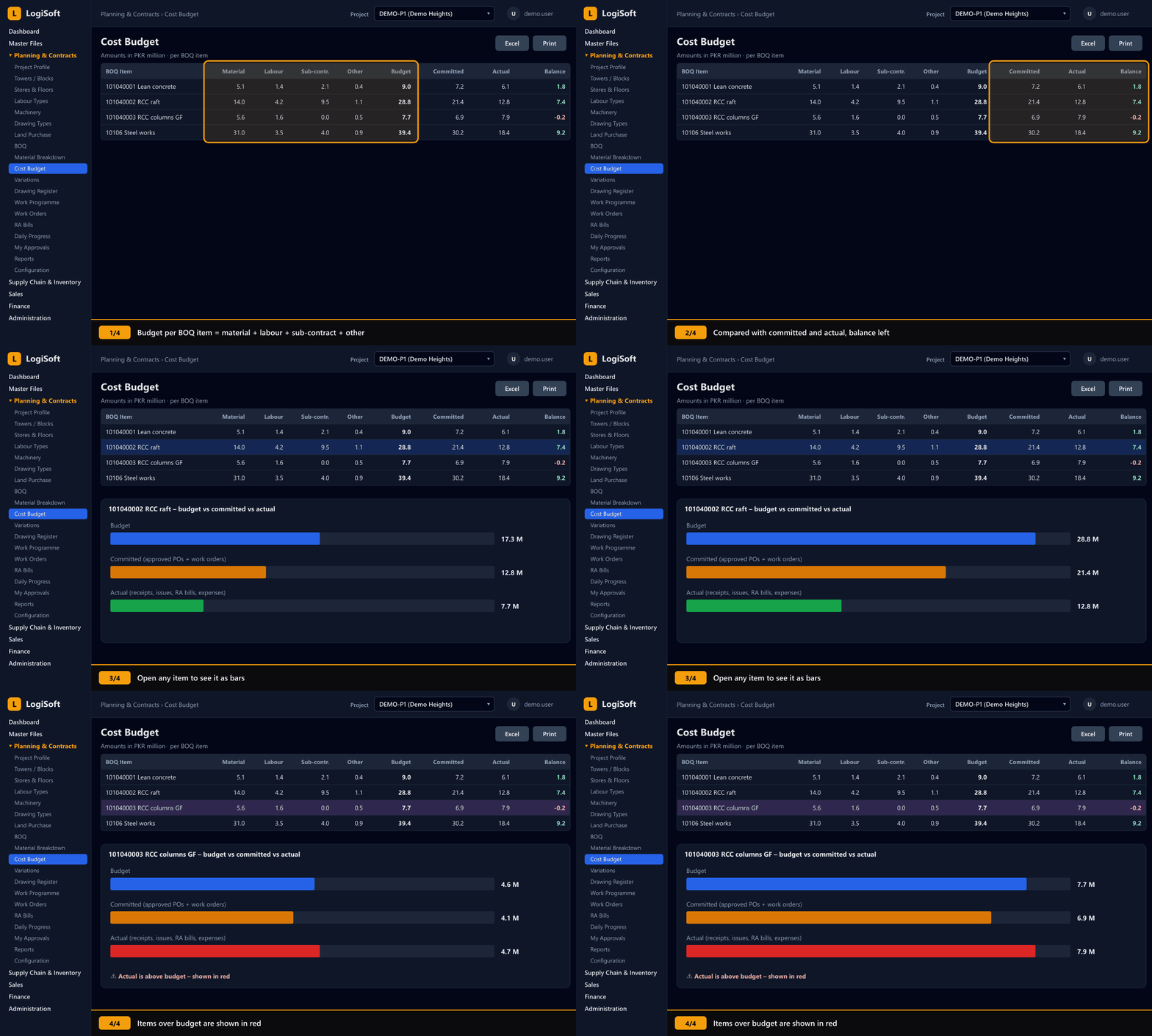
Per BOQ item: material + labour + sub-contract + other = budget, compared with committed (approved POs and work orders) and actual (receipts, issues, RA bills, expenses).

Cost Budget

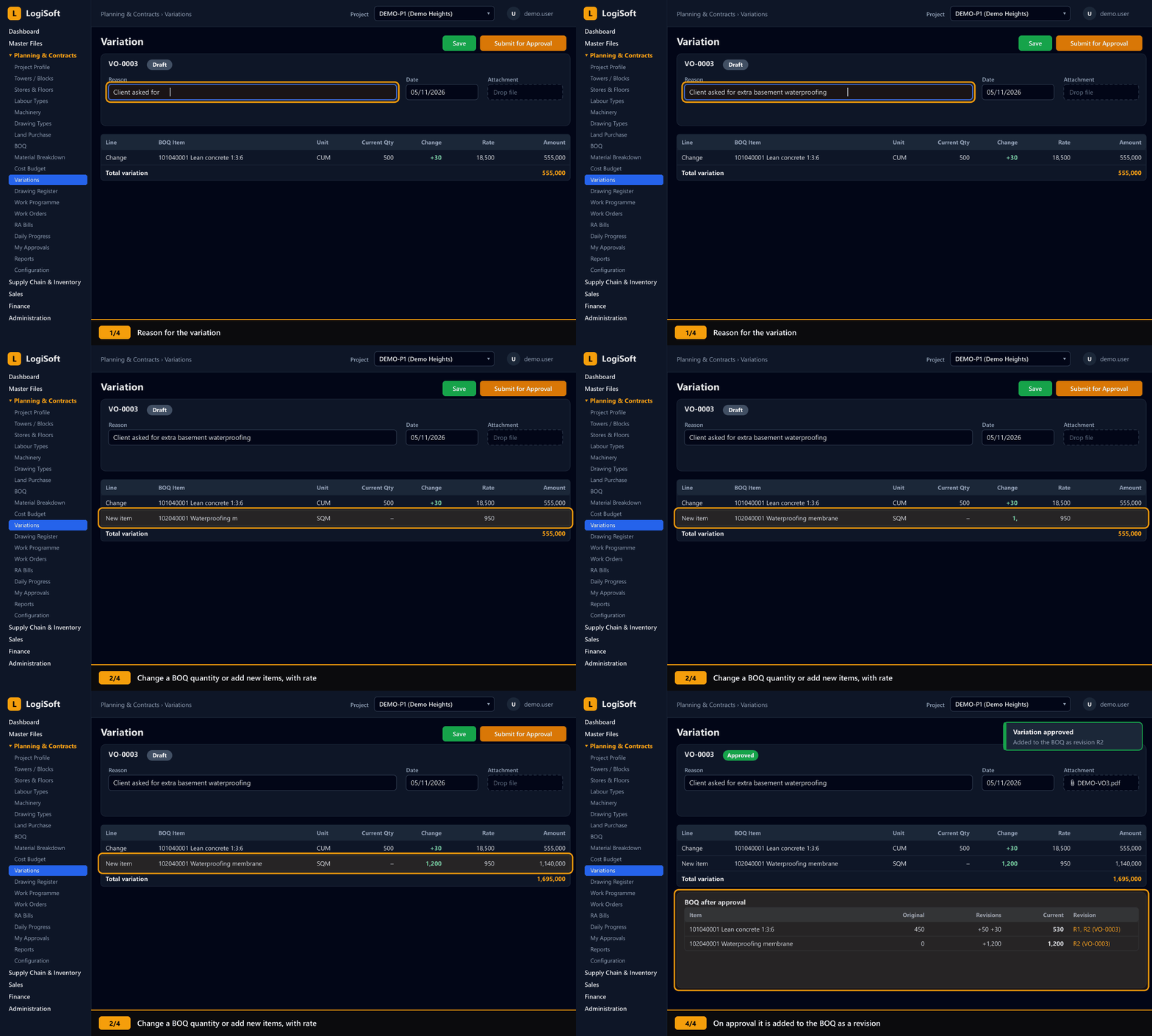
B6Variations

Where

Planning & Contracts › Variations.

Why

Every change to scope is recorded with its reason and approval.

How

Reason, BOQ items added or changed (quantity / rate), attachments. On approval it is added to the BOQ as a revision (same rules as B2).

Variations

Part C

Drawings and planning

What is to be built and when.

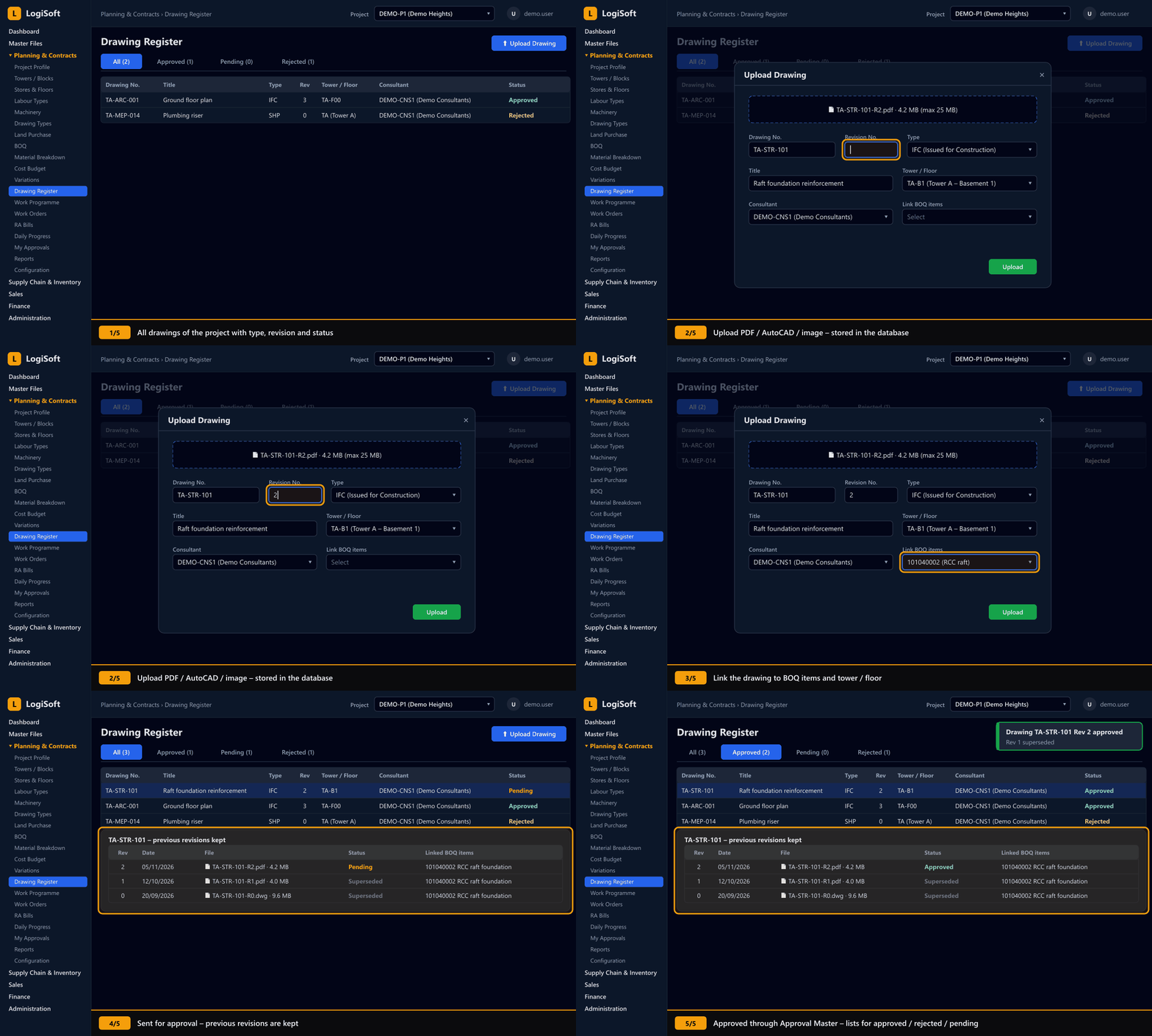
C1Drawing Register

Where

Planning & Contracts › Drawing Register.

Why

Site always works on the latest approved drawing; old revisions stay for reference.

How

Upload PDF / AutoCAD / image with type, drawing no., revision no., date, title, tower / floor, consultant. Files are stored in the database. Linked to BOQ items. Lists of approved / rejected / pending.

Drawing Register

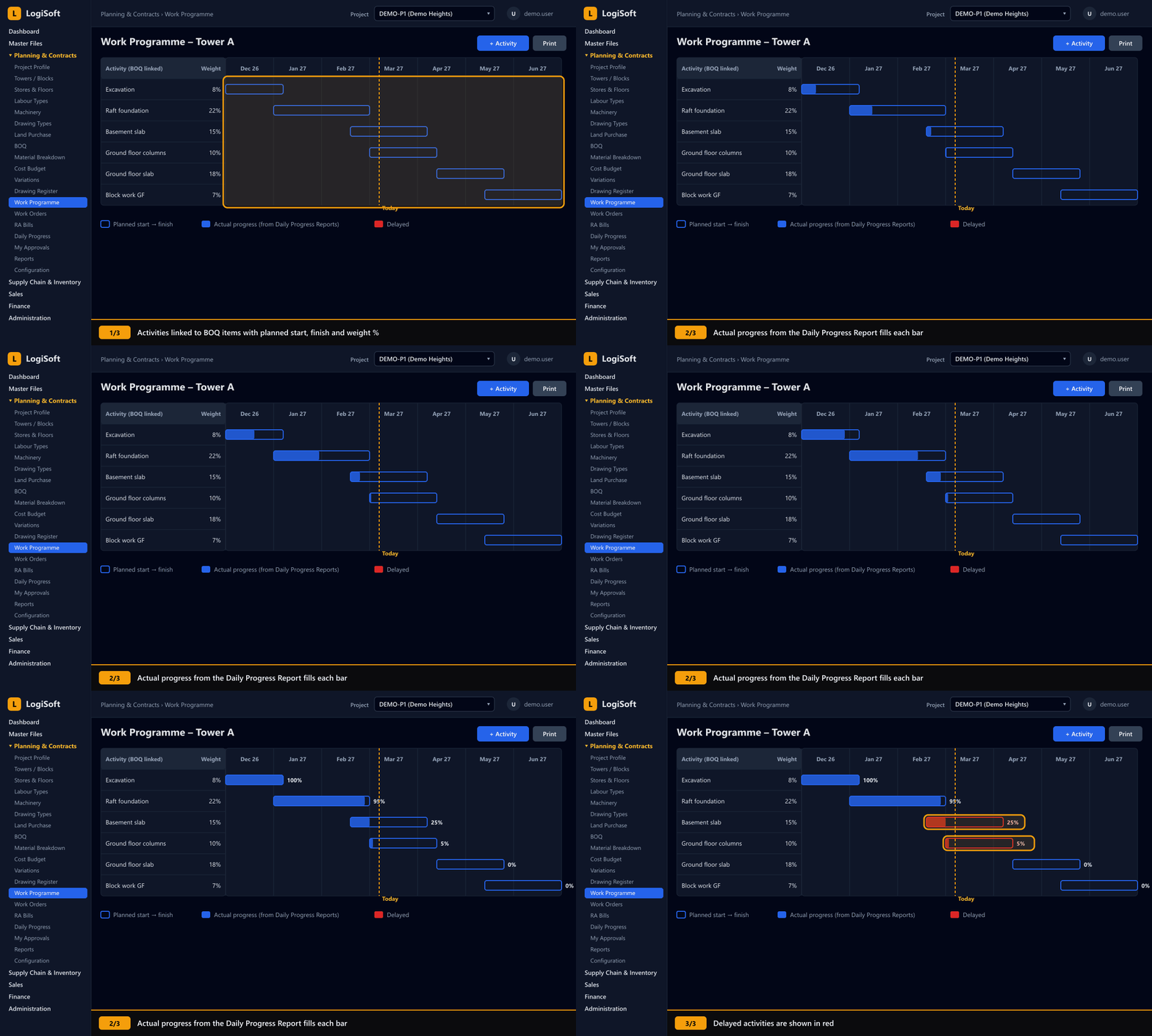
C2Work Programme

Where

Planning & Contracts › Work Programme.

Why

Planned vs actual progress at a glance.

How

Activities per project / tower / floor linked to BOQ items with planned start, finish and weight %. Bar view: actual progress from the daily progress report fills each bar; delayed activities are red.

Work Programme

Part D

Contracts, progress and bills

From the work order to the contractor's payment.

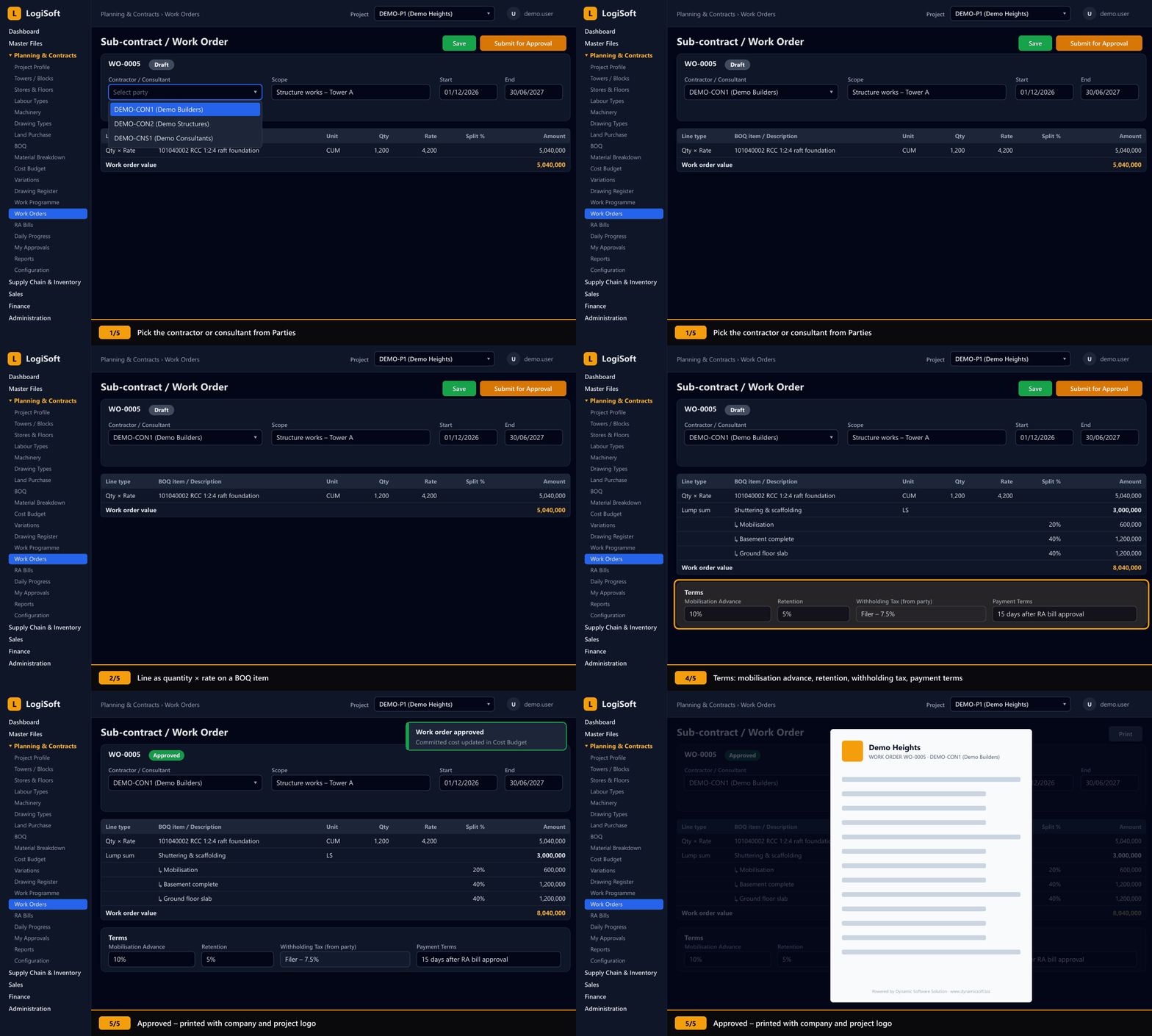
D1Sub-contract / Work Order

Where

Planning & Contracts › Work Orders.

Why

Fixes what the contractor will do and at what price before work starts.

How

Contractor or consultant, scope, dates. Lines as quantity × rate (BOQ item) or a lump sum split by % – both in one work order. Terms: mobilisation advance %, retention %, withholding tax (filer / non-filer from the party), payment terms. Printed with company and project logo.

Sub-contract / Work Order

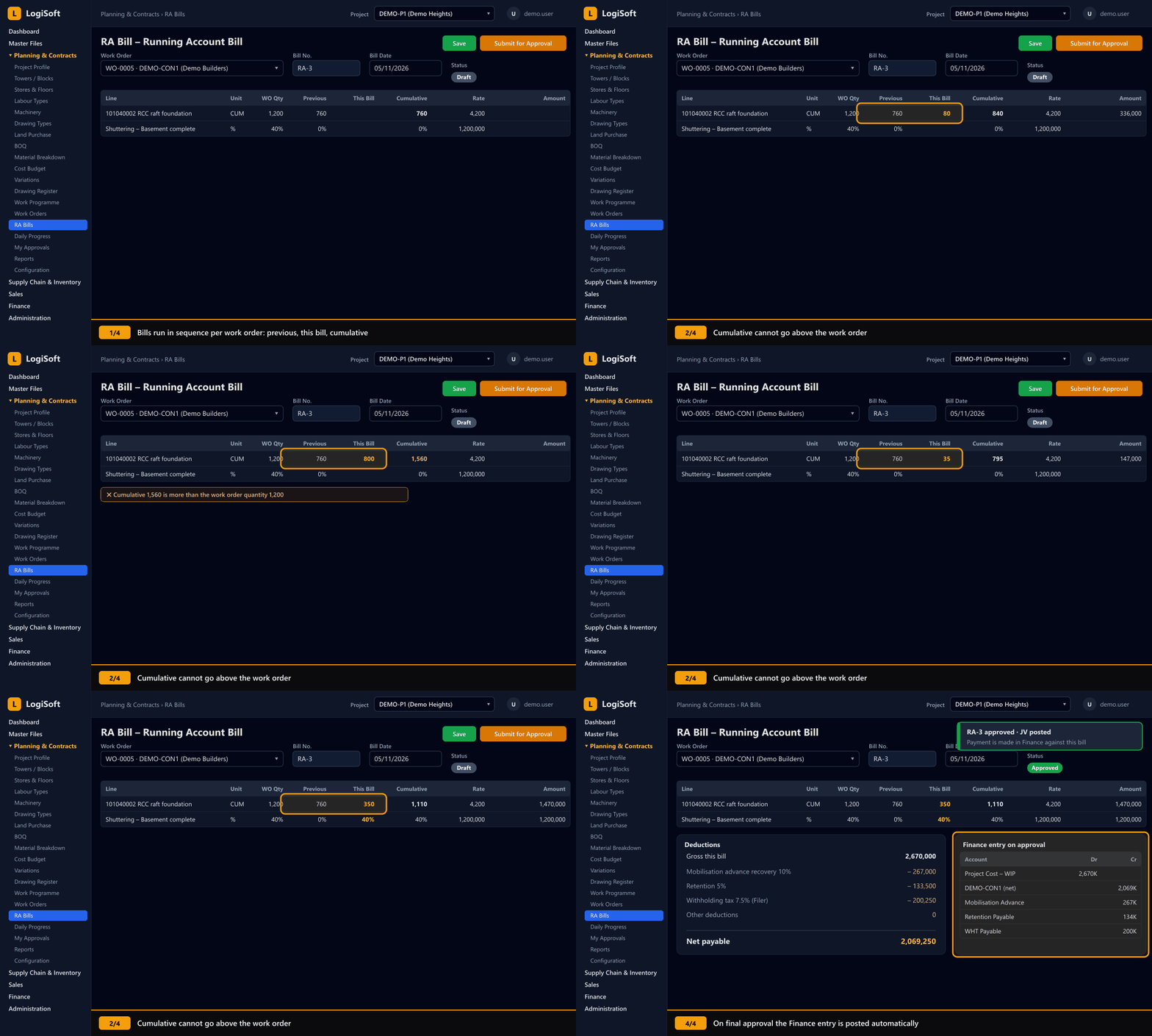
D2RA Bill (Running Account bill)

Where

Planning & Contracts › RA Bills.

Why

Pays the contractor only for work done, never more than the work order.

How

Bill sequence per work order (RA-1, RA-2 …). Each line shows previous, this bill and cumulative; cumulative cannot exceed the work order. Deductions: advance recovery, retention, withholding tax, other → net payable.

RA Bill (Running Account bill)

Retention release and advance payment request documents are included. Payment is made in Finance and settled against the bill.

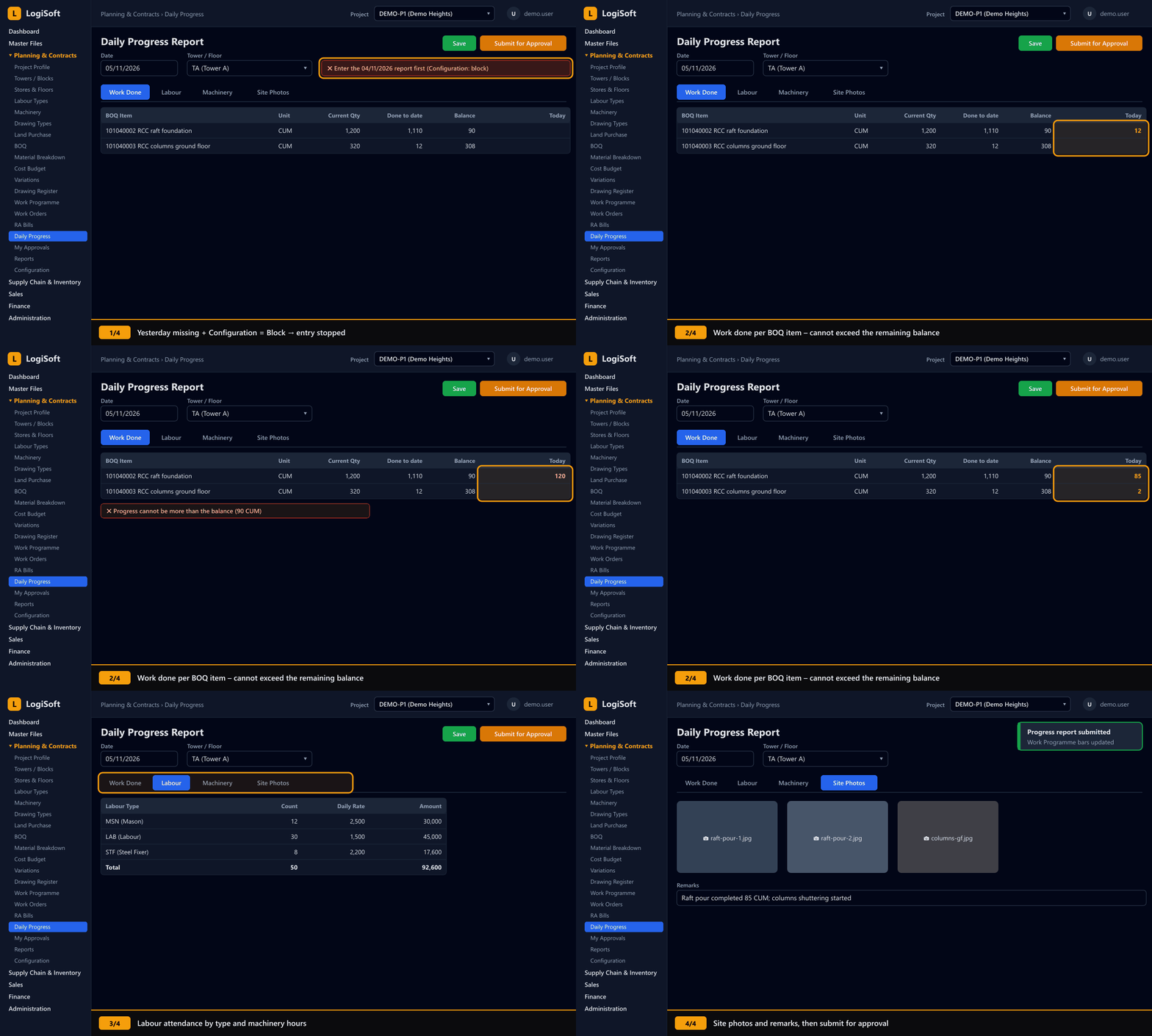
D3Daily Progress Report

Where

Planning & Contracts › Daily Progress.

Why

Feeds the work programme and checks contractor bills against real progress.

How

One report per project per day: work done per BOQ item, labour attendance by type, machinery hours, remarks, site photos. Progress cannot exceed the remaining balance. Missing previous-day report: warn only or block entry – chosen in Configuration.

Daily Progress Report

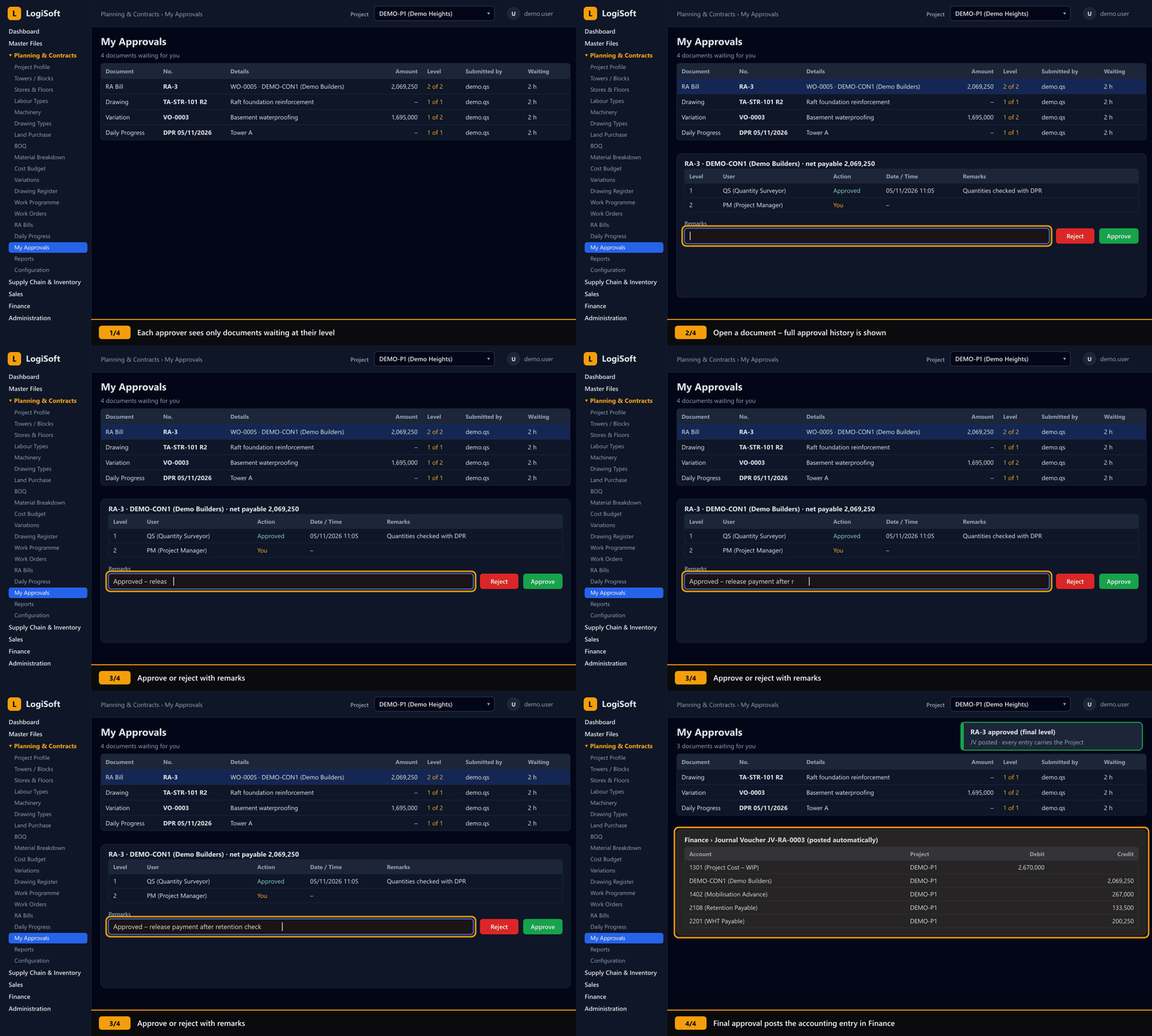
D4My Approvals and automatic accounting

Where

Planning & Contracts › My Approvals.

Why

Approvers see only what is waiting for them; Finance gets the entry without re-typing.

How

Approve or reject with remarks; the full history is shown. On final approval the accounting entry is posted, carrying the project.

My Approvals and automatic accounting

Part E

Accounting entries and reports

Entries are posted automatically on final approval. Every entry carries the project; accounts are set once in Configuration.

DocumentDebitCredit
Land purchase billLand / project costSeller (payable)
RA BillProject costContractor (net), mobilisation advance (recovery), retention payable, withholding tax payable
Advance payment requestMobilisation advance – contractorContractor (paid through Finance)
Retention releaseRetention payableContractor

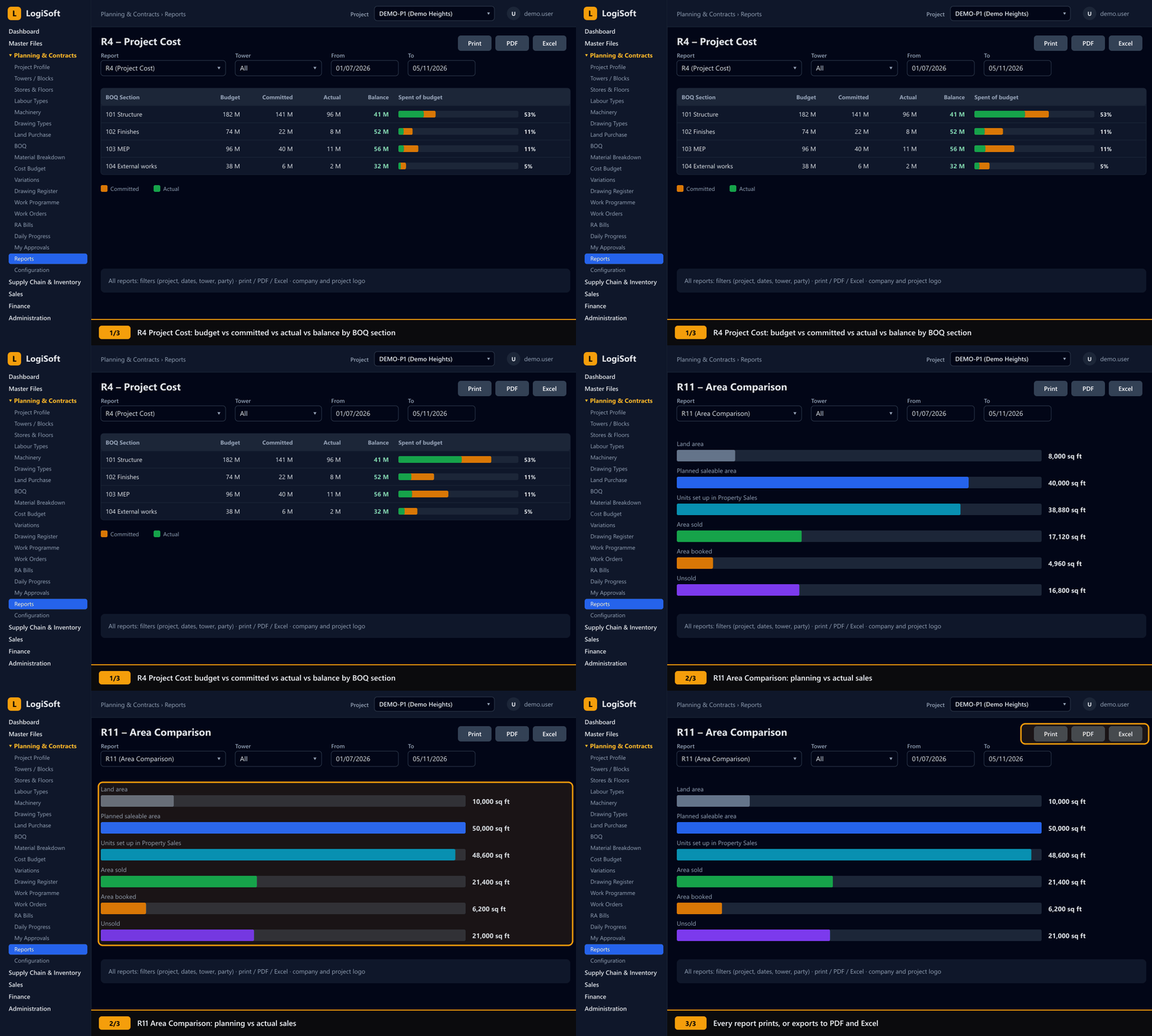
E1Reports

Reports R4 and R11
R1BOQ by section / tower / floor; baseline vs current revision
R2Material budget vs requisitioned vs purchased vs issued
R3Variation register
R4Project cost: budget vs committed vs actual vs balance (by BOQ section and tower)
R5Drawing register (latest revision, approved / rejected / pending)
R6Work programme: planned vs actual, delayed activities
R7Contractor ledger: work order value, billed to date, advance balance, retention held, paid, balance
R8RA bill register and RA bill print
R9Daily progress print; labour and machinery summary
R10Land purchase register
R11Area comparison: land area vs planned saleable area vs units set up vs sold, booked and unsold

All reports: filters (project, dates, tower, party), print / PDF / Excel, company and project logo.

Annex

Excel import formats (fixed)

Annex A – BOQ

One sheet named BOQ, first row = headings exactly as below, one row per BOQ item. Sections and sub-sections are created from the codes.

ColHeadingTypeRule
ASection CodeText (10)Required, e.g. 101
BSection NameText (150)Required, e.g. Structure
CSub-section CodeText (10)Required, e.g. 10104
DSub-section NameText (150)Required, e.g. Concrete
EItem CodeText (20)Required, unique in the project
FDescriptionText (300)Required
GUnitTextMust exist in Units of Measure
HQuantityNumberRequired, > 0
IRateNumberOptional (planning cost rate)
JTypeTextBOQ / Extra / Variation
KTower CodeTextOptional, must exist
LFloor CodeTextOptional, must exist (Project Floor)

Annex B – Material Breakdown

One sheet named MATERIAL, first row = headings exactly as below, one row per material of a BOQ item.

ColHeadingTypeRule
ABOQ Item CodeText (20)Required, must exist in the project BOQ
BMaterial Item CodeText (15)Required, must exist in the Item Master
CUnitTextMust match the item's unit (or a defined conversion)
DQuantity per BOQ unitNumberRequired, > 0
EWastage %NumberOptional, 0 – 100
FRateNumberOptional (can be set later in Update Material Rates)

Rows with errors are listed with the reason and nothing is imported until the file is corrected. A blank template can be downloaded from the import screen.

Not included

  • Batching plant (concrete sales) – separate project, not part of this scope.
  • Data of projects other than the one agreed for migration (only its masters and open balances are moved).
  • Any Excel format other than Annex A and Annex B.

Acceptance

The module is accepted when, on a test project, a user can: set up towers and stores / floors → enter a land purchase and get its bill → enter and approve a BOQ with material breakdown → upload and approve a drawing → issue an approved work order → record daily progress → raise and approve an RA bill with advance recovery and retention → see the entries in Finance and the figures in reports R4 and R7.

Prepared by Dynamic Software Solution · 05 Nov 2026 · Document version 0.3

Powered by Dynamic Software Solution · www.dynamicsoft.biz