Module 4 · Construction & Real Estate Suite

Property Sales – Scope of Work

Sell apartments, shops and plots project by project: what is available, bookings with their payment schedules, receipts, extra charges and late-payment rules, transfers, cancellations and handover – with commission, letters and SMS / WhatsApp, approvals and automatic accounting entries in Finance. Anything not written on this page is not part of this module.

All modules
SA
Property Sales

Flow

01

Units

Towers, floors, types, prices, premiums

02

Hold / Token

Hold for N hours · optional token

03

Booking

Unit + customer + plan + agent

04

Schedule

Instalment invoices with due dates

05

Receipts

Oldest dues first · surcharge if late

06

Possession

Dues cleared · NOC · letter

Transfer

To a new customer – fee fixed or %

Cancellation / Re-purchase

Deduction fixed or % · refund schedule

Re-schedule

New plan version · history kept

How it fits in LogiSoftWhat happens
ProjectEvery sales master and document belongs to one project. The Project drop-down at the top of every screen shows only the projects the user is allowed; the user's default project is pre-selected.
FinanceInstalment invoices, receipts, charges, surcharges, transfers, cancellations, refunds and commission post automatically on approval – customer ledger, aging and bank always agree.
ApprovalsBooking, discount, additional charges, surcharge waiver, transfer, cancellation, re-schedule and possession go through the Approval Master (levels and users per document).
TaxesAdvance tax (236K / 236C) on Official receipts – rate from the Tax Master, filer / non-filer from the customer.
MessagesSMS and WhatsApp: receipts, due reminders, escalation notices, statements and brochures – delivery status kept for every message.
The GIFs play the steps of each screen automatically; the orange box shows where to look in each step. Click any picture to open it full size. Screens are a preview of the planned design – names, rates and amounts are sample data.

Part A

Setup

What is for sale and on what terms. Filled once per project – for apartments, shops or plots.

A1Project sales settings

Where

Sales › Project Settings (per project).

Why

Each project has its own rules – no rate is hidden in the program.

How

Donation on receipts: Enable tick, rate %, account and “Apply on: All receipts / Official receipts / Other receipts”. Transfer fee and cancellation deduction: fixed amount or percentage. Default surcharge policy. Advance tax on Official receipts comes from the Tax Master.
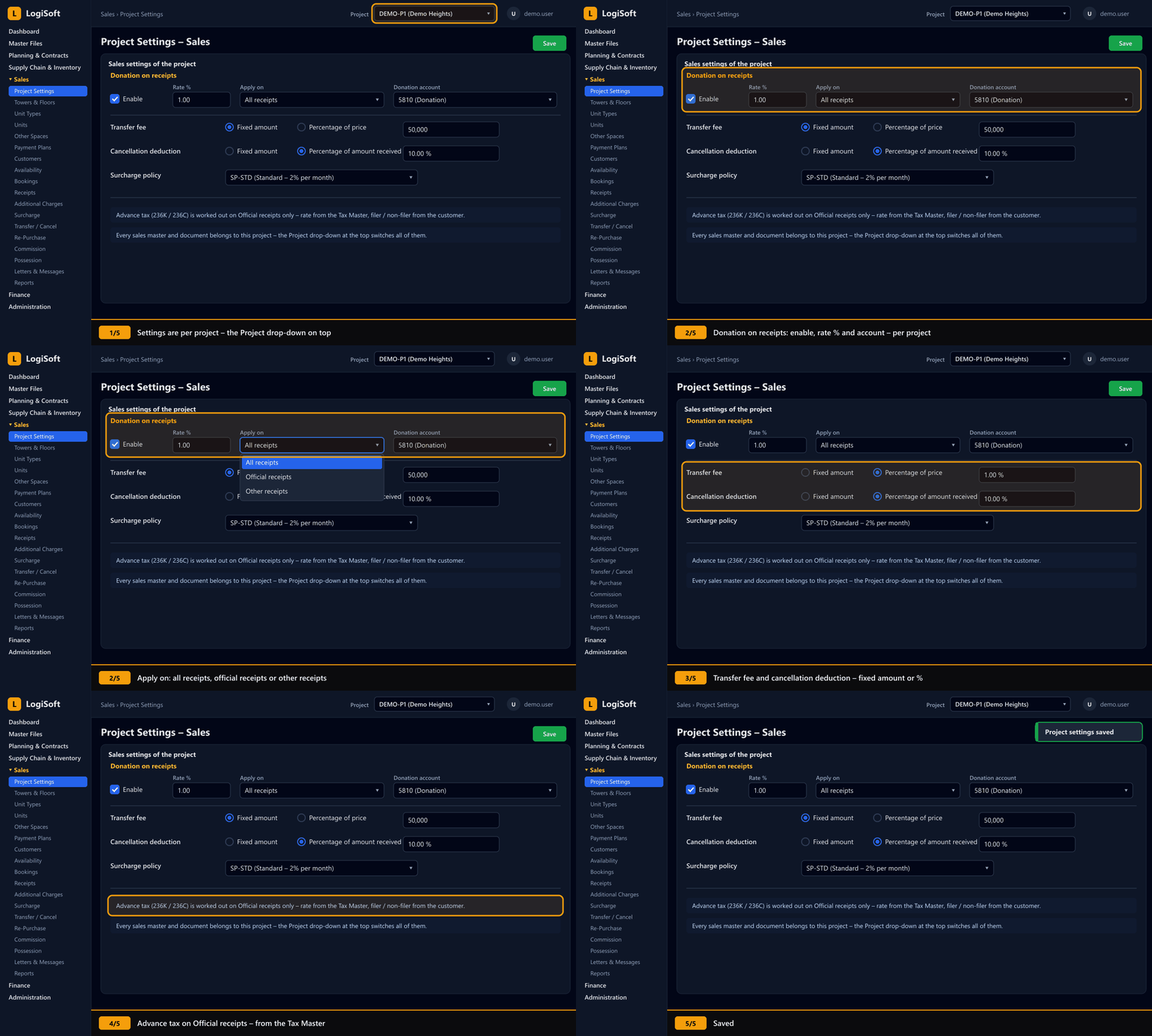
Project sales settings

A2Towers / Blocks & Floors

Where

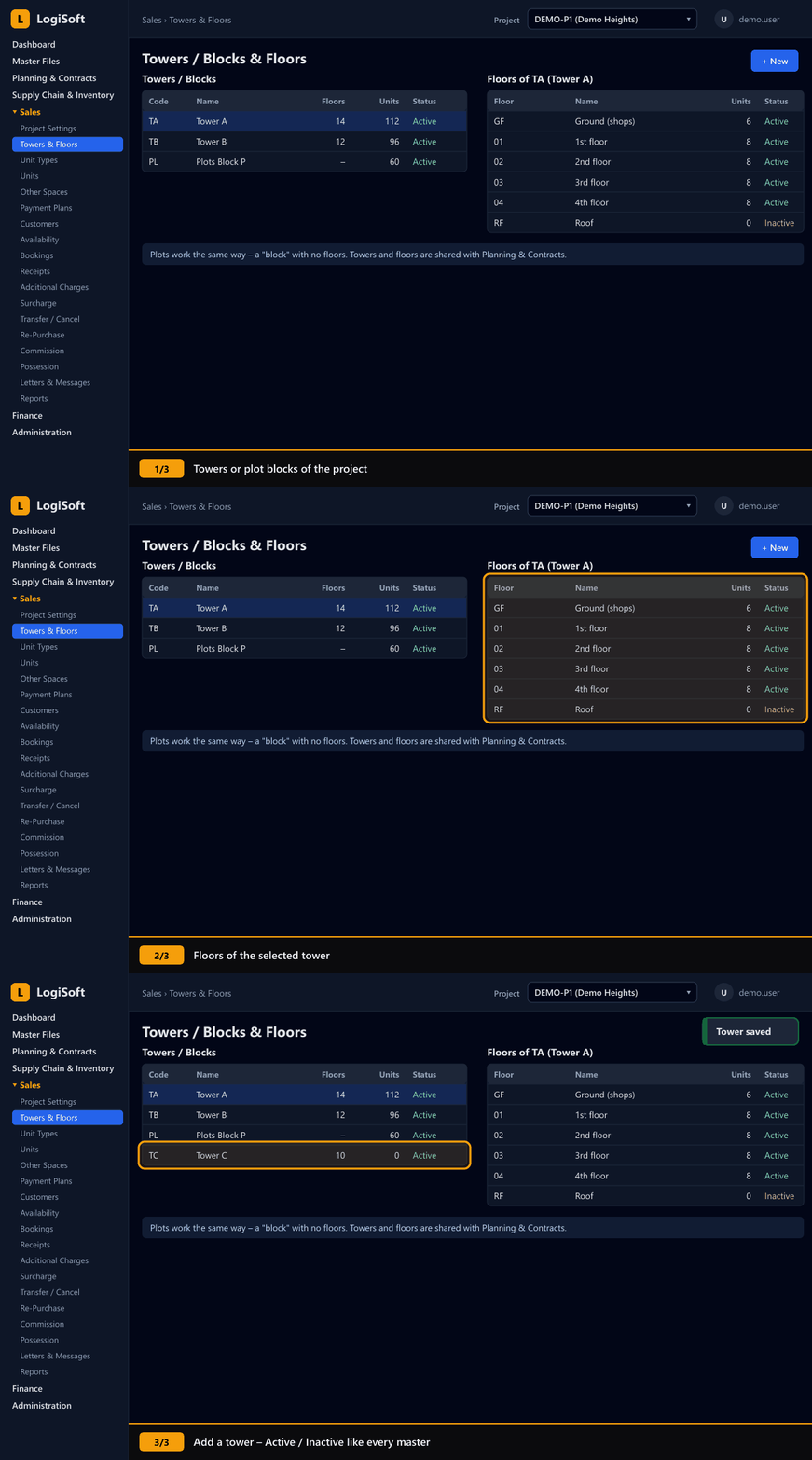
Sales › Towers & Floors (shared with Planning & Contracts).

Why

Units are found and reported by tower and floor.

How

Tower or plot block with its floors; plots are a block without floors. Active / Inactive.

Towers / Blocks & Floors

A3Unit Types

Where

Sales › Unit Types.

Why

Groups units for prices, plans and reports.

How

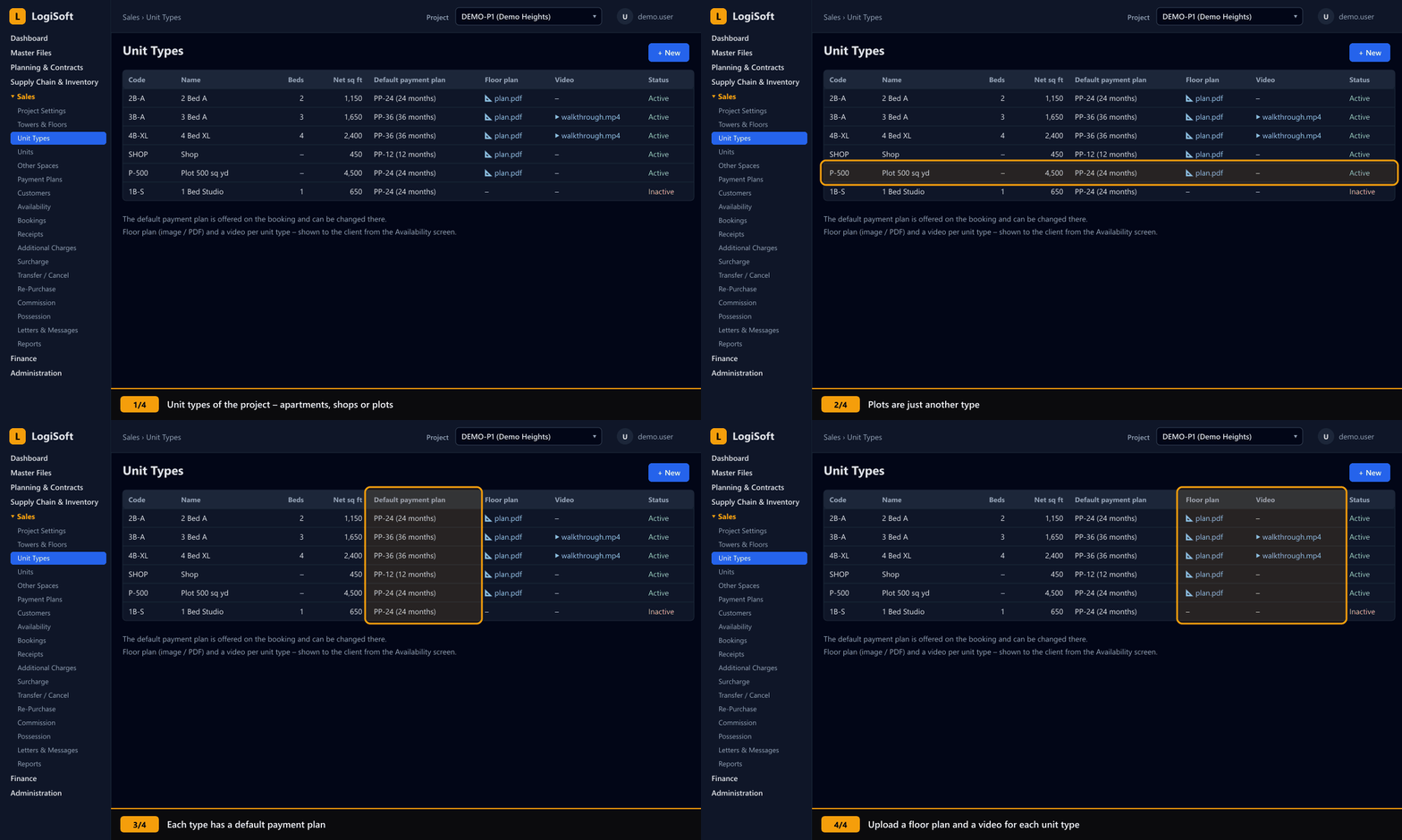
Code, name, bedrooms, net area and the default payment plan (changeable on the booking). A floor plan (image / PDF) and a video can be uploaded for each unit type – shown to clients from the Availability screen. Apartments, shops and plots alike. Active / Inactive.

Unit Types

A4Units

Where

Sales › Units.

Why

One record per unit with everything that makes its price.

How

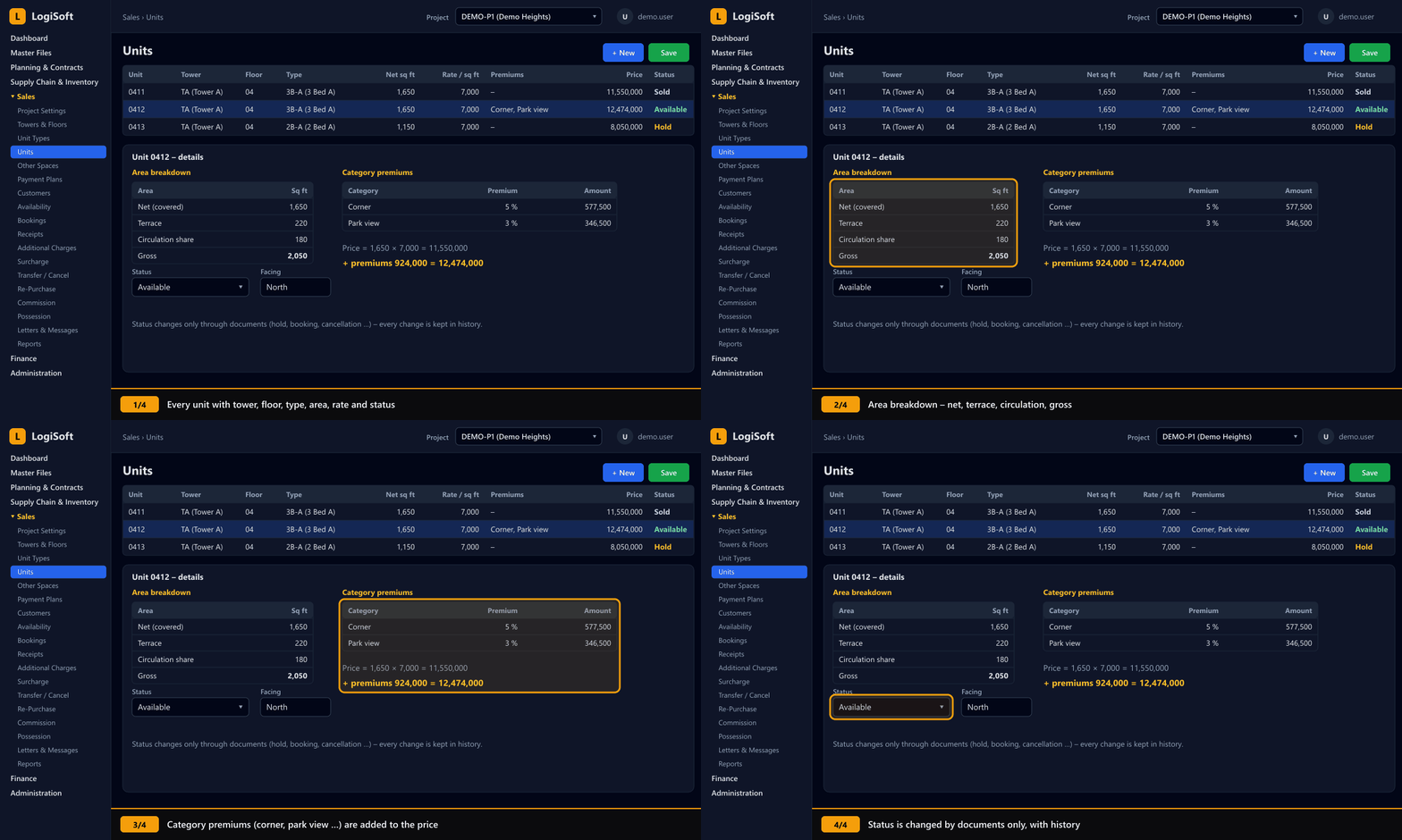
Tower, floor, type, area breakdown (net, terrace, circulation, gross), rate per sq ft, category premiums (corner, park view …) and the resulting price. Status (Available / Hold / Booked / Sold / Blocked / Possession) changes only through documents, with full history.

Units

A5Other Spaces

Where

Sales › Other Spaces.

Why

Parking, servant quarters and store rooms are sold too.

How

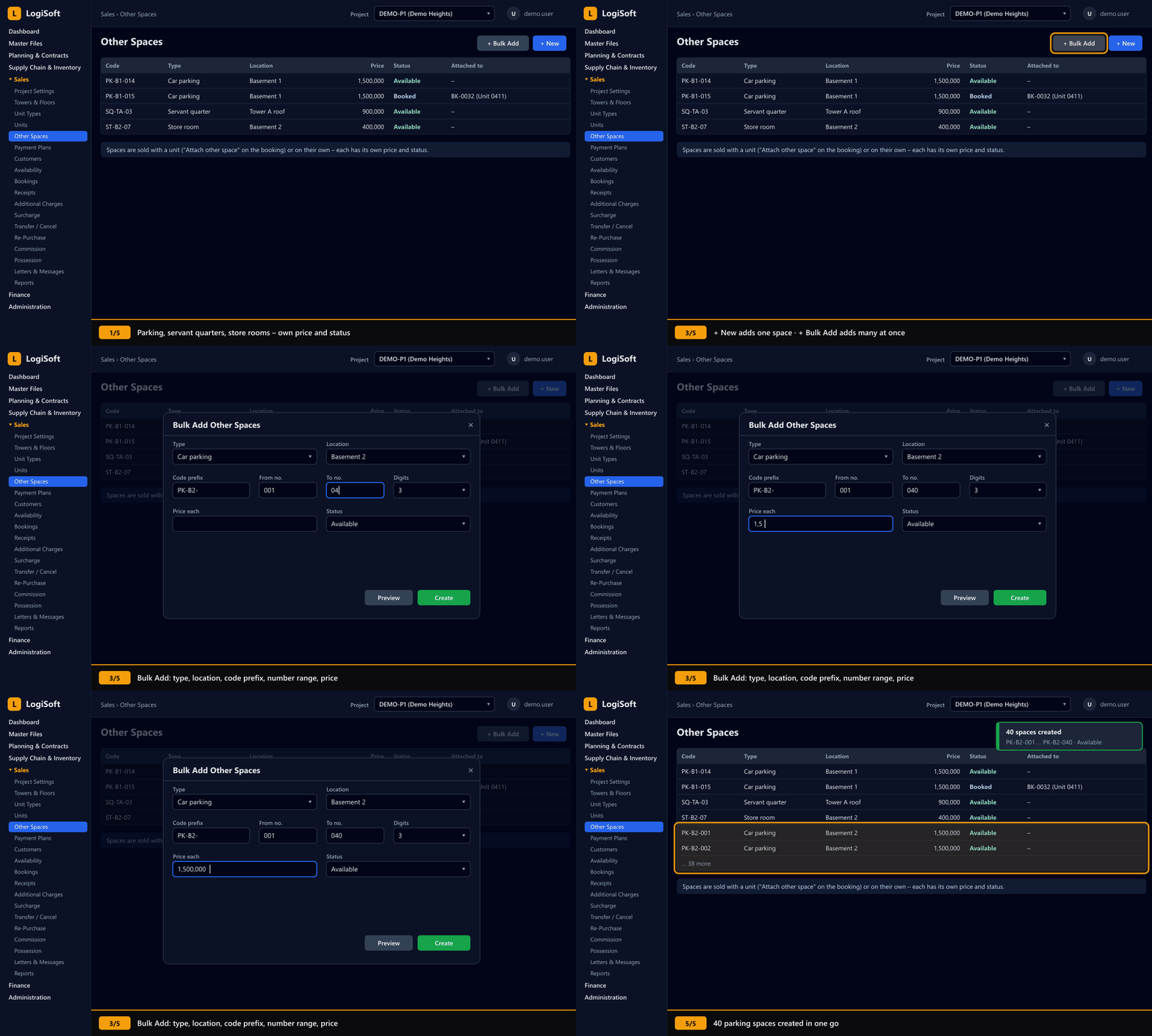
Code, type, location, price and status. “+ New” adds one space; “+ Bulk Add” creates many at once – type, location, code prefix, number range (e.g. PK-B2-001 to 040), price each – with a preview first, and existing codes are skipped. Attached to a booking (“Attach other space”) or sold on their own.

Other Spaces

A6Payment Plans

Where

Sales › Payment Plans.

Why

Ready-made plans make booking quick and the same for everyone.

How

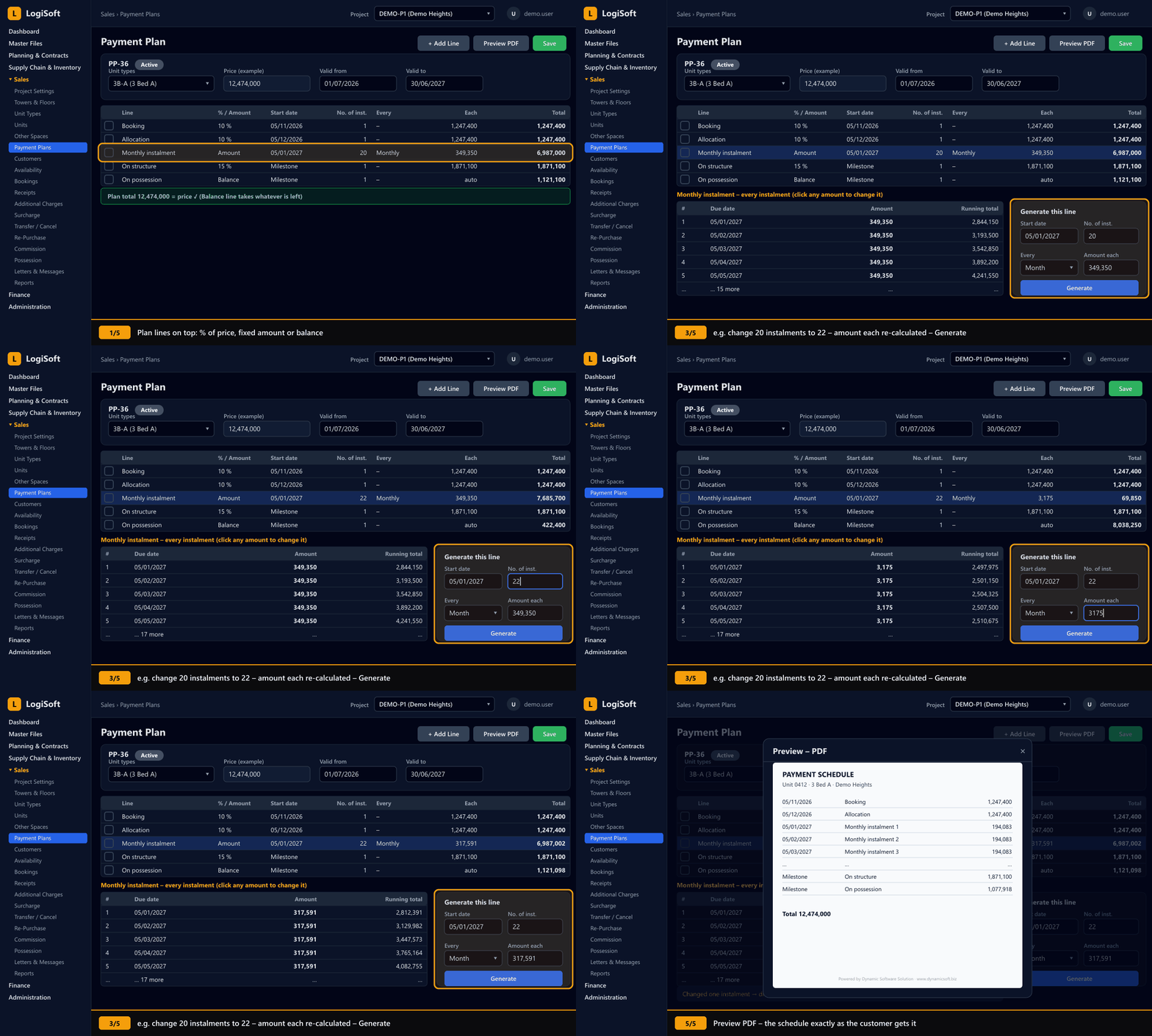
Plan lines on top: % of price, fixed amount or balance – booking, allocation, monthly / quarterly instalments, milestones (on structure, on possession). Click a line and every instalment of it appears in the grid below with a running total, like a ledger – change any one amount or date right there. Per line set start date, number of instalments, frequency and amount, then Generate. Preview PDF shows the schedule exactly as the customer gets it. Unit types and validity dates per plan.

Payment Plans

A7Customers

Where

Sales › Customers.

Why

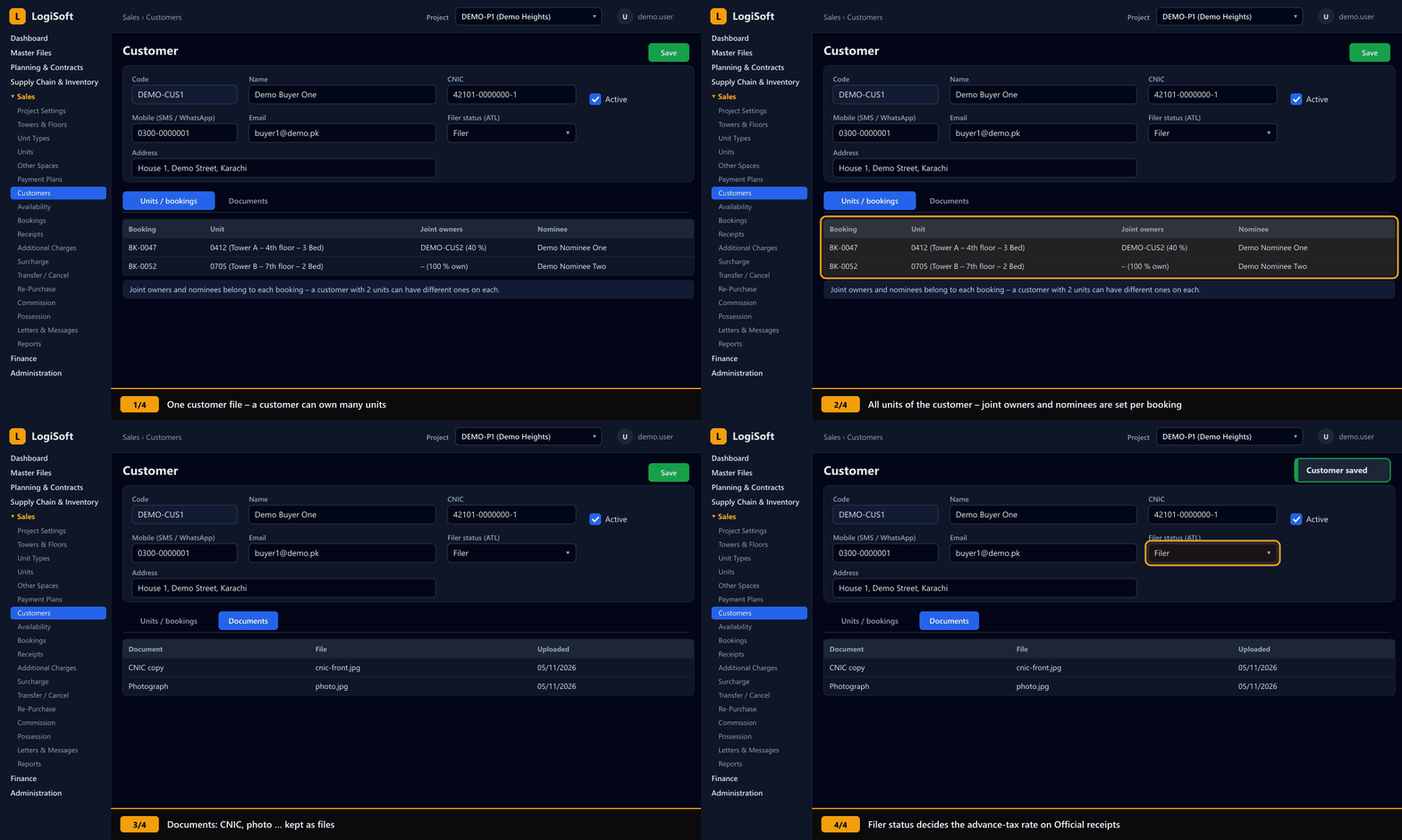
One file per person or company – the same customer can buy many units.

How

Name, CNIC, mobile for SMS / WhatsApp, e-mail, address, filer status, documents (CNIC, photo) kept as files, and a list of all their units / bookings. Joint owners and nominees are NOT kept here – they are set on each booking, so a customer with two units can have different co-owners and nominees on each. Active / Inactive.

Customers

Part B

Selling

From a free unit to a booking with its full payment schedule.

B1Availability Board

Where

Sales › Availability.

Why

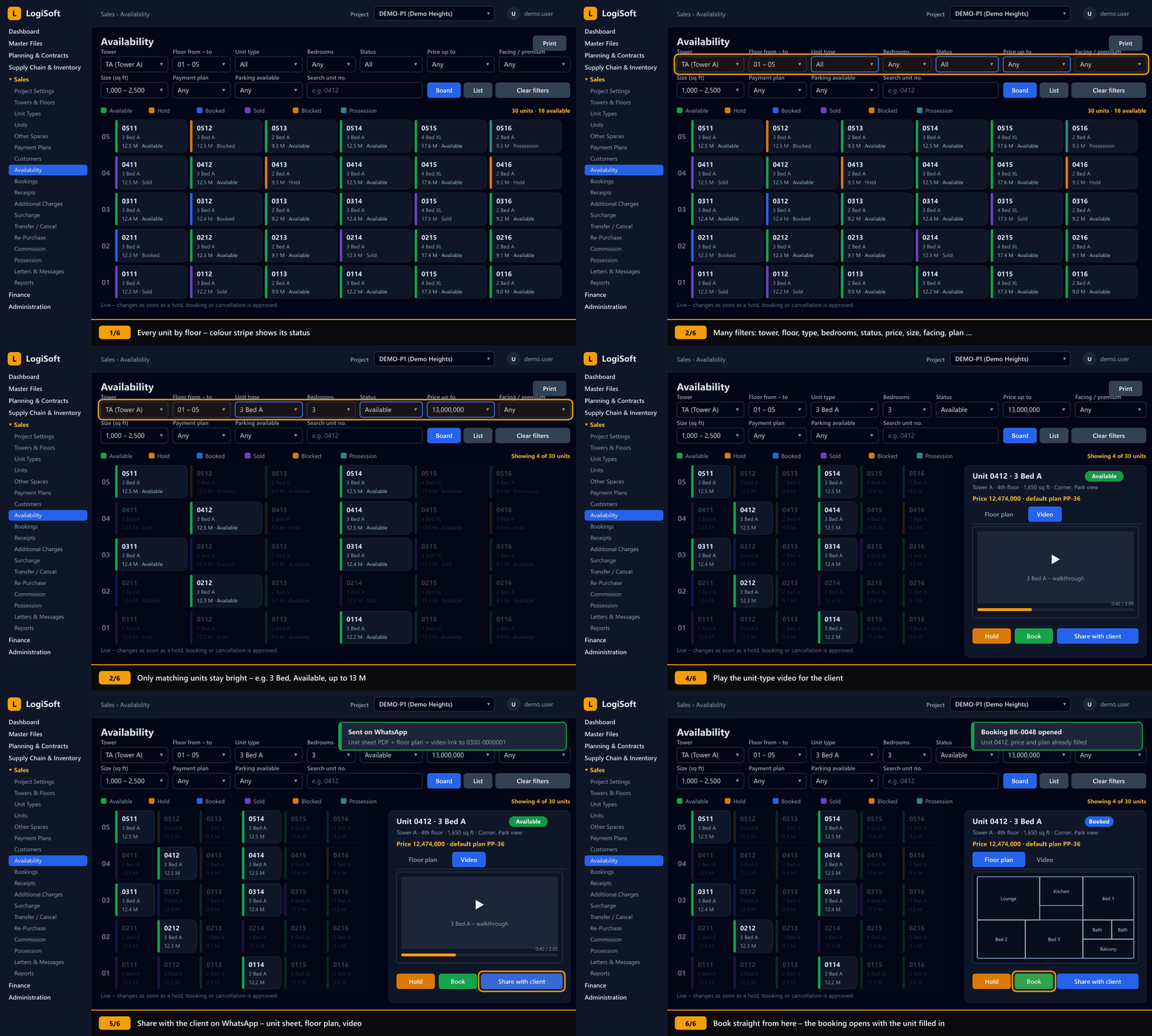
The sales team sees at a glance what can be sold.

How

A modern board of every unit by floor with a colour stripe for its status. Many filters: tower, floor range, unit type, bedrooms, status, price up to, size range, facing / premium, payment plan, parking available, unit number search; Board or List view. Non-matching units fade out. Click a unit for its details, floor plan and video; Hold, Book (opens the booking with the unit already filled) or Share with client on WhatsApp (unit sheet PDF, floor plan, video link). Updates by itself as documents are approved.

Availability Board

B2Hold / Token

Where

Sales › Bookings › Hold / Token.

Why

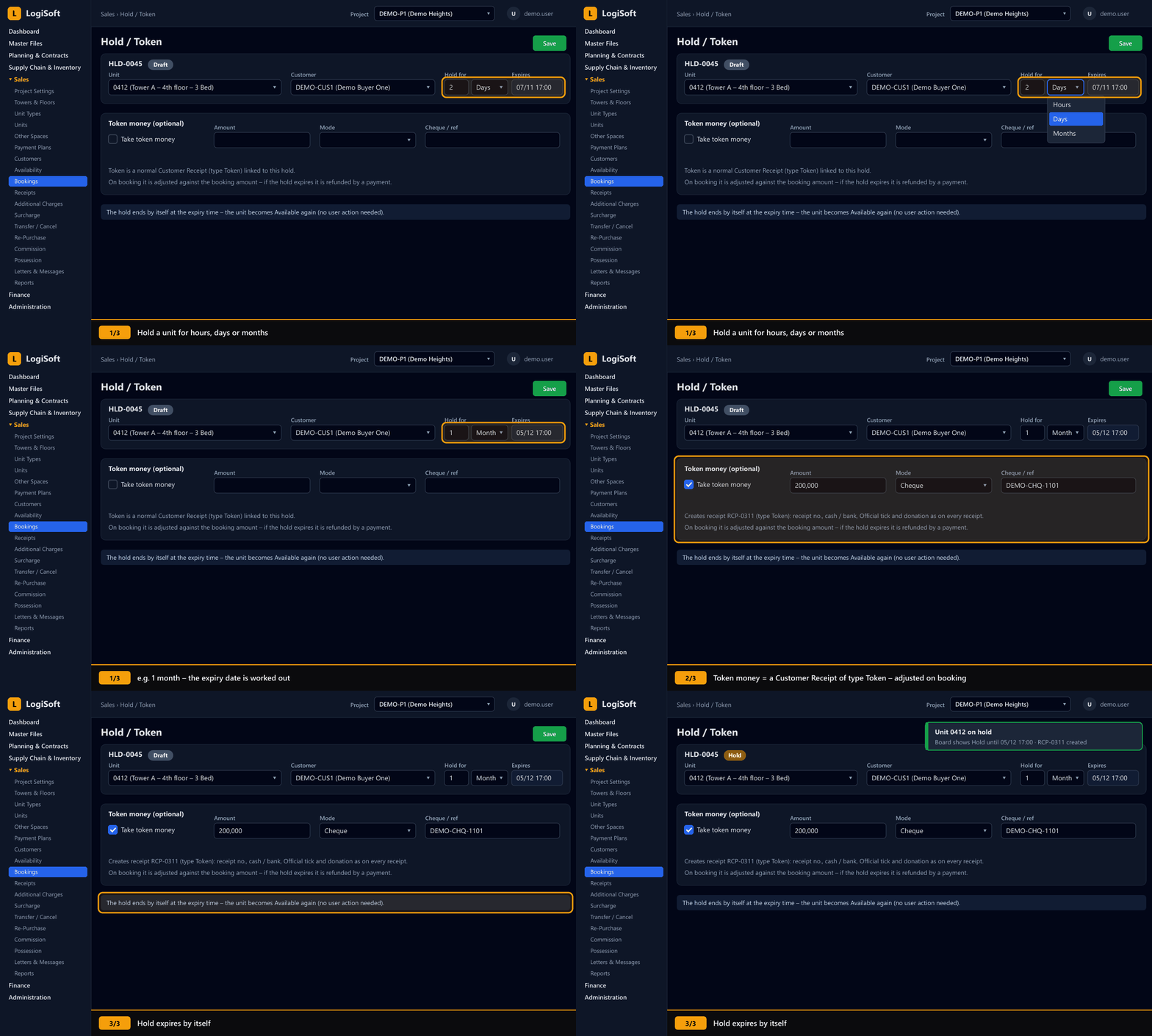
Keep a unit for a customer while they decide – no double selling.

How

Unit, customer and hold period in hours, days or months – the expiry date is worked out. Optional token money is saved as a normal Customer Receipt of type Token (receipt no., cash / bank, Official tick, donation as on every receipt); on booking it is adjusted against the booking amount, and if the hold expires it is refunded by a payment. The hold ends by itself at the expiry time and the unit is Available again.

Hold / Token

B3Booking

Where

Sales › Bookings.

Why

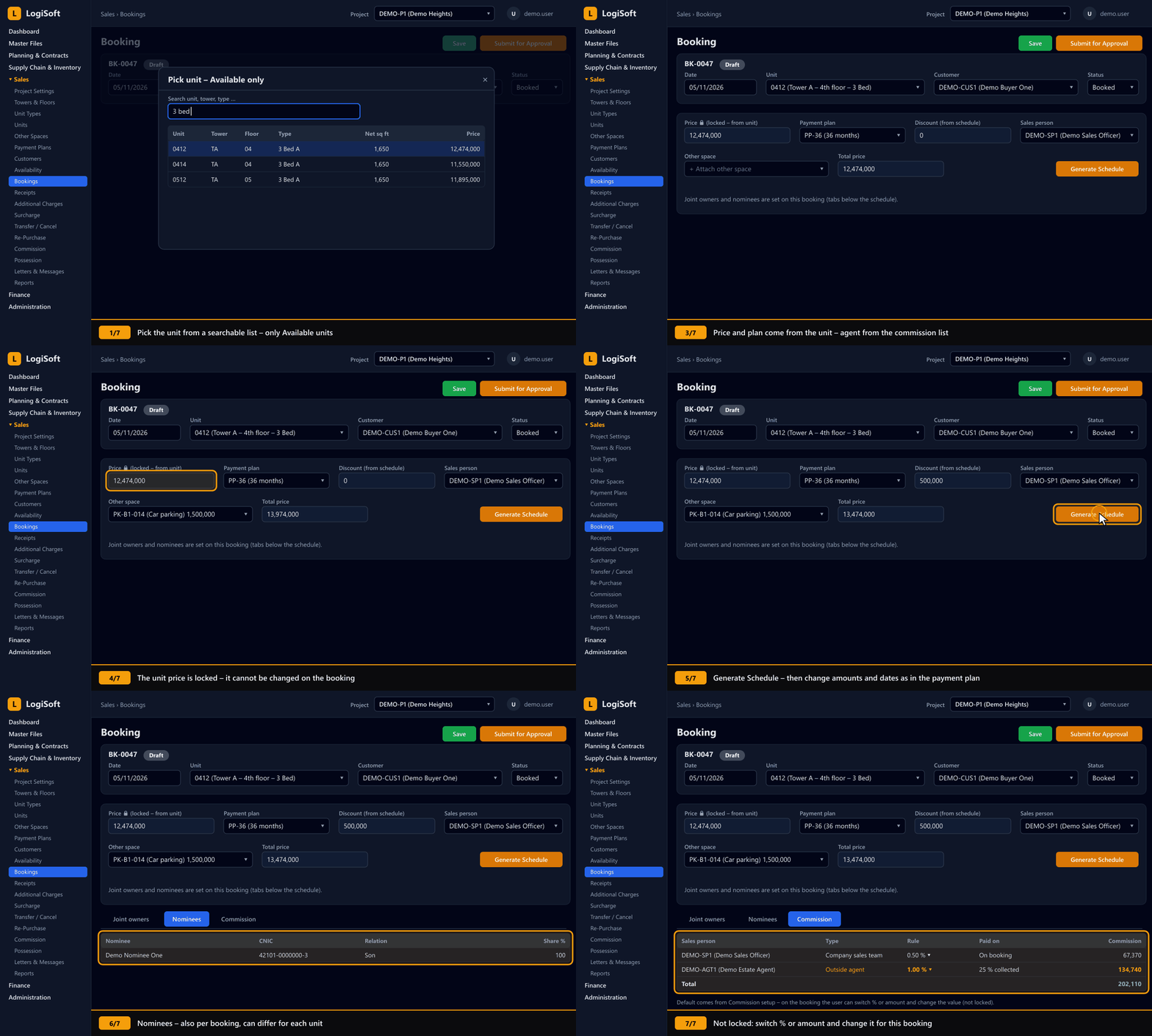
One screen for the whole sale.

How

Pick the unit from a searchable list (Available only) and the customer by name, CNIC or mobile. The unit price comes from the unit and is LOCKED – it cannot be changed on the booking; a discount is NOT typed on top – it is added as a “Discount” charge line in the schedule grid, and the booking shows it read-only. Plan, agent (for commission) and “Attach other space”. Generate Schedule builds the instalments from the plan. Approval through the Approval Master. Joint owners (share %, must total 100), nominees and Commission are tabs on the booking. The Commission tab lists the company sales person(s) and outside agent(s) with their rule (fixed or %), when it is paid (on booking or on % collected) and the amount – by default from the commission setup, but not locked: the user can switch % or amount and change the value on the booking.

Booking

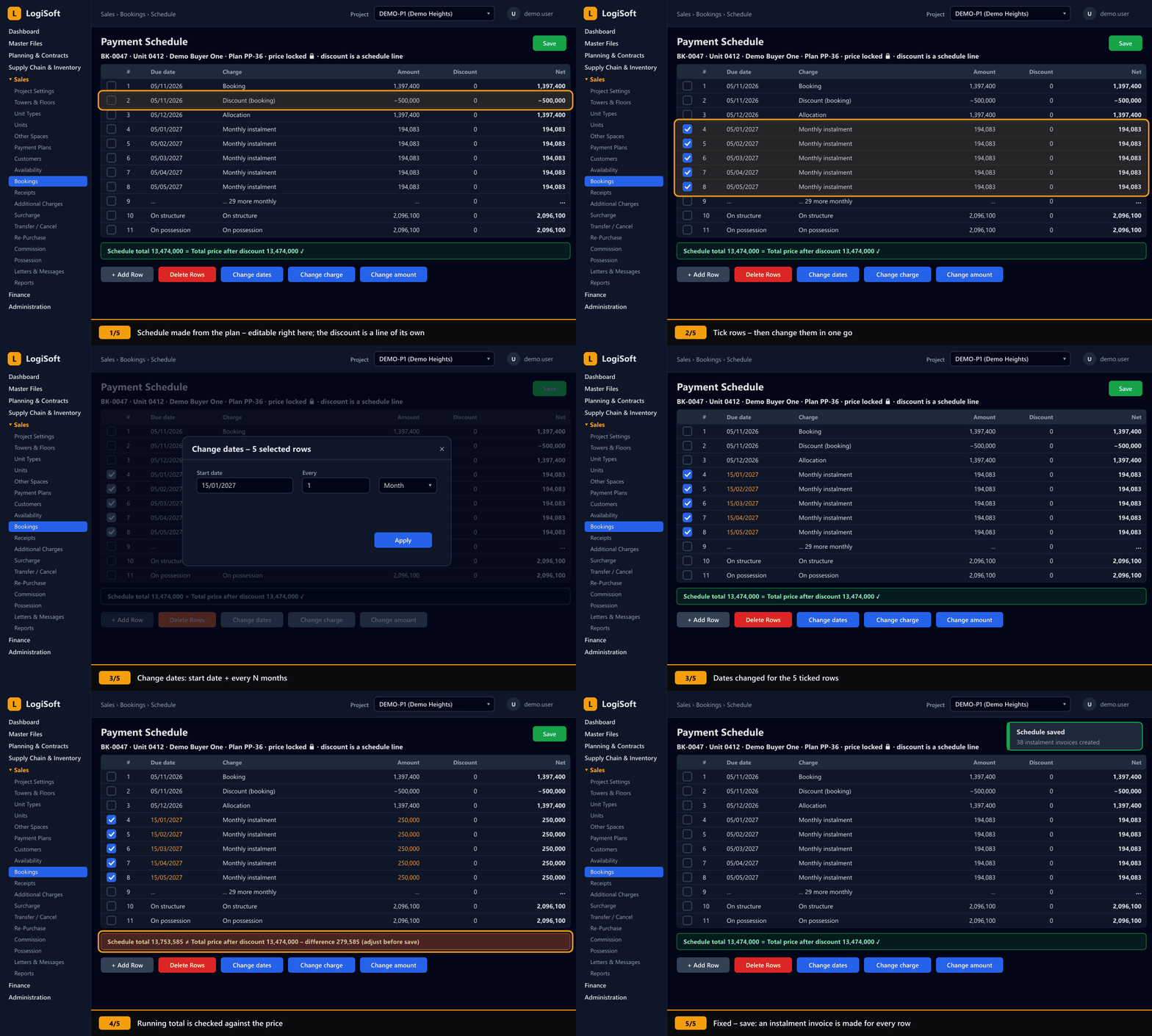
B4Payment schedule – edit in bulk

Where

Bookings › Schedule (right under the booking).

Why

Making a custom schedule must be quick.

How

At booking time the schedule can be changed freely, the same way as the payment plan: click a line to edit every instalment, change the count, amounts or dates. Editable grid: due date, charge, amount, discount. Tick any rows, then Change dates (start date + every N days / months), Change charge or Change amount in one go; add or delete rows. The running total is checked against the total price before saving.

Payment schedule – edit in bulk

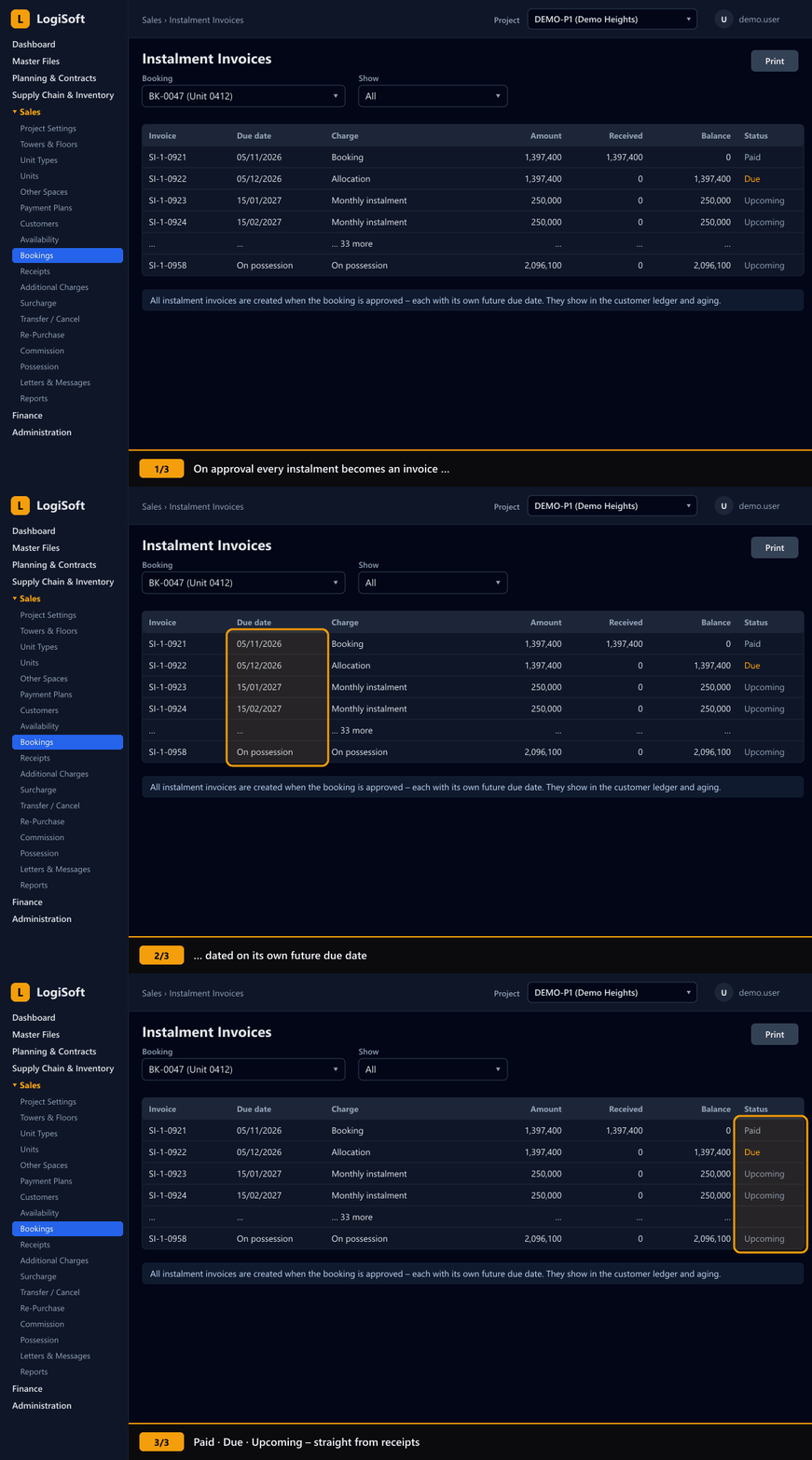
B5Instalment invoices

Where

Sales › Bookings › Instalment Invoices.

Why

Every instalment is a real invoice in the customer ledger and aging.

How

When the booking is approved, every schedule row becomes an invoice dated on its own future due date. Status Paid / Due / Upcoming follows the receipts.

Instalment invoices

Part C

Collections and charges

Money in, extra charges and late-payment rules – all automatic, all with approval.

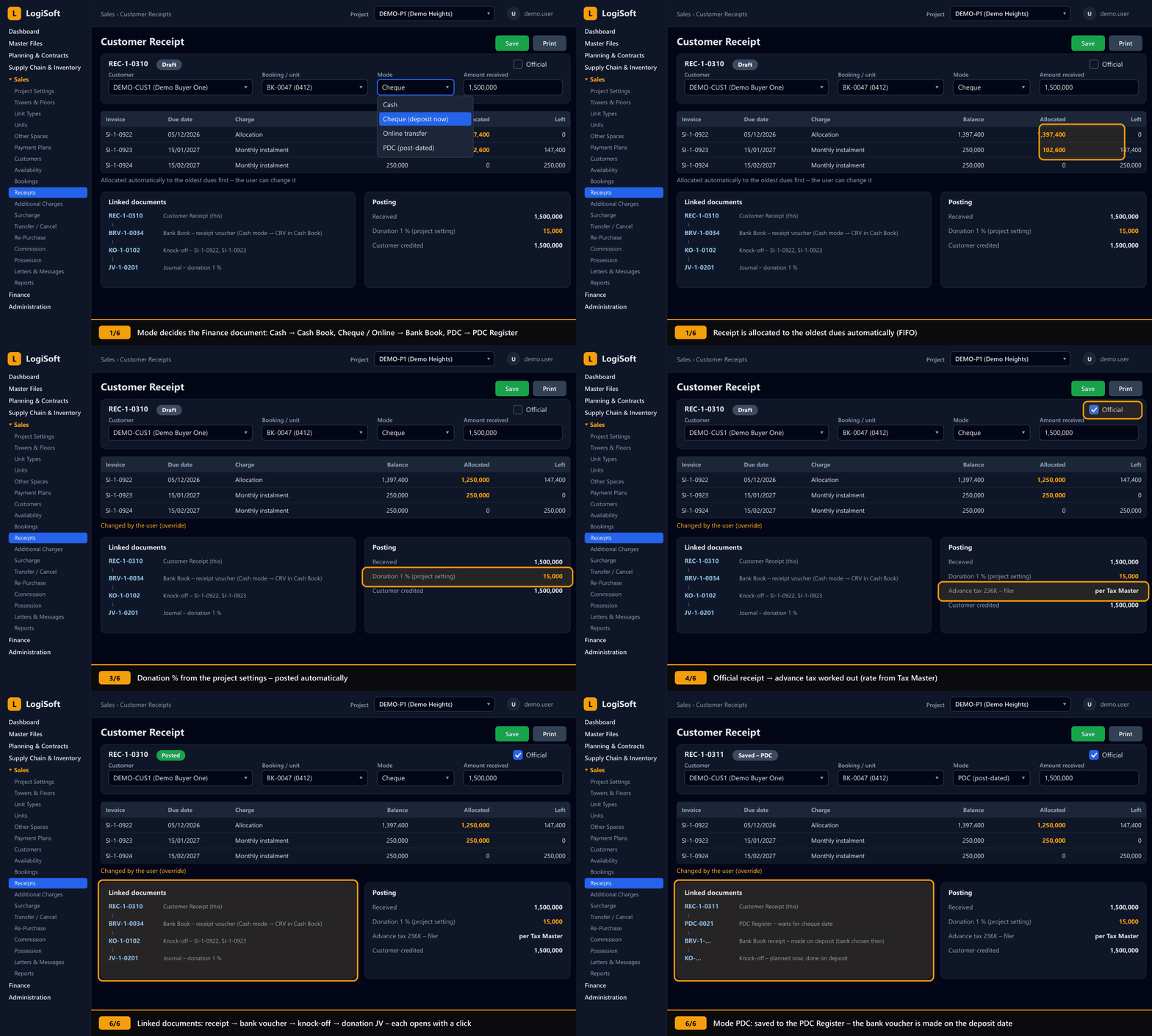
C1Customer Receipt

Where

Sales › Receipts.

Why

One step instead of receipt → voucher → knock-off.

How

Customer, booking, mode (cash / cheque / bank), amount. Allocated automatically to the oldest dues first; the user can change it. Official tick on the receipt; advance tax worked out on Official receipts. Donation line posted from the project settings. Receipt print and SMS / WhatsApp to the customer. Mode decides the Finance document it creates: Cash → Cash Book receipt (CRV), Cheque / Online transfer → Bank Book receipt (BRV), PDC (post-dated) → PDC Register entry (the bank voucher is made on the deposit date, bank chosen then). A “Linked documents” panel shows the chain – receipt → CRV / BRV or PDC → knock-off → donation JV – and each number opens with a click. Entered once here; never re-typed in Finance.

Customer Receipt

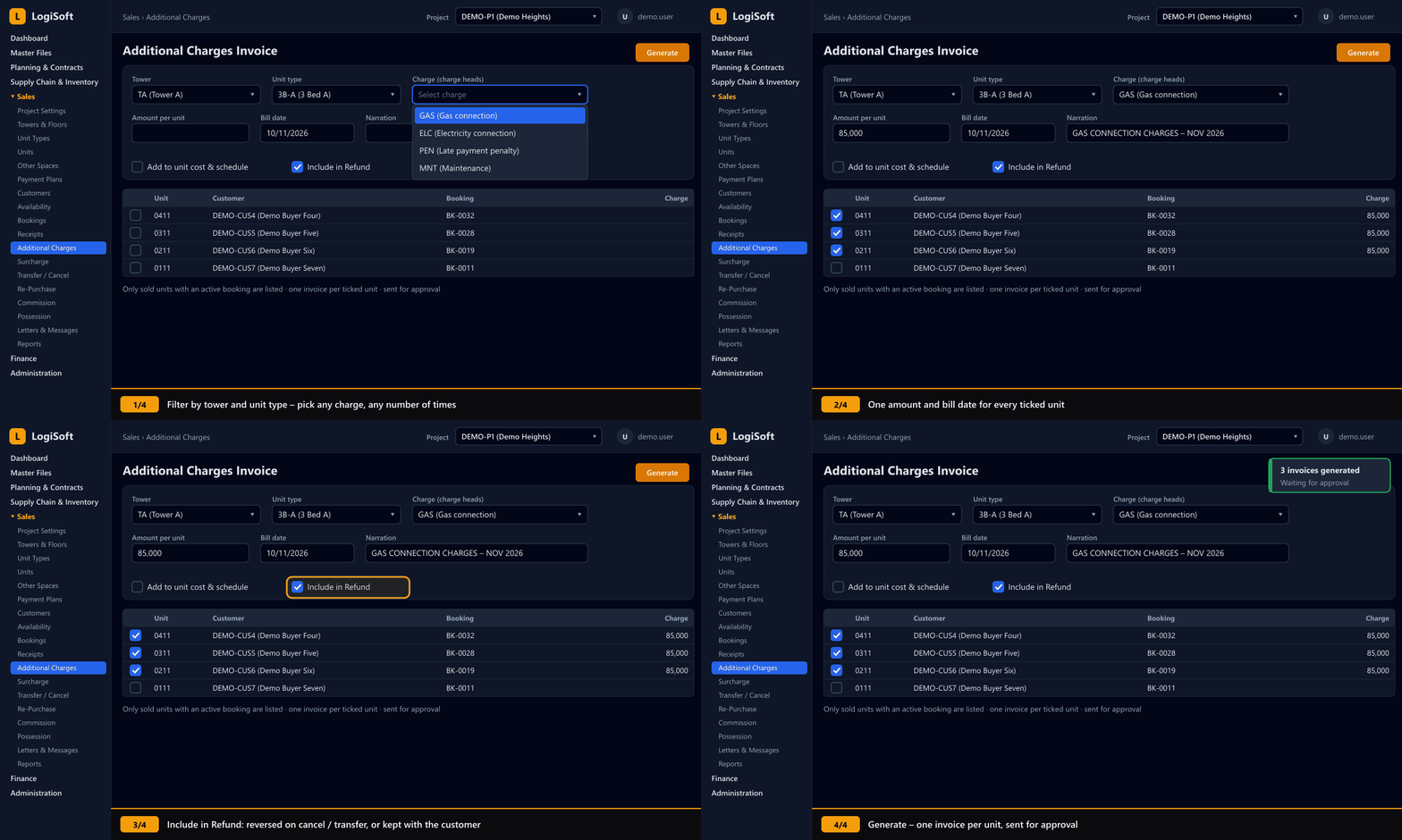
C2Additional Charges Invoice

Where

Sales › Additional Charges.

Why

Gas, electricity, maintenance or any other charge – for many units at once, any number of times.

How

Filter by tower and unit type, pick the charge from the charge heads, one amount and bill date, narration. Options: “Add to unit cost & schedule” and “Include in Refund” (reversed on cancel / transfer, or kept with the customer). Tick units → one invoice per unit, sent for approval.

Additional Charges Invoice

C3Surcharge Policy

Where

Sales › Surcharge › Policy (per project; several policies possible).

Why

Late payment is handled the same way every time – set by your team, not by us.

How

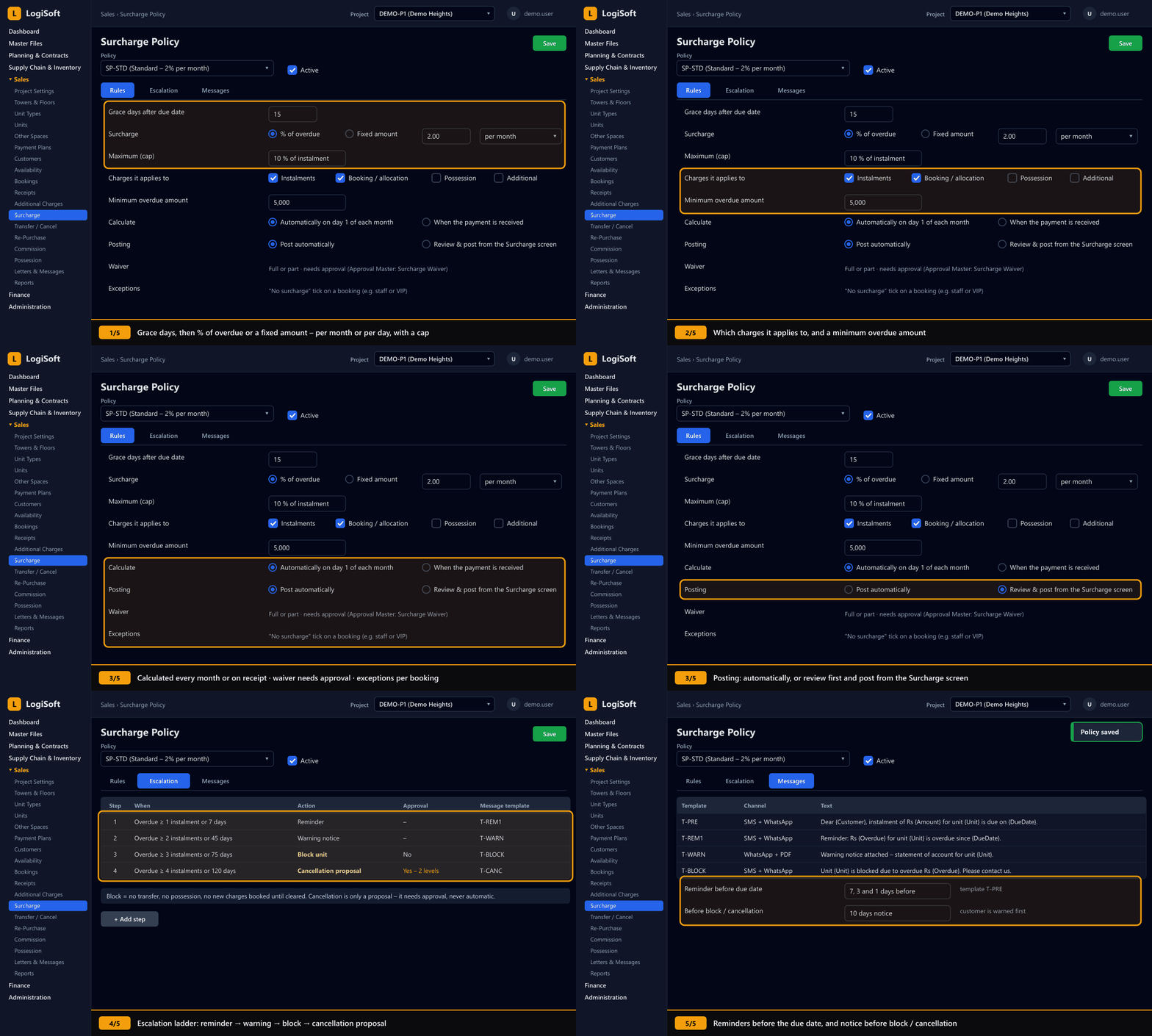
Rules: grace days; % of overdue or fixed amount; per month or per day; cap; which charges it applies to; minimum overdue amount; calculated on day 1 of each month or when payment is received; waiver (full / part) with approval; “No surcharge” exception on a booking. Escalation ladder (add any steps): reminder → warning notice → block unit → cancellation proposal (approval, never automatic). Message template per step, reminders N days before the due date and notice before block / cancellation. Posting: “Post automatically”, or “Review & post from the Surcharge screen” so a user checks the list first.

Surcharge Policy

C4Overdue & Surcharge

Where

Sales › Surcharge › Overdue.

Why

See who is late and act on it.

How

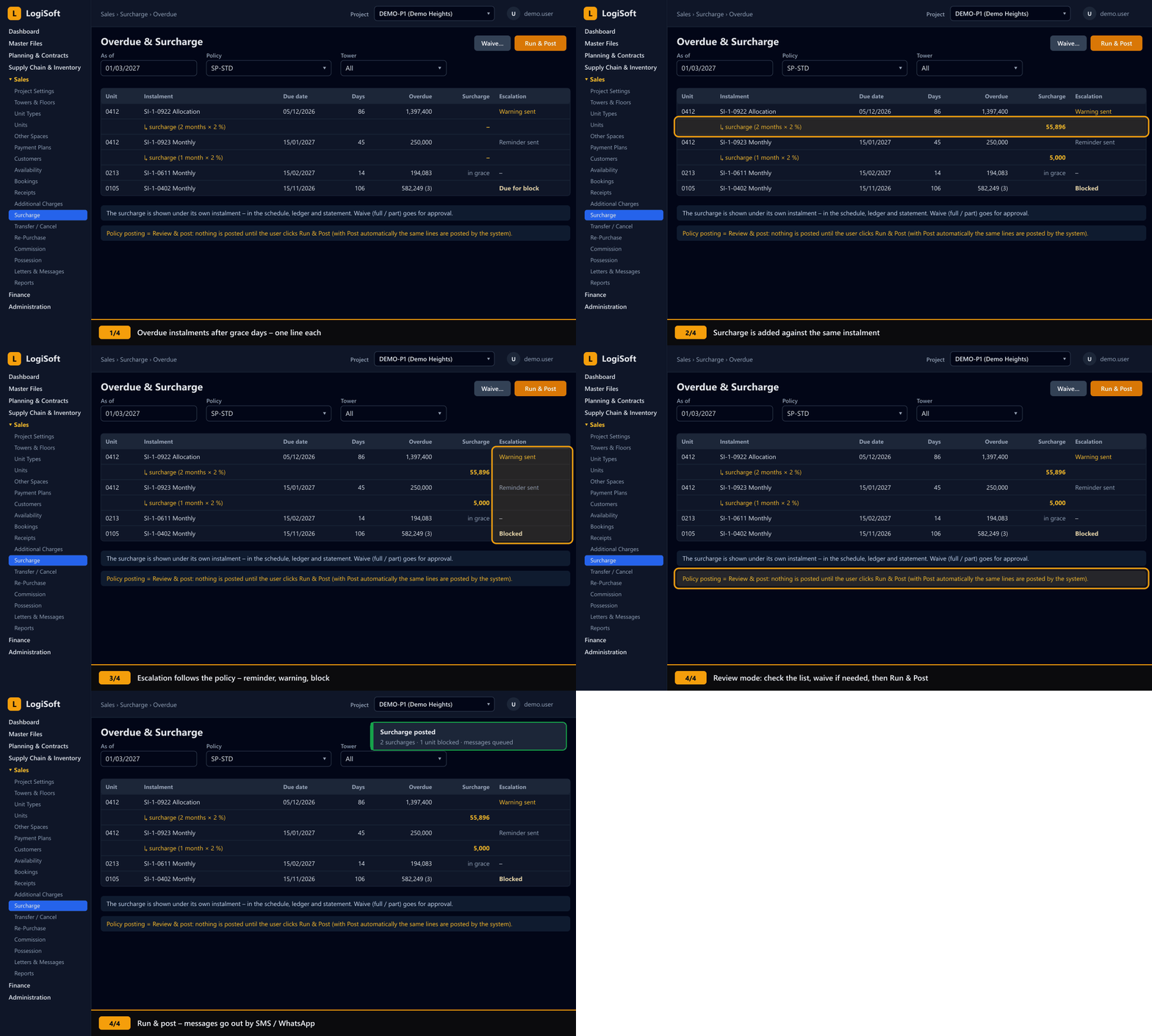
Every overdue instalment after its grace days. The surcharge is added against the same instalment and shows under it in the schedule, ledger and statement. Escalation status per unit; Run & Post creates the surcharges and sends the messages; Waive goes for approval. When the policy is set to review first, nothing is posted until the user clicks Run & Post.

Overdue & Surcharge

Part D

After the sale

Changes of owner, cancellations, new schedules and the final handover – nothing is deleted, everything is kept in history.

D1Unit Transfer

Where

Sales › Transfer / Cancel › Transfer.

Why

A unit changes hands with the right ledger entries.

How

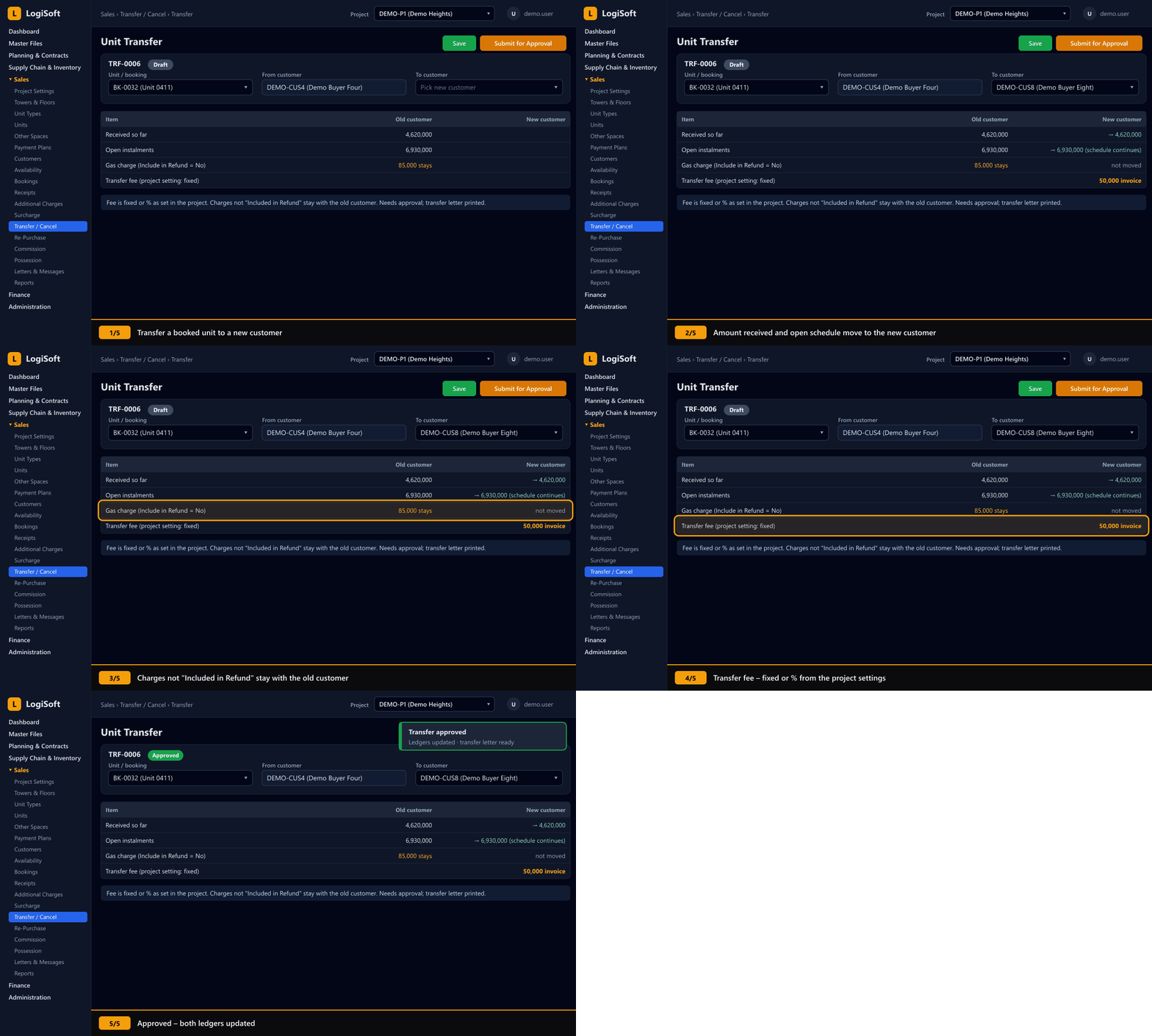
Amount received and the open schedule move to the new customer. Charges not “Included in Refund” stay with the old customer. Transfer fee fixed or % (project setting). Approval; transfer letter printed.

Unit Transfer

D2Cancellation / Re-purchase

Where

Sales › Transfer / Cancel › Cancellation.

Why

Cancellation and buy-back worked out correctly and the same way every time.

How

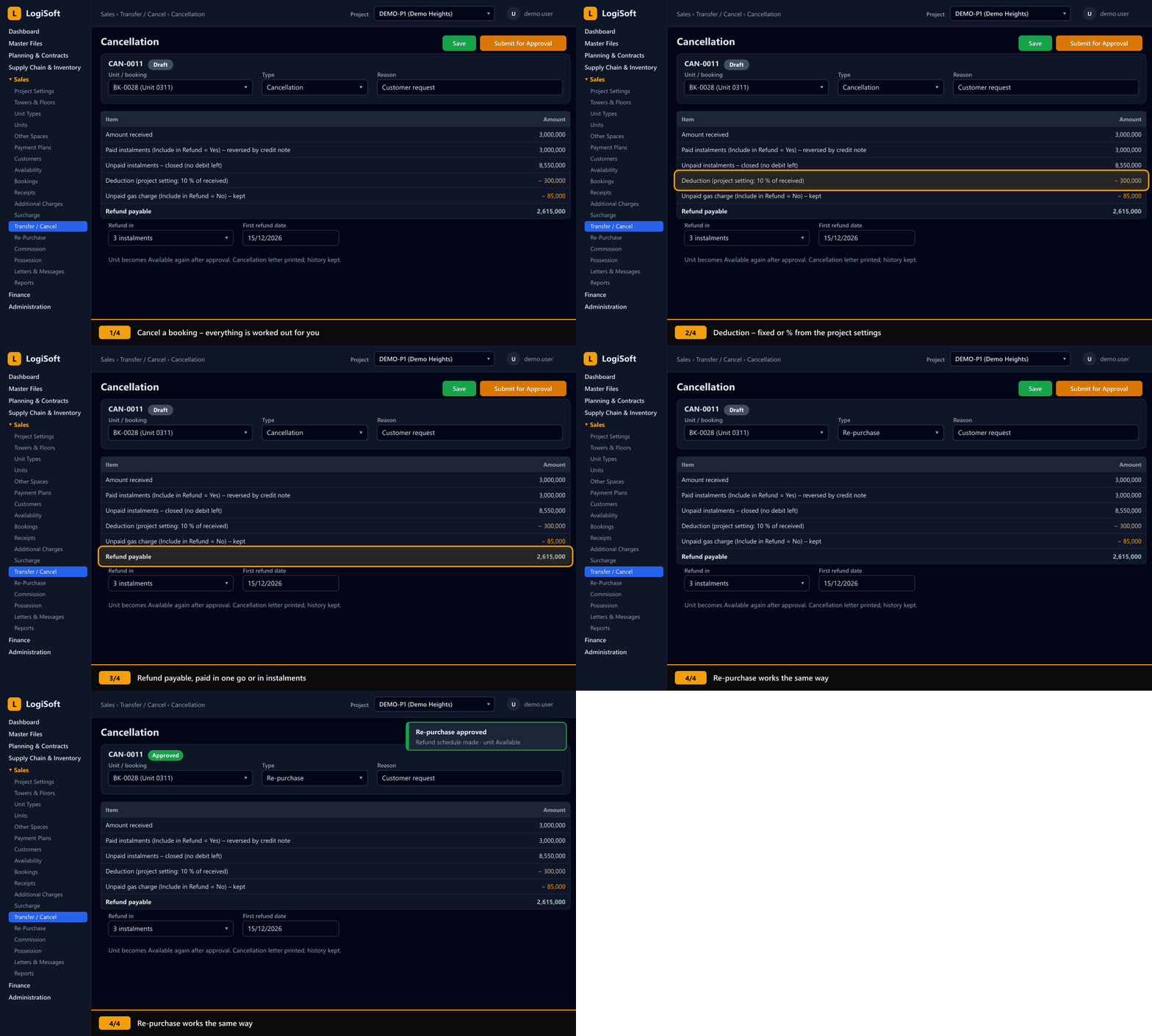
Paid instalments reversed by credit note, unpaid ones closed. Deduction fixed or % (project setting); unpaid charges not “Included in Refund” are kept. Refund payable in one go or in instalments. Re-purchase works the same way. Unit becomes Available after approval; letter printed.

Cancellation / Re-purchase

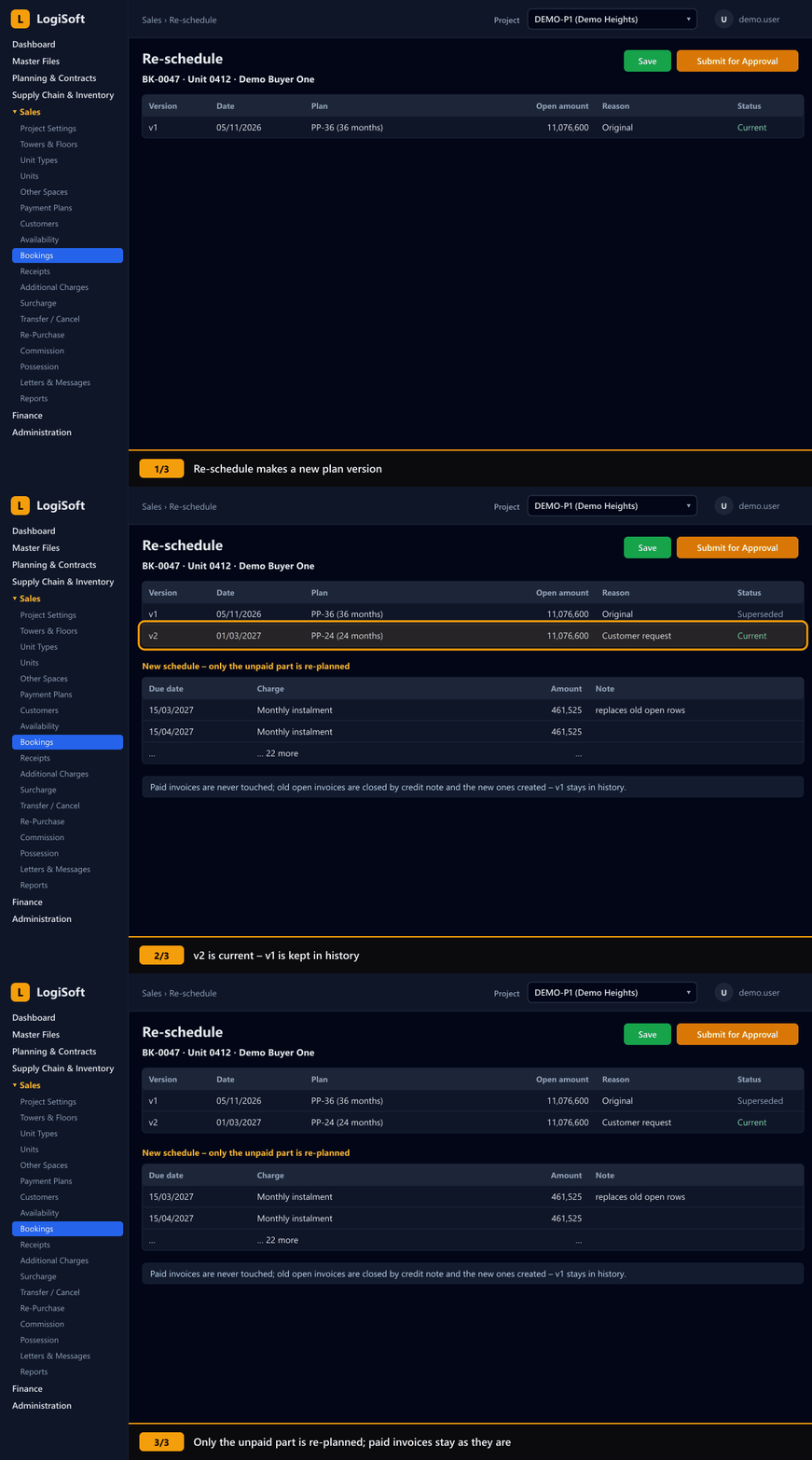
D3Re-schedule

Where

Sales › Bookings › Re-schedule.

Why

Change a customer's plan without losing history.

How

A new plan version (v2) for the unpaid part only; paid invoices are not touched, old open invoices are closed by credit note and new ones created. v1 stays in history. Approval.

Re-schedule

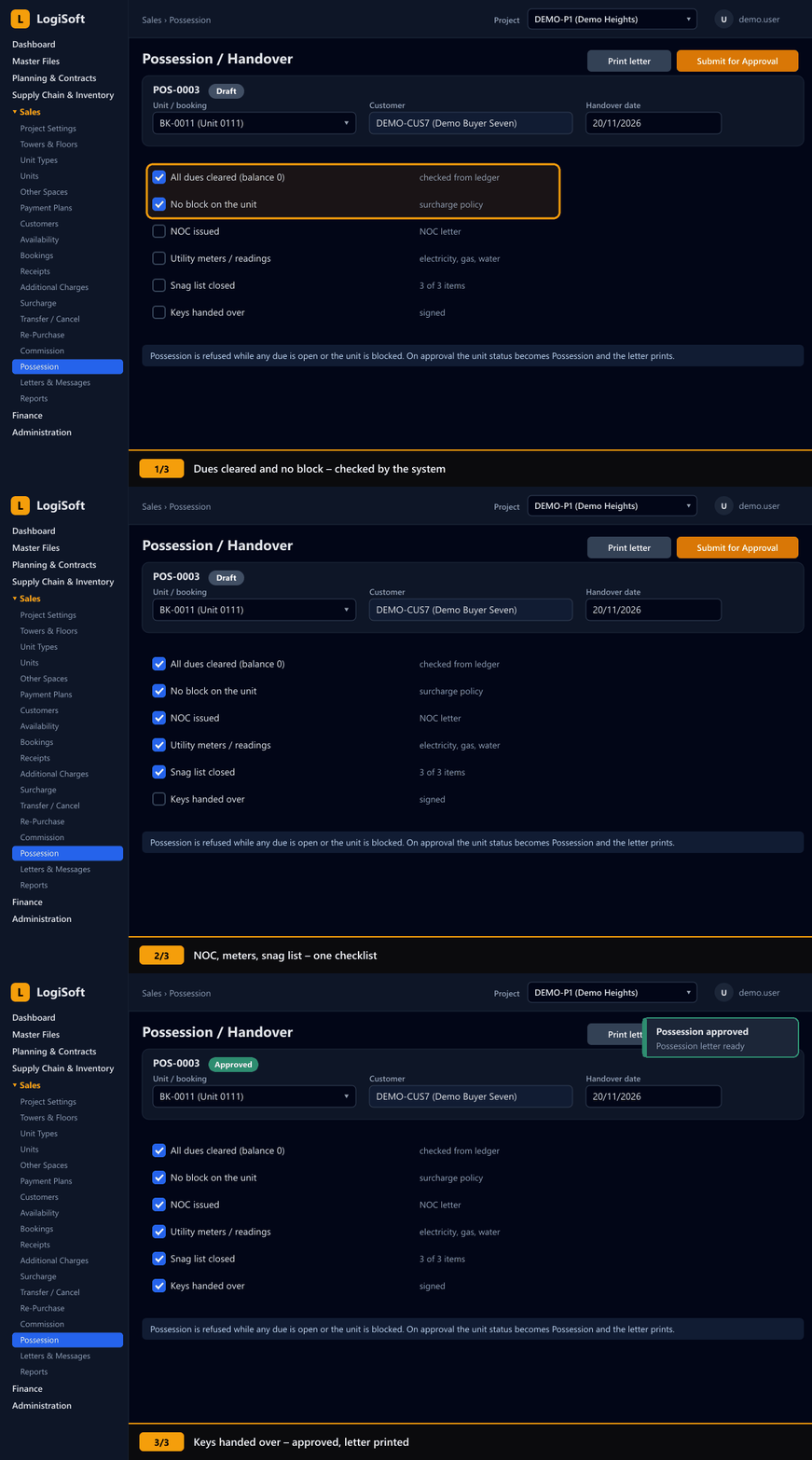
D4Possession / Handover

Where

Sales › Possession.

Why

Hand over only when everything is clear.

How

Checks dues cleared and no block; checklist for NOC, utility meters, snag list, keys. On approval the unit status becomes Possession and the possession letter prints.

Possession / Handover

Part E

Commission, documents and messages

Pay the sales team correctly, print the right letters and keep customers informed.

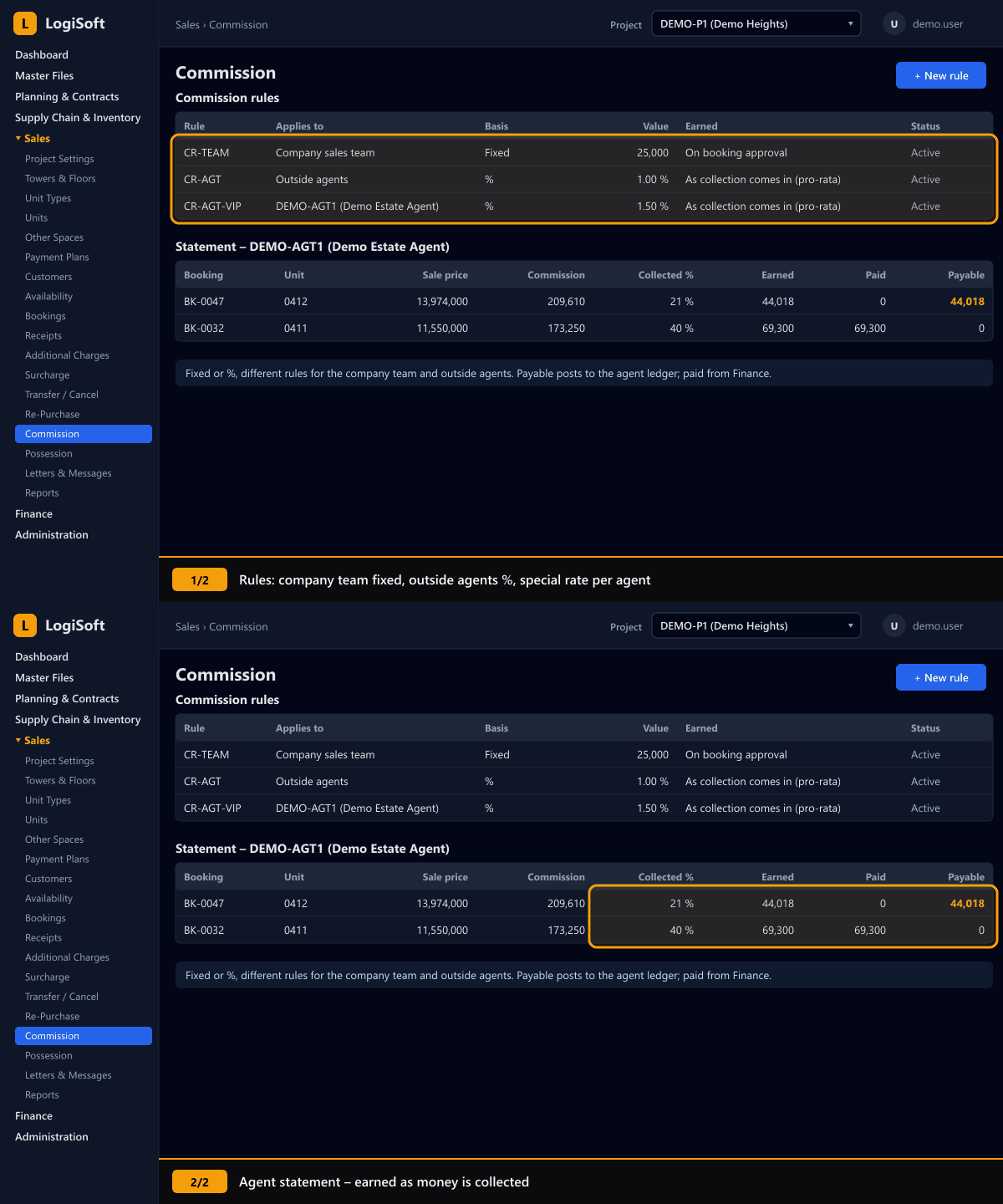
E1Commission

Where

Sales › Commission.

Why

Agents and the sales team are paid by clear rules.

How

Rules for the company sales team and for outside agents – fixed amount or %, earned on booking or as the money is collected, special rate per agent. Agent statement: commission, earned, paid, payable; payable posts to the agent ledger.

Commission

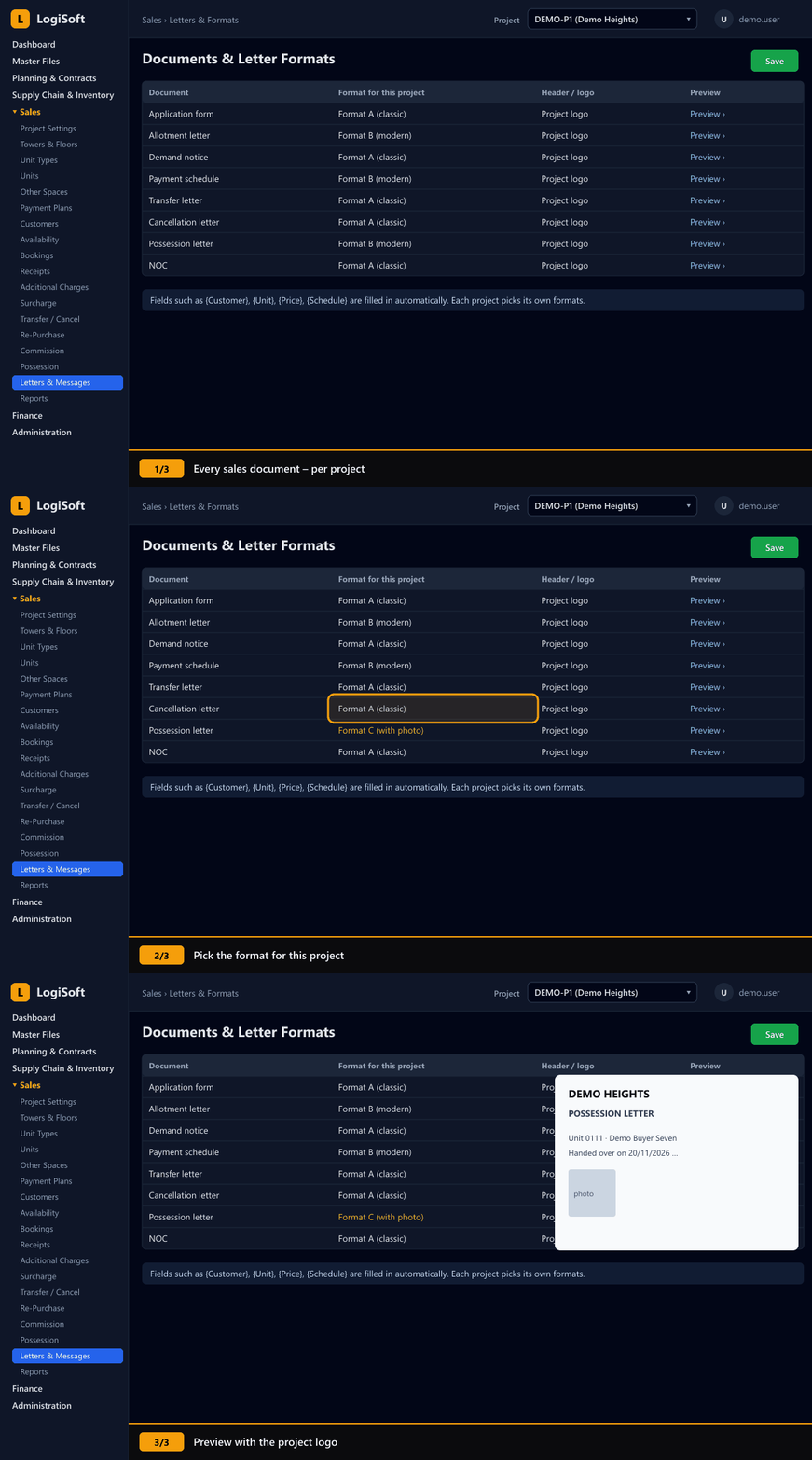
E2Documents & letter formats

Where

Sales › Letters & Messages › Formats.

Why

Every project prints its own letters, with its own logo.

How

Application form, allotment letter, demand notice, payment schedule, transfer, cancellation, possession letter and NOC. Each project picks its format; fields like {Customer}, {Unit}, {Price}, {Schedule} are filled in automatically. Preview before use.

Documents & letter formats

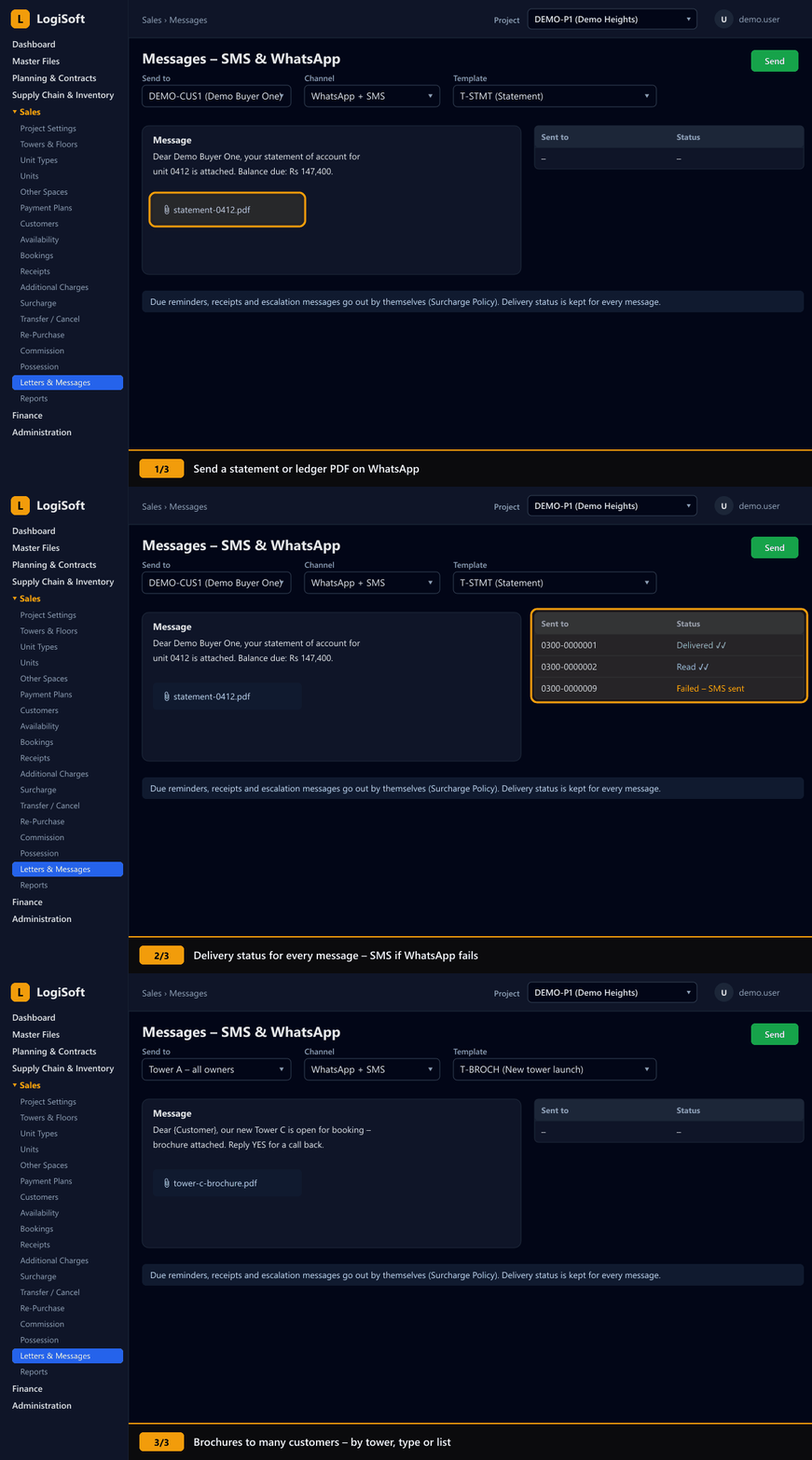
E3Messages – SMS & WhatsApp

Where

Sales › Letters & Messages › Messages.

Why

Customers get statements, reminders and news without a phone call.

How

SMS and WhatsApp templates; send statement or ledger PDFs, brochures to many customers (by tower, type or list). Delivery status for every message; SMS if WhatsApp fails. Due reminders and escalation messages go out by themselves.

Messages – SMS & WhatsApp

Part F

Accounting entries and reports

Entries are posted automatically on final approval. Every entry carries the project and unit; accounts come from the project settings, charge heads and the Tax Master.
DocumentDebitCredit
Booking (approved) → instalment invoicesCustomer (one invoice per instalment, on its due date)Unit sales account (project)
Customer receiptBank / cashCustomer (oldest dues first)
Donation on receipt (project setting)Donation accountDonation payable / bank
Advance tax (Official receipts)As per the Tax MasterAdvance tax payable
Additional charges invoiceCustomerAccount of the charge head
SurchargeCustomer (against the instalment)Surcharge income
TransferOld customer (amount moved) · new customer (fee)New customer · transfer fee income
Cancellation / re-purchaseUnit sales (credit notes) · customer (deduction)Customer · cancellation income · refund payable
Refund paymentRefund payableBank
Commission (as earned)Commission expenseAgent / salesman payable

F1Reports

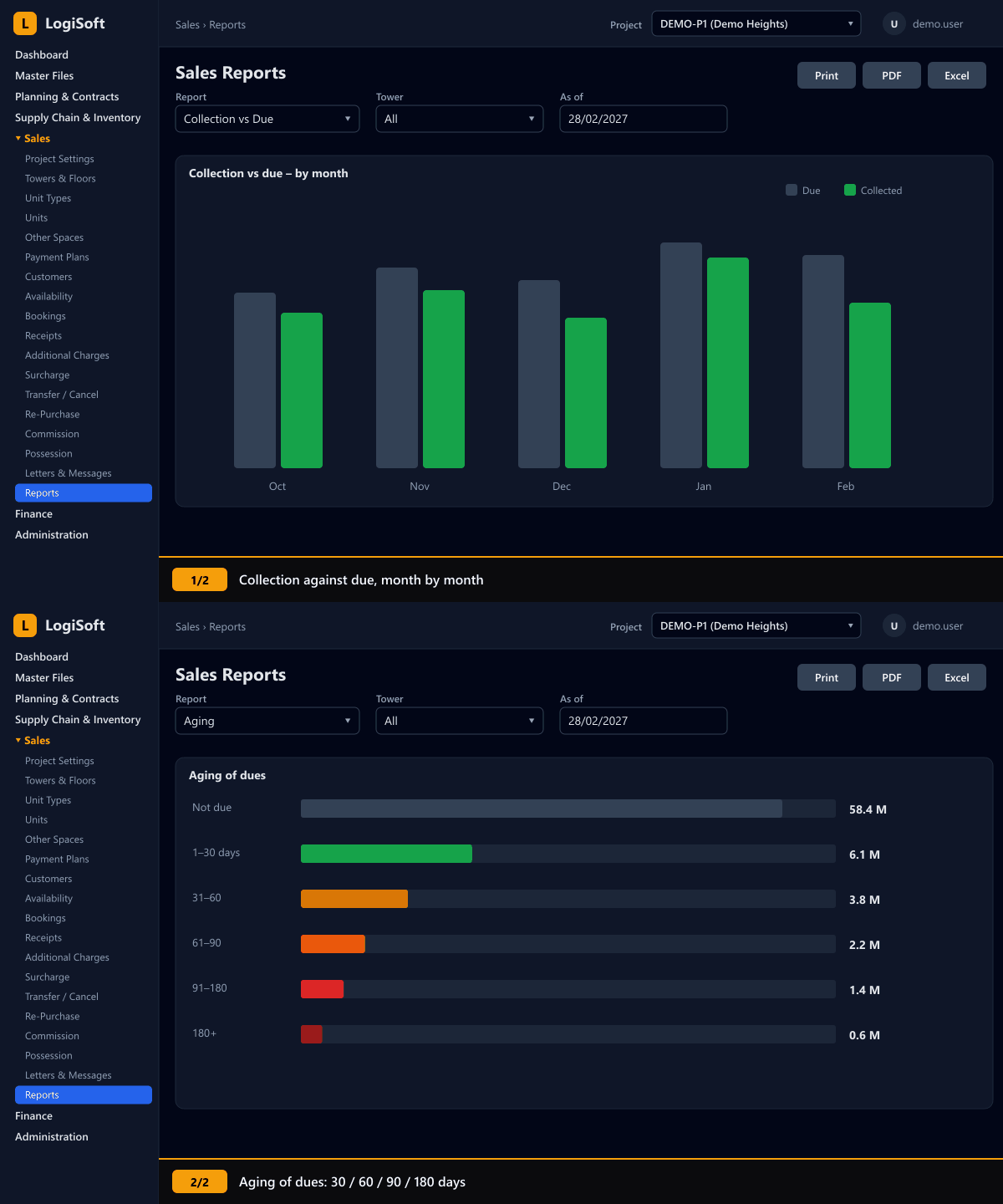
Collection vs due and aging reports
R1Inventory availability by tower, floor and type (Available / Hold / Booked / Sold / Blocked)
R2Sales register – bookings with price, discount, agent and status
R3Collection vs due – by month, tower, agent
R4Aging of dues – 30 / 60 / 90 / 180 days and over, per customer and unit
R5Upcoming dues – next 30 / 60 / 90 days
R6Customer ledger and statement of account (with schedule) – print, PDF or WhatsApp
R7Agent / salesman performance and commission statement
R8Surcharge register – charged, waived, collected; escalation status
R9Transfers, cancellations, re-purchases and refunds
R10Receipt register (Official tick, donation and advance tax columns)

All reports: filters (project, tower, floor, type, customer, agent, dates), print / PDF / Excel, project logo.

Not included

  • Customer portal (statement, schedule and receipts online) – part of the CRM module.
  • Online card / payment-gateway collection.
  • Batching plant (concrete sales) – separate project, not part of this scope.
  • Data of projects other than the one agreed for migration.

Acceptance

The module is accepted when: a tower with units, types and a payment plan is set up → a unit is held and then booked with an agent and a parking → the schedule is changed in bulk and saved → its instalment invoices appear with their due dates → a receipt is allocated to the oldest dues with donation and advance tax → an additional charge is raised for several units → the surcharge policy charges a late instalment and sends the messages → a transfer, a cancellation with refund and a re-schedule are approved with correct ledgers → possession is refused with dues open and allowed when clear → commission and all letters print.

Open points

Please share before development

01

SMS and WhatsApp

Which SMS gateway do you use today (account to connect), and which mobile number should be registered as the WhatsApp Business number?

02

Letters

Please share your current letters (application, allotment, demand, transfer, cancellation, possession, NOC) so the formats match them.

Prepared by Dynamic Software Solution · 05 Nov 2026 · Document version 0.1

Powered by Dynamic Software Solution · www.dynamicsoft.biz